
TinyTask vs OP Auto Clicker: Which Tool Should You Use?
TinyTask and OP Auto Clicker are two of the most downloaded free automation tools for Windows. Both are portable, both are open source, and both help you automate mouse clicks without writing a single line of code.
But they solve fundamentally different problems. TinyTask is a full macro recorder that captures mouse movements, clicks, and keyboard input as a replayable sequence. OP Auto Clicker is a dedicated clicking tool that repeats a single click at a precise interval you define. Picking the wrong one wastes your time. This guide breaks down every meaningful difference so you grab the right tool in under five minutes.
Quick Comparison Table
| Feature | TinyTask | OP Auto Clicker |
|---|---|---|
| File Size | 36 KB | ~1.5 MB |
| Tool Type | Full macro recorder | Auto clicker only |
| Records Mouse Movement | Yes | No |
| Records Keyboard | Yes | No |
| Click Interval Control | No (real-time) | Yes (ms precision) |
| Click Type Selection | As recorded | Single / Double / Triple |
| Mouse Button Choice | As recorded | Left / Right / Middle |
| Compile to EXE | Yes | No |
| Portable | Yes | Yes |
| Open Source | Yes | Yes |
| Price | Free | Free |
| OS Support | Windows XP – 11 | Windows 7 – 11 |
TinyTask at a Glance
Full Macro Recorder in 36 KB
TinyTask records everything you do on your computer — mouse movements, clicks, scrolls, and keyboard strokes — then plays it all back exactly as you performed it. The entire application fits inside 36 kilobytes with no installer required.
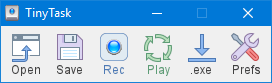
TinyTask toolbar interface – compact macro recorder with full mouse and keyboard capture
Press record, do your task, press stop, press play. That is the whole workflow. TinyTask has been around since the early 2000s and still runs on everything from Windows XP to Windows 11 without compatibility issues.
The standout feature is compiling macros into standalone .exe files. Record a workflow, compile it, and hand the .exe to anyone. They run it without installing TinyTask or any other software. That capability is rare among free tools.
The trade-off: TinyTask records in real time. You cannot set a precise click interval like “click every 50 milliseconds.” You get what you recorded, played back at whatever speed you performed it. A playback speed multiplier (0.5x to 100x) lets you adjust overall tempo, but it scales the entire recording — not individual click gaps. For more on how this works, see our macro recording guide.
OP Auto Clicker at a Glance
Precision Click Automation
OP Auto Clicker does one thing: automated mouse clicking. Originally hosted on SourceForge, it has become one of the most downloaded auto clickers on the internet. The default hotkey is F6 — press it to start clicking, press it again to stop.
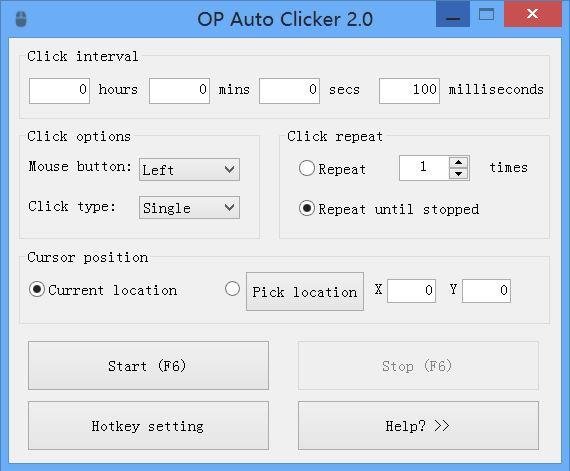
OP Auto Clicker interface – focused click automation with interval and location settings
Where OP Auto Clicker stands out is configuration. You set the exact interval between clicks down to the millisecond. You choose left, right, or middle mouse button. You pick single click, double click, or triple click. And you decide whether the tool clicks wherever your cursor happens to be or at a fixed X/Y coordinate on screen.
The interface is a single window with clearly labeled fields. Set your interval, pick your options, hit F6. Settings persist between sessions, so you only configure once. The file weighs about 1.5 MB and needs no installation.
The limitation is scope. OP Auto Clicker does not record mouse movement. It does not capture keyboard input. It does not play back multi-step sequences. It clicks — repeatedly, precisely, and reliably. Nothing else.
Feature-by-Feature Breakdown
Recording Capabilities
TinyTask wins this outright. It records full sequences of mouse movements, clicks, and keystrokes. You can record a complex multi-step workflow — opening an application, navigating menus, typing text, clicking buttons — and replay the whole thing with a single hotkey.
OP Auto Clicker does not record anything. You configure clicks manually by setting parameters in its interface. If your task involves more than clicking one spot, TinyTask is the only option between these two.
Click Precision and Intervals
OP Auto Clicker wins here. You set click intervals in hours, minutes, seconds, and milliseconds. Need exactly 100 clicks per second? Set the interval to 10ms. Need one click every 30 seconds? Done. You also choose between clicking at the current cursor position or at fixed screen coordinates.
TinyTask does not offer this kind of granular timing control. It records clicks at the speed you performed them, then adjusts overall playback speed with a multiplier. That multiplier scales everything — mouse movements, pauses between clicks, keyboard delays — not just the click intervals.
Keyboard Automation
TinyTask captures keyboard input as part of its recordings. If you type something during recording, it replays those keystrokes on playback. OP Auto Clicker has zero keyboard functionality.
For data entry automation, form filling, or any task that involves typing, TinyTask is the clear choice. You might also want to see how TinyTask stacks up against scripting tools in our AutoHotkey vs TinyTask comparison.
File Size and Portability
Both tools are portable — neither requires installation. But TinyTask is remarkably smaller at 36 KB versus OP Auto Clicker’s ~1.5 MB. Both fit on any USB drive with room to spare.
TinyTask also supports compiling macros to standalone .exe files, which means you can share automated tasks with anyone who has a Windows PC. No extra software needed on their end. Check out our portable edition guide for more on running TinyTask from USB.
Ease of Use
Close to a tie. TinyTask has six buttons. Press record, do your thing, press stop, press play. OP Auto Clicker has a clean single-window interface where you fill in a few fields and press a hotkey. Both tools can be figured out in under a minute.
The slight edge goes to TinyTask for absolute beginners because it requires zero configuration. You just record and replay. OP Auto Clicker asks you to set an interval, choose a click type, and pick a location mode before you start.
Gaming Use
This depends on the game. For incremental and idle games where you need fast, precise clicking at a fixed spot, OP Auto Clicker is the better fit. Games like Cookie Clicker or Roblox clicker games benefit from its millisecond-level interval control.
For games where you need to perform a sequence of actions — clicking multiple menus, moving between locations, entering text — TinyTask handles that better since it records full workflows. Many Minecraft players prefer the macro approach for repetitive crafting and farming sequences.
TinyTask: Pros and Cons
Pros
- Records full mouse + keyboard sequences
- Smallest file size at 36 KB
- Compile macros to standalone .exe files
- Zero configuration needed to start
- Supports Windows XP through 11
- Multi-point click sequences built in
- Playback speed multiplier (0.5x – 100x)
Cons
- No precise millisecond interval control
- Cannot choose click type (single/double/triple)
- Cannot pick specific mouse button per action
- Click speed limited to recording speed
- No fixed-coordinate click mode
OP Auto Clicker: Pros and Cons
Pros
- Precise millisecond click intervals
- Left, right, or middle button selection
- Single, double, or triple click modes
- Fixed screen coordinate clicking
- Simple one-hotkey operation (F6)
- Settings persist between sessions
Cons
- No mouse movement recording
- No keyboard automation
- Cannot record multi-step sequences
- Cannot compile macros to .exe
- Only supports Windows 7 and later
- Larger file size (~1.5 MB)
When to Use TinyTask
TinyTask is the right pick when your task goes beyond simple clicking:
- Multi-step workflows — Recording a sequence that involves mouse movement, clicks, and typing across different applications
- Data entry automation — Filling forms, copying and pasting between fields, navigating spreadsheets
- Sharing macros — Compiling recordings to .exe files and sending them to coworkers or friends
- Quick one-off tasks — Recording something once and replaying it 50 times without any setup
- Keyboard-heavy tasks — Anything that requires typing as part of the automated sequence
TinyTask also works well as a general-purpose auto clicker when you do not need precise interval control. Record yourself clicking a spot, set the loop count, and let it run.
When to Use OP Auto Clicker
OP Auto Clicker is the better choice when your entire need boils down to clicking:
- Precise click timing — When you need clicks at an exact interval (e.g., every 50ms or every 5 seconds)
- Idle and clicker games — Cookie Clicker, Roblox clicker games, or any game that rewards fast clicking
- Fixed-position clicking — Clicking the same screen coordinate repeatedly without keeping your cursor there
- Click type control — Switching between single, double, or triple clicks with left, right, or middle button
- Set-and-forget clicking — Running clicks in the background with a hotkey toggle
If your workflow only requires clicking and you need fine-grained control over timing, OP Auto Clicker is purpose-built for that job. For a broader list of similar tools, see our roundup of browser-based auto clicker extensions.
Can You Use Both Together?
Yes. TinyTask and OP Auto Clicker do not compete for the same system resources. They are both lightweight, both portable, and both run without installation. Keeping both on your machine (or on the same USB drive) gives you flexibility.
A practical setup: use OP Auto Clicker when you need rapid, precise clicking at a single point. Switch to TinyTask when the task involves movement, keystrokes, or multi-step sequences. Some users even run them side by side — OP Auto Clicker handling fast clicks while TinyTask manages a broader workflow around it.
Pro tip: Make sure their hotkeys do not overlap. TinyTask uses Ctrl + Alt + Shift + R/P for record and play. OP Auto Clicker defaults to F6. No conflict out of the box.
Since TinyTask is only 36 KB and OP Auto Clicker is under 2 MB, there is no storage reason to pick one over the other. Grab both and use whichever fits the task at hand.
What Reddit Users Say
Reddit threads about auto clickers and macro tools come up constantly in gaming and software communities. Here is how actual users weigh in on each tool.
TinyTask gets praise for its simplicity and zero-config approach. In r/software and r/incremental_games, users call it “perfect for simple macros” and recommend it to anyone who does not want to learn scripting. The compile-to-EXE feature gets mentioned often as a standout. The main complaint is that TinyTask records at real-time speed, so users who need extremely fast clicking (100+ CPS) hit a ceiling.
OP Auto Clicker is the default recommendation in r/antivirus safety threads — most users confirm it is clean and safe when downloaded from the official SourceForge page. Gaming communities (r/growagarden, r/bloxfruits) recommend it for idle games. The most common warning: download only from the official source, because copycat sites sometimes bundle adware.
When both tools come up in the same thread, the consensus is straightforward. Use TinyTask when you need to record and replay a sequence. Use OP Auto Clicker when you just need fast, repetitive clicks at one spot. Nobody argues one is universally “better” — they serve different purposes. For an alternative perspective, our AlphaClicker review covers another option worth considering.
Frequently Asked Questions
Is OP Auto Clicker safe to download?
OP Auto Clicker is safe when you download it from the official SourceForge page or opautoclicker.com. Multiple Reddit threads in r/antivirus confirm it is clean. The official version is open source, portable, and does not require admin permissions to run.
Avoid third-party download sites that repackage the installer with bundled adware. Stick to the official source and you will be fine.
Can TinyTask do everything OP Auto Clicker does?
TinyTask can automate clicks, but it lacks the precise interval control that OP Auto Clicker provides. With TinyTask, you record clicks at the speed you perform them and adjust playback speed afterward with a multiplier. You cannot set an exact millisecond gap between individual clicks.
TinyTask also cannot let you pick left/right/middle button or single/double/triple click modes through a menu. It records whatever button and click type you used during recording. If precise click configuration is your main requirement, OP Auto Clicker handles that better.
Which tool is better for Roblox?
It depends on the Roblox game. For clicker-style games that reward fast clicking at a single point, OP Auto Clicker gives you precise timing control down to the millisecond. For games that require a sequence of actions — moving, clicking different spots, typing in chat — TinyTask is more useful because it records the full workflow.
Many players keep both tools available and switch based on the game. See our Roblox auto clicker guide for more options.
Will using an auto clicker get me banned in games?
That depends entirely on the game’s terms of service. Most online multiplayer games prohibit automation tools, and using either TinyTask or OP Auto Clicker could result in a ban if detected. Games with aggressive anti-cheat systems (Valorant, Fortnite, Roblox) actively scan for automated input patterns.
Single-player and offline games generally have no such restrictions. Always check the specific game’s rules before using any automation tool, and use them at your own risk in competitive environments.
Can I run TinyTask and OP Auto Clicker at the same time?
Yes. Both tools are lightweight and do not conflict with each other. You can run OP Auto Clicker for precise clicking on one spot while TinyTask handles a separate recorded macro. Their default hotkeys are different — TinyTask uses Ctrl + Alt + Shift shortcuts while OP Auto Clicker defaults to F6 — so there is no overlap.
Do these tools work on Mac or Linux?
TinyTask is Windows-only (XP through 11). OP Auto Clicker also primarily targets Windows (7 through 11), though there are separate mobile apps with the same branding for Android and iOS. Neither tool runs natively on Mac or Linux.
For Mac, the closest alternatives are Automator (built-in) or Keyboard Maestro. For Linux, xdotool or AutoKey handle click and keyboard automation. Running either tool through Wine is technically possible but unreliable for mouse coordinate mapping.
Final Verdict
Choose TinyTask If…
- You need full macro recording (mouse + keyboard)
- Your task has multiple steps or applications
- You want to compile macros as shareable .exe files
- You prefer the smallest possible file size (36 KB)
- You want zero-configuration recording
Choose OP Auto Clicker If…
- You only need automated clicking (no keyboard, no movement)
- Precise millisecond intervals matter to you
- You want to click a fixed screen coordinate
- You need single/double/triple click and button selection
- You play idle or clicker games regularly
Both tools are free, portable, open source, and safe. There is no wrong choice — just a better fit depending on what you actually need. For most people who want general-purpose automation, TinyTask covers more ground because it handles sequences, keystrokes, and compiled macros. For dedicated click automation with precision timing, OP Auto Clicker is purpose-built for exactly that.
Want to try both? Download TinyTask (36 KB, runs instantly) and grab OP Auto Clicker from its official SourceForge page. Five minutes with each tool will tell you everything this article cannot.