
How to Use TinyTask for Roblox: AFK Farming, Macros, and Ban Risks Explained
TinyTask is a 36 KB macro recorder that Roblox players have been using for years to automate grinding, AFK farming, and repetitive clicking in games like Pet Simulator 99, Grow a Garden, Blox Fruits, and Anime Fighters. It records your mouse movements and keyboard inputs, then plays them back on a loop – no coding, no scripts, no installation required.
This guide covers everything: downloading TinyTask, recording your first Roblox macro, the best games to automate, actual ban risks backed by community data, troubleshooting common problems, and safer alternatives when TinyTask falls short.
TinyTask is not a Roblox exploit or cheat engine. It replays mouse and keyboard inputs at the operating system level. It never touches Roblox files, injects code, or modifies game memory. This distinction matters when evaluating ban risk.
What Is TinyTask and Why Do Roblox Players Use It?
TinyTask is a free, portable Windows application that records and replays mouse movements, clicks, and keyboard inputs. The entire program is a single 36 KB executable – you download it, double-click to launch, and a small toolbar appears on your screen. No installer, no dependencies, no admin privileges needed.
The reason Roblox players gravitate toward TinyTask comes down to one thing: grinding. Most popular Roblox games are built around repetitive loops. Hatch eggs for hours to get a rare pet. Click the same button 5,000 times to level up a skill. Walk the same route over and over to collect resources. These mechanics are designed to keep you playing, but they stop being fun after the first 20 minutes.
TinyTask records a short sequence of those actions – say, 10 seconds of clicking and moving – and replays it on a continuous loop. You set it up, walk away, and come back to find hours worth of grinding done automatically. The most common use cases include:
- AFK farming – letting the macro grind resources, XP, or currency while you sleep or do homework
- Auto-clicking – rapid clicking on a single target (egg hatchers, breakables, NPCs) without wearing out your mouse finger
- Anti-AFK bypass – recording small movements every few seconds to prevent Roblox’s 20-minute idle disconnect
- Menu automation – repeating sequences like opening a shop, buying an item, closing the shop, waiting for stock refresh
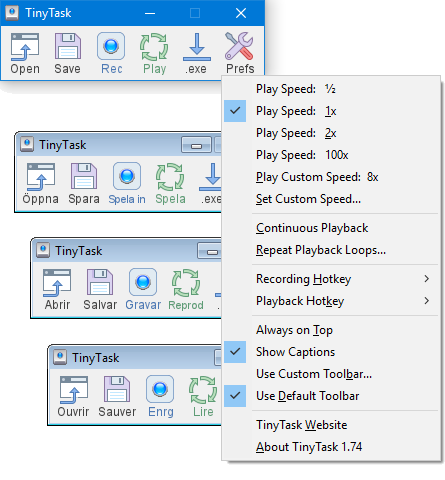
TinyTask’s toolbar and right-click context menu with multilingual support
How to Download and Set Up TinyTask for Roblox
There is no special “Roblox edition” of TinyTask. The same 36 KB program works for Roblox, desktop apps, browsers, and anything else on your screen. Here is how to get started:
1 Download TinyTask
Grab TinyTask v1.77 from the download section on our homepage. You can choose the standalone .exe file (36 KB) or the .zip archive. Both are identical – the zip just adds a folder wrapper.
File details: TinyTask v1.77 • 36 KB • Windows XP through Windows 11 • No installation required
2 Launch TinyTask
Double-click TinyTask.exe to open it. A small toolbar will appear at the top of your screen with buttons for Record, Play, Stop, Save, and Open. If Windows SmartScreen pops up a warning, click More info then Run anyway – this happens because the file is not digitally signed, not because it contains anything harmful.
3 Learn the Hotkeys
You will control TinyTask with keyboard shortcuts so your toolbar clicks do not get recorded into the macro. The default hotkeys are:
- Ctrl + Shift + Alt + R — Start / stop recording
- Ctrl + Shift + Alt + P — Start / stop playback
These work globally, meaning they fire even when Roblox is in the foreground and TinyTask’s toolbar is behind it.
4 Configure Roblox Window
Open Roblox and join the game you want to automate. Before recording anything, switch to windowed mode by pressing F11 if you are in fullscreen. Position the Roblox window in a consistent spot – top-left corner of your monitor is a good default. TinyTask records absolute screen coordinates, so the window must be in the exact same position during recording and playback.
Also go to Roblox Settings (Esc → Settings) and set Graphics Quality to a fixed level (not Auto). This prevents FPS fluctuations from throwing off your macro timing.
5 Record Your Macro
Press Ctrl + Shift + Alt + R to start recording. Perform the actions you want to automate – clicking on eggs, walking a farming route, pressing buttons. Move deliberately with small pauses between actions. When you are done, press the same hotkey to stop recording.
Pro tip: Keep recordings between 5 and 30 seconds. A short loop repeated 10,000 times is far more reliable than a 5-minute recording played back a few times. Shorter loops have fewer points where timing can drift.
6 Save and Play
Click Save on the toolbar and save your macro as a .rec file (e.g., pet-sim-egg-farm.rec). To loop it continuously, click the dropdown arrow on the toolbar and enable Continuous Playback. Then press Ctrl + Shift + Alt + P to start. The macro repeats until you press the hotkey again.
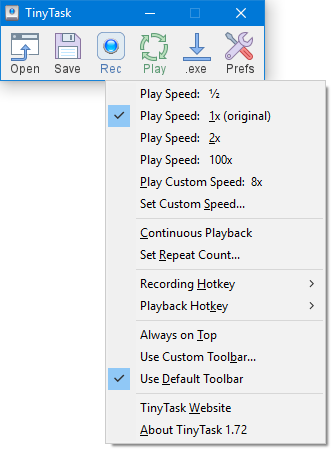
Right-click the TinyTask toolbar to access compile, playback speed, and continuous loop options
Best Roblox Games for TinyTask Macros
TinyTask works with any Roblox game, but some games benefit far more than others. Games with fixed UI elements, stationary click targets, and heavy grinding mechanics are ideal. Games with fast movement, dynamic camera angles, or PvP combat are poor candidates because the macro cannot adapt to changing conditions.
Here are the games where TinyTask is most commonly used, based on Reddit discussions, YouTube tutorials, and community guides from 2025-2026:
Grow a Garden
The hottest macro target in 2025-2026. Record harvest loops to collect crops overnight, or set up seed shop sniping macros that refresh the shop at timed intervals to grab rare seeds like bamboo, dragonfruit, and coconut.
Low Ban Risk
Pet Simulator 99
Use floor sweep macros (slow side-to-side mouse movement while auto-clicking) to break everything in an area. Also works for big chest routes, key mastery grinding, and merchant auto-buy loops. Has the most dedicated YouTube tutorial community.
Medium Ban Risk
Bloxburg
Automate job tasks like pizza delivery and cashier work. Record the click sequence for accepting orders, driving routes, and delivering. Bloxburg has its own anti-AFK detection, so keep macros under 2 hours per session.
Medium-High Risk
Anime Fighters Simulator
One of the most macro-friendly games. The dev team has reportedly confirmed that simple autoclickers and macro recorders are allowed as long as they do not inject code. Great for AFK boss farming and overnight unit fusing.
Low Ban RiskMore Games Compatible with TinyTask
| Game | What to Automate | Macro Type | Risk Level |
|---|---|---|---|
| Blox Fruits | Static NPC attack farming, material collecting at fixed spawn points | Click loop on stationary target | Medium |
| Bee Swarm Simulator | Pollen collecting, AFK honey farming routines | Movement + click loop | Low |
| Anime Last Stand | Stage farming – place towers, start waves, repeat after completion | Click sequence + wait | Low |
| The Forge | Overnight resource farming – confirmed working with real progression posted to Reddit | Click + movement loop | Low |
| Jailbreak | Arrest farming for in-game cash – documented by prominent Roblox creators | Movement + action loop | Medium |
| Tower Defense Simulator | Coin grinding through match automation | Click sequence loop | High |
| Shindo Life | Bloodline spin automation, AFK training sessions | Click loop on spin button | Medium |
| King Legacy | AFK mob grinding with auto-attack loops | Click + hold attack loop | Medium |
Tower Defense Simulator carries the highest ban risk. TDS developers have been documented wiping player data specifically for macro use. If you value your TDS progress, avoid automating this game entirely.
Will TinyTask Get You Banned in Roblox?
This is the question every Roblox player asks before using TinyTask, and the answer requires separating Roblox platform enforcement from individual game enforcement – because they operate very differently.
What Roblox’s Terms of Service Actually Say
Roblox’s “Cheating and Exploiting” support page states that third-party software used to cheat or gain unfair advantages violates the Terms of Use and “will lead to the deletion of an account.” The Creator Third-Party App Policy explicitly bans “executing automated in-game actions such as movements” on behalf of users.
On paper, this covers TinyTask. In practice, enforcement is a different story.
How Roblox’s Anti-Cheat (Hyperion) Actually Works
Roblox uses Hyperion (developed by Byfron Technologies) as its primary anti-cheat system. Hyperion was integrated into the Roblox 64-bit client in May 2023 and targets a very specific category of cheats: modified clients, exploit executors, injected code, memory reading/writing tools, and binary modifications.
TinyTask does not fall into any of those categories. It operates entirely at the Windows operating system level, sending standard mouse and keyboard events through normal Windows APIs. It never touches the Roblox process, never reads game memory, never injects DLLs, and never modifies any Roblox binary.
Community consensus from r/robloxhackers (2024-2025): “Byfron only detects what is injected into your Roblox client” and “TinyTask injects into your PC, not Roblox.” Hyperion currently does not flag OS-level input tools like TinyTask or AutoHotkey.
Where the Real Ban Risk Comes From
Platform-wide Roblox bans for TinyTask are extremely rare based on years of community reporting. The actual risk comes from three sources:
- Individual game developers – Some games (notably Tower Defense Simulator and Bloxburg) run their own server-side detection that analyzes input patterns. If a game detects perfectly timed, identical action loops running for hours, the game developer can ban you from that specific game – though not from Roblox as a whole.
- Player reports – If other players notice you standing in one spot repeating the same action for 8 hours straight and report you, Roblox moderators may review your account. This is more likely in public servers than private ones.
- Server-side behavioral analysis – Some games track action timing consistency. If your inputs are identical down to the millisecond across thousands of repetitions, that is a detectable pattern. Human inputs always have slight natural variation.
A representative data point from r/ROBLOXBans: “Roblox won’t ban your account for using autoclickers or macros, however certain game developers can still ban you.” A documented case from Bloxburg confirms this – a player received a game-level ban for autoclicker use while Roblox itself took no action on their account.
Tips for Using TinyTask Safely in Roblox
If you decide to use TinyTask with Roblox, these practices significantly reduce your risk of detection and bans. Every tip here comes from real community experience shared across Reddit, YouTube, and gaming forums.
- Run Roblox in windowed mode at a fixed resolution. Press F11 to leave fullscreen. Set a consistent window size (1280×720 works well) and position it in the same spot every time. TinyTask records absolute pixel coordinates – any change in window position, size, or DPI scaling sends every click to the wrong location.
- Keep macros short – 5 to 30 seconds maximum. A 10-second loop repeated 5,000 times is far more reliable than a 3-minute recording played back 50 times. Every additional second in a macro adds another point where timing can drift or coordinates can miss.
- Use private servers whenever available. Private servers remove the risk of player reports entirely. Many Roblox games offer private servers for Robux or even free. If you are farming overnight, a private server is worth the cost.
- Do not run macros longer than 2-4 hours at a stretch. Even if your macro technically loops forever, extended sessions increase detection risk. Stop the macro periodically, do a few manual actions, then restart. This breaks up the pattern.
- Lock your camera angle and zoom level. Before recording, set your camera to a fixed position. In Roblox Settings, consider using “Classic” camera mode for more predictable behavior. Any camera drift during playback shifts click targets and breaks the macro.
- Disable Windows notifications and Focus Assist. A notification popup during playback can steal focus from Roblox, causing the macro to click on the wrong window. Enable Windows Focus Assist (Settings → System → Focus Assist) or Do Not Disturb mode before starting.
- Add deliberate pauses between actions. Do not click at machine-gun speed during recording. A 0.5-1 second gap between clicks looks more natural and gives game UIs time to respond. Rapid-fire clicking is the most obvious pattern for anti-cheat detection.
- Never use TinyTask macros on your main account in competitive or PvP modes. AFK farming in a PvE simulator is one thing. Running macros in a PvP game like Arsenal or Jailbreak PvP lobbies draws reports from other players and crosses into territory that Roblox actively monitors.
Common Problems and How to Fix Them
Macro Clicks in the Wrong Spots
Cause: Your Roblox window moved, resized, or your display DPI changed since recording. TinyTask records absolute screen coordinates – pixel (400, 300) during recording must still be pixel (400, 300) during playback.
Fix: Always position Roblox in the same screen location before pressing play. If you use multiple monitors, keep Roblox on the same monitor you recorded on. Check Windows Settings → Display → Scale and Layout and make sure DPI scaling has not changed (set it to 100% for best results).
Macro Timing Drifts After Many Loops
Cause: FPS fluctuations cause game animations to take longer than when you recorded. If a menu takes 0.5 seconds to open during recording but 0.8 seconds during playback (because more players loaded in), the macro clicks before the menu is ready.
Fix: Add extra pauses between actions when recording – give each step more time than it technically needs. Set Roblox graphics quality to a fixed low level to reduce FPS variance. Close background applications that consume CPU or GPU resources.
Character Position Drifts Over Time
Cause: In games involving character movement, tiny errors in position compound with each loop. After 50+ repetitions, your character may be meters away from the intended spot. In Pet Simulator 99, players have documented getting pushed into unintended areas by lucky blocks breaking their farming routes.
Fix: Start each loop from a known “home position” – a wall corner or fixed landmark the character resets to. Include a brief walk-to-landmark step at the beginning of your macro to re-anchor position each cycle.
Game Update Breaks the Macro
Cause: The game developer moved a button, changed a menu layout, added a new loading screen, or modified animations. Even a few pixels of UI shift can cause a macro to click the wrong element. Pet Simulator 99 and Grow a Garden update frequently, making this a recurring issue.
Fix: Re-record your macro after every significant game update rather than troubleshooting the old recording. Keep notes on which game version each .rec file was created for so you know when it is outdated.
Roblox AFK Kicks You Despite the Macro
Cause: Roblox has a built-in 20-minute AFK timer. TinyTask’s replayed inputs normally count as activity, but some games implement their own AFK detection that looks for more varied input patterns. Blox Fruits is known for kicking players who autoclick too long or too fast.
Fix: Include varied actions in your macro – not just repetitive clicking but occasional camera movements, brief WASD presses, or menu interactions. This makes the input pattern look less robotic to server-side detection.
TinyTask vs Other Roblox Automation Tools
TinyTask is the simplest option, but it is not always the best one. Here is how it stacks up against the other tools Roblox players commonly use:
| Tool | Type | Difficulty | Best For | Limitations | Price |
|---|---|---|---|---|---|
| TinyTask | Macro recorder | Beginner | Simple click + movement loops, short AFK sessions | No conditional logic, fixed coordinates, breaks on UI changes | Free |
| OP Auto Clicker | Auto clicker | Beginner | Rapid clicking at a single point | No movement recording, single-target only | Free |
| AutoHotkey v2 | Scripting language | Advanced | Conditional macros with pixel detection, relative coordinates, random delays | Requires writing scripts, steeper learning curve | Free |
| Pulover’s Macro Creator | Visual macro editor | Intermediate | Editing individual steps, adding image search conditions | More complex setup than TinyTask | Free |
| PyMacroRecord | Python-based recorder | Intermediate | Editing individual actions, setting repeat counts, speed control | Requires Python installation | Free |
| Jitbit Macro Recorder | Full macro editor | Intermediate | Relative coordinates, visual editor, complex workflows | Paid product | $99+ |
If you find TinyTask breaking frequently because of game updates or screen resolution changes, AutoHotkey is the natural upgrade path. It supports relative window coordinates (so window position does not matter), pixel color detection (so it can check if a button is actually visible before clicking), and true random delays between actions. The tradeoff is that you need to write scripts instead of just clicking Record.
For most Roblox players doing simple farming loops, TinyTask remains the fastest option. You go from zero to a working macro in under 60 seconds. No other tool matches that speed.
Recording Tips for Reliable Roblox Macros
The difference between a macro that runs for 10 minutes before breaking and one that runs for 4 hours is usually in the recording technique, not the tool itself. These tips come from documented community experience:
- Set a fixed DPI before recording. Open Windows Settings → Display → Scale and Layout and set scaling to 100%. Higher DPI values shift where clicks register relative to what you see on screen. If you recorded at 125% DPI and later Windows auto-adjusts to 150%, every click lands in the wrong place.
- Close all other applications. Any window that pops up, steals focus, or overlays on top of Roblox will break your macro. Close Discord overlays, Steam overlays, and set your antivirus to gaming mode. Even a Windows Update notification can derail a 4-hour farming session.
- Move slowly and deliberately during recording. TinyTask captures timing exactly as you perform it. If you rush through actions, the playback will be equally rushed – and if the game takes slightly longer to respond during playback (due to lag), clicks will fire before UI elements are ready.
- Target stationary objects. NPCs that walk around, floating items that bobble, and enemies that spawn in random positions are all poor macro targets. Focus on fixed UI buttons, stationary shop interfaces, and objects that never move from their spot.
- Include a position reset at the start. Begin every recording by walking your character into a wall corner or known landmark. This way, even if slight position drift occurs over many loops, the character re-anchors to the correct spot at the start of each cycle.
- Test for 5 full loops before going AFK. Never record a macro and immediately walk away. Watch it play back at least 5 complete cycles to verify every click lands correctly, timing is right, and no steps are skipped. Fix problems now rather than returning after 3 hours to find the macro stopped working on loop 2.
Frequently Asked Questions
Is TinyTask bannable in Roblox?
Roblox’s Terms of Use technically prohibit third-party software that automates gameplay actions. However, platform-wide Roblox bans specifically for TinyTask are extremely rare based on years of community reporting across Reddit, YouTube, and Roblox forums.
TinyTask operates at the Windows OS level – it sends standard mouse and keyboard events through normal Windows APIs. It never injects code into Roblox, never reads game memory, and never modifies any Roblox files. Roblox’s anti-cheat system (Hyperion/Byfron) targets modified clients and code injection, not OS-level input tools. Multiple threads on r/robloxhackers from 2024-2025 confirm that Hyperion does not currently flag TinyTask.
The real ban risk comes from individual game developers who run their own server-side detection:
- Tower Defense Simulator developers have documented wiping player data for macro use
- Bloxburg has its own anti-AFK and anti-automation detection
- Anime Fighters devs have reportedly confirmed basic macros are allowed
Pro tip: Use private servers to eliminate player reports, keep sessions under 2-4 hours, and avoid games with strict anti-macro enforcement like TDS. The risk is game-specific, not platform-wide.
For more details on how TinyTask works, check our overview section.
Does Roblox’s Hyperion anti-cheat detect TinyTask?
No, Hyperion does not currently detect TinyTask. Hyperion (developed by Byfron Technologies) was integrated into the Roblox 64-bit client in May 2023 and specifically targets modified clients, exploit executors, injected code, and memory reading/writing tools.
TinyTask works at a completely different level. It sends mouse and keyboard events through standard Windows APIs without ever interacting with the Roblox process. It does not inject DLLs, read game memory, or modify any Roblox binaries. From Hyperion’s perspective, TinyTask’s inputs are indistinguishable from a human pressing keys and moving a mouse.
Community verification from r/robloxhackers (2025): “Byfron only detects what is injected into your Roblox client” and “TinyTask injects into your PC, not Roblox.” A dedicated thread asking “Does Hyperion flag macro and auto clicker software?” confirmed the community understanding that it does not.
Pro tip: While Hyperion does not detect TinyTask today, Roblox’s May 2025 update announced expanded automated enforcement. Detection capabilities evolve over time, so this is not a permanent guarantee. Keep macros subtle and avoid obvious 24/7 automation on valuable accounts.
Learn about other auto clicker alternatives and their detection profiles.
What is the safest Roblox game to use TinyTask in?
Anime Fighters Simulator is widely considered the safest game for TinyTask macros. The development team has reportedly confirmed that simple autoclickers and macro recorders are allowed as long as they do not inject code or exploit bugs.
Other low-risk games based on community reports include Grow a Garden, Bee Swarm Simulator, The Forge, and Anime Last Stand. These games either have minimal anti-macro enforcement or their communities actively use and discuss TinyTask without reports of bans. Grow a Garden has the largest active macro community as of 2025-2026, with dozens of YouTube tutorials showing TinyTask setups.
Games to avoid if you are concerned about bans:
- Tower Defense Simulator – documented data wipes for macro users
- Bloxburg – active anti-AFK and anti-automation detection
- Blox Fruits – quest automation triggers bans; simple autoclicking on stationary targets is lower risk
Pro tip: Simulator-style PvE games are almost always safer than competitive PvP games. Games where grinding is the core mechanic tend to have more lenient enforcement because their player base expects and accepts macro use.
See our features section to learn what makes TinyTask suitable for these games.
Can TinyTask run in the background while I use other apps?
No, TinyTask cannot run in the background. This is the most common misconception about TinyTask. It replays recorded mouse movements and keyboard inputs to your active screen, meaning it physically moves your cursor and presses keys. If you switch to another application while TinyTask is playing, the clicks and key presses land on whatever window is currently in the foreground – not on Roblox.
This means your computer is essentially “occupied” while TinyTask runs a Roblox macro. You cannot browse the web, watch YouTube, or do homework on the same PC without interrupting the macro. The Roblox window must stay in focus and visible on screen the entire time.
Workarounds some players use:
- Run TinyTask on a second PC, laptop, or old desktop dedicated to farming
- Use a virtual machine (VM) – though this requires significant RAM and CPU
- Switch to AutoHotkey, which can target specific windows by title without requiring foreground focus
Pro tip: If you have an old laptop or spare PC, install Roblox on it and use it exclusively for macro farming. This keeps your main computer free for other tasks and isolates any risk to a secondary device.
Check our AutoHotkey vs TinyTask comparison if background operation is important to you.
Why does my TinyTask macro keep clicking in the wrong spots?
TinyTask records absolute pixel coordinates on your screen. When your macro clicks at position (800, 450), it clicks at exactly that screen coordinate every time – regardless of what is at that position. If anything changes between recording and playback, clicks miss their targets.
The four most common causes are:
- Window position changed – You moved or resized the Roblox window since recording. Fix: always place Roblox in the exact same position before pressing play.
- DPI scaling changed – Windows adjusted your display scaling (common after updates). Fix: Go to Settings → Display → Scale and Layout and lock it at 100%. Avoid “Recommended” auto-scaling.
- Monitor setup changed – If you added, removed, or rearranged monitors, all coordinates shift. Fix: re-record the macro on your current monitor setup.
- Game UI updated – A game update moved buttons or changed menu layouts. Fix: re-record the macro. Old recordings cannot adapt to new UI positions.
Pro tip: Before recording, always position your Roblox window with its top-left corner at screen coordinate (0, 0) – the very top-left of your primary monitor. This makes coordinates consistent and easier to debug if something goes wrong.
See our getting started guide for detailed setup instructions.
How do I make TinyTask loop continuously for Roblox farming?
Right-click the TinyTask toolbar and enable the Continuous Playback option (also called “Loop” in some descriptions). With this enabled, the macro replays from the beginning automatically every time it reaches the end. Press Ctrl + Shift + Alt + P to start, and press it again to stop.
Alternatively, you can compile the macro into a standalone .exe file with a built-in repeat count. Right-click the toolbar, select Compile, and set the number of repetitions. The compiled .exe runs the macro that many times without needing TinyTask open. This is useful for sharing macros with friends or running a specific number of farming cycles.
For Roblox farming specifically:
- Record your farming loop (5-30 seconds recommended)
- Save it as a .rec file for future use
- Enable Continuous Playback in the right-click menu
- Press the play hotkey and let it run
- Press the same hotkey to stop when you return
Pro tip: Name your saved .rec files descriptively – pet-sim-floor-sweep-jan2026.rec – including the game version date. When a game updates and breaks the macro, you know which file to re-record instead of guessing.
Visit the download section to get the latest version of TinyTask.
Is TinyTask safe to download? Will it give my PC a virus?
TinyTask is safe when downloaded from a trusted source. The official program has been available since the early 2000s and is used by millions of people worldwide. The entire application is a single 36 KB executable – for reference, a typical virus or malware payload is hundreds of kilobytes to several megabytes. A 36 KB file simply does not have room for malicious code alongside its actual functionality.
Some antivirus programs (particularly Windows Defender, Avast, and Norton) may flag TinyTask as a “Potentially Unwanted Program” (PUP) or “HackTool.” This is a false positive triggered by the program’s ability to simulate mouse and keyboard input – a capability that legitimate automation tools share with some types of malware. The detection is based on behavior category, not actual malicious intent.
To ensure you get the genuine file:
- Download from thetinytask.com – not from random YouTube video description links or sketchy download sites
- Verify the file size is approximately 36 KB (35,840 bytes for v1.77)
- The program should not require installation – it runs directly as a portable .exe
- TinyTask never asks for admin privileges, never accesses the internet, and never collects personal data
Pro tip: If your antivirus quarantines TinyTask, add an exception for the specific file rather than disabling your antivirus entirely. In Windows Defender: Settings → Virus & threat protection → Exclusions → Add exclusion → select the TinyTask.exe file.
Read more about TinyTask’s safety in our homepage FAQ.
Can I use TinyTask for Roblox on Mac or Chromebook?
No, TinyTask is a Windows-only application. It relies on Windows APIs (specifically SetCursorPos and SendInput) to simulate mouse and keyboard events, and these functions do not exist on macOS or ChromeOS.
If you play Roblox on a Mac, the closest alternatives are Automator (built into macOS, can record basic click sequences), Keyboard Maestro ($36, professional macro tool with image recognition), or AutoHotkey running through a Windows VM via Parallels or VMware. None of these are as simple as TinyTask’s record-and-play approach, but they get the job done.
For Chromebook users, options are even more limited. ChromeOS does not support traditional macro recorders. Your best option is using the Android version of Roblox with an Android auto-clicker app like Click Assistant, or using Linux (Crostini) on supported Chromebooks to run xdotool-based scripts.
- TinyTask alternatives for Mac – full guide with step-by-step setup
- TinyTask for Chromebook – workarounds and alternatives
- TinyTask mobile alternatives – for Android and iOS Roblox players
Pro tip: If you have access to both a Mac and a Windows PC (even an old laptop), run TinyTask on the Windows machine for Roblox farming and use the Mac for everything else. This is simpler than trying to replicate TinyTask’s functionality on macOS.
What is the difference between TinyTask and an auto clicker for Roblox?
An auto clicker (like OP Auto Clicker) does one thing: it clicks the mouse rapidly at a single point on your screen. You set the click interval, start it, and it hammers that spot at high speed. It cannot move the mouse, press keyboard keys, or perform multi-step sequences.
TinyTask is a macro recorder that captures your entire input stream – mouse movements, mouse clicks (left, right, middle), keyboard presses, and the exact timing between each action. It replays the full sequence, not just clicks. This means TinyTask can walk your character to a location, open a menu, click a button, close the menu, walk back, and repeat – a complete workflow that an auto clicker cannot replicate.
When to use which:
- Auto clicker – when you need to click one spot very fast (breaking blocks in Pet Sim 99, spinning slots in Shindo Life, clicking a single button repeatedly)
- TinyTask – when you need a sequence of different actions (walk to NPC, accept quest, walk to location, farm, walk back, turn in quest, repeat)
- Both together – a popular combo in Pet Sim 99: use an auto clicker for the rapid clicking and TinyTask for the navigation between farming areas
Pro tip: Many experienced Roblox farmers use TinyTask and OP Auto Clicker simultaneously. TinyTask handles the movement and menu interactions while the auto clicker handles the rapid-fire clicking on targets. This separation makes each tool more reliable.
See our TinyTask auto clicker guide for a detailed comparison.
How do I stop Roblox from kicking me for AFK while using TinyTask?
Roblox has a built-in 20-minute AFK timer that disconnects idle players. TinyTask’s replayed mouse and keyboard inputs normally register as activity and reset this timer, so most macro loops prevent the default AFK kick without any special setup.
However, some games implement their own AFK detection systems that go beyond Roblox’s default timer. Blox Fruits, for example, has a kick plugin that detects players who autoclick “too long” or “too fast.” These game-level systems look for patterns like identical click timing across thousands of repetitions or input that never varies.
To avoid AFK kicks in games with custom detection:
- Include varied actions in your macro – do not just click the same spot repeatedly. Add brief WASD movements, camera rotations, or menu opens/closes between farming actions.
- Vary your recording speed slightly – do not click with metronome-like precision. Natural human input has small timing variations.
- Keep total session length under 2-4 hours. Some games increase scrutiny on players who stay online for 8+ hours continuously.
- Use private servers to avoid other players noticing your AFK behavior and reporting you.
Pro tip: If you only need anti-AFK (not actual farming), record a 15-second macro that presses WASD in random directions and wiggles the mouse. This lightweight macro keeps you online without the complexity and risk of a full farming loop.
Check our getting started guide for macro recording best practices.
Is using TinyTask to farm Grow a Garden bannable in 2026?
As of early 2026, there are no widely documented cases of players receiving bans in Grow a Garden specifically for using TinyTask. Grow a Garden has the largest active macro community of any Roblox game right now, with dozens of YouTube tutorials and Reddit threads discussing TinyTask setups openly.
The game’s farming mechanics are practically designed for automation – harvest loops, seed shop refresh sniping, and overnight coin accumulation are all straightforward to automate with a short recorded macro. The community treats TinyTask as a standard tool for this game, similar to how Cookie Clicker players use auto clickers.
That said, “not yet banned” is not the same as “allowed.” The game developers could implement anti-macro detection at any time, and Roblox’s Terms of Use technically cover this use case. Factors that could change the landscape:
- A major game update that adds anti-automation detection
- Economy inflation from widespread macro farming prompting developer intervention
- Roblox platform-level enforcement changes (their May 2025 update expanded automated detection)
Pro tip: Use private servers for Grow a Garden farming sessions. The game offers them, they eliminate player reports, and your farming does not affect other players’ experience. This is the single most effective risk reduction step.
Download TinyTask from our download section to get started.
TinyTask vs AutoHotkey for Roblox – which is better?
TinyTask is better for beginners who want a working macro in under 60 seconds. AutoHotkey is better for experienced users who need reliability, conditional logic, and macros that survive game updates.
The fundamental difference: TinyTask records and replays your exact actions like a video recording. AutoHotkey lets you write scripts that describe what you want to happen, with the ability to check conditions before acting. For example, AutoHotkey can check if a button is actually visible on screen before clicking it – TinyTask cannot.
Where each tool wins:
- TinyTask wins at: speed of setup (record and play in seconds), zero learning curve, no scripting knowledge needed, tiny file size
- AutoHotkey wins at: relative window coordinates (window position does not matter), pixel/image detection (checks screen before clicking), random delays (harder to detect), background window targeting (does not need foreground focus), conditional branching (if HP low then heal)
For simple Roblox tasks like AFK farming in Grow a Garden or egg hatching in Pet Sim 99, TinyTask is enough. For complex tasks like Blox Fruits quest automation or Fisch fishing (which requires detecting different fish states), AutoHotkey is necessary. Active Reddit threads on r/AnimeLastStand from 2025 show users outgrowing TinyTask and seeking more capable alternatives specifically because TinyTask cannot handle tower defense complexity.
Pro tip: Start with TinyTask to learn the concept of macro automation. If you find yourself re-recording macros constantly because game updates break them, that is when switching to AutoHotkey pays off. The transition is natural – you already understand what macros need to do, you just need a more flexible tool to express it.
Read our full AutoHotkey vs TinyTask comparison for a detailed breakdown.
How do I fix TinyTask macro drifting after 30 minutes?
Macro drifting happens when small timing errors accumulate over many loop repetitions, causing clicks to arrive too early or too late relative to game animations. After 50-100+ loops, the cumulative drift can make the macro completely unusable.
The root cause is usually FPS fluctuation. When you recorded the macro, the game ran at a certain frame rate. During playback, if FPS drops (because more players joined the server, the game loaded new assets, or a background process consumed CPU), animations take longer than TinyTask expects. A menu that took 0.3 seconds to open during recording now takes 0.5 seconds, and the macro clicks 0.2 seconds too early.
Fixes, in order of effectiveness:
- Lower Roblox graphics quality to a fixed level (not Auto) – Consistent, low FPS variation. Go to Roblox Settings → Graphics Quality and set it to 1-3.
- Add extra pauses between actions – When recording, wait an extra half-second before clicking each UI element. Generous timing tolerates FPS dips better than tight timing.
- Close all background applications – Browser tabs, Discord, Spotify, and system updates all consume CPU cycles that cause FPS drops.
- Shorten the macro loop – A 5-second loop that drifts by 10ms per cycle takes 500 cycles (42 minutes) to accumulate a full second of drift. A 30-second loop drifting by 50ms per cycle hits problems at loop 20 (10 minutes).
- Include a position reset – Start each loop by walking into a wall or corner. This forces the character back to a known position regardless of accumulated drift.
Pro tip: If drift is a persistent problem, you have likely outgrown TinyTask for this particular task. AutoHotkey can use pixel detection to wait until a UI element actually appears before clicking, making it immune to FPS-induced timing drift.
Learn more recording techniques in our getting started guide.
Does TinyTask work with Roblox on a browser or only the desktop app?
TinyTask works with both. Since it operates at the Windows operating system level – recording and replaying mouse/keyboard events globally – it does not care what application is receiving those inputs. Whether Roblox runs in the desktop app, Chrome, Edge, Firefox, or any other browser, TinyTask’s recorded clicks and key presses reach it the same way.
That said, the desktop app is generally better for macro use because:
- The desktop app runs in a dedicated window with consistent dimensions, while browser Roblox shares space with tabs, bookmarks bars, and browser UI that shift the game viewport
- Browser extensions and popups can steal focus during macro playback, breaking the sequence
- The desktop app typically has lower input latency, which helps timing-sensitive macros
Pro tip: If you must use the browser version, open Roblox in its own browser window (not a tab), hide the bookmarks bar, and set the browser to fullscreen mode (F11) so the game viewport stays consistent. This minimizes the differences between browser and desktop app macro behavior.
Download TinyTask and the Roblox desktop app for the most reliable experience. Get TinyTask from our download section.
How to use TinyTask for Pet Simulator 99 farming?
Pet Simulator 99 is one of the most popular games for TinyTask macros, and the community has developed several proven farming techniques. The most effective approach combines TinyTask with an auto clicker for maximum efficiency.
The standard floor sweep technique:
- Position your character in a breakable-dense area (like the starting zone or current event area)
- Start an auto clicker (like OP Auto Clicker) set to rapid left-click at your cursor position
- Record a TinyTask macro that slowly sweeps the mouse from left to right across the game area, then back again. This takes about 5-10 seconds per sweep.
- Enable Continuous Playback and let both tools run. The auto clicker breaks everything the cursor passes over while TinyTask moves the cursor across the area.
Other Pet Sim 99 macros that work well:
- Big Chest Route – Record teleporting to each big chest area, clicking the chest, returning to the lobby. Loop to farm chests as they respawn.
- Key Mastery Grind – Record opening keys one by one to accumulate key mastery bonuses while AFK.
- Merchant Auto-Buy – Record opening the merchant, buying a specific item, closing the menu. Short loop that catches restocked items.
Pro tip: Watch out for the “lucky block pushes you into Stairway of Heaven” problem – other players breaking lucky blocks near you can physically push your character away from the farming zone, breaking the macro. Private servers eliminate this entirely.
Need the auto clicker component? Check our auto clicker guide for setup instructions.
Is TinyTask free to use for Roblox?
Yes, TinyTask is 100% free with no catches. There is no subscription, no premium tier, no feature locked behind payments, no ads, no data collection, and no usage limits. The entire program is a single 36 KB executable that you download once and use forever.
TinyTask has been free since it was first released in the early 2000s. Unlike many “free” tools that offer limited functionality and push you toward a paid version, TinyTask gives you everything upfront: recording, playback, continuous looping, macro saving/loading, speed adjustment, and compile-to-exe functionality. There is nothing more to buy.
The same program works for Roblox, desktop applications, browsers, and any other Windows software. There is no separate “Roblox version” or “gaming edition” – do not pay for anything claiming to be a special version of TinyTask.
Pro tip: Be cautious of websites offering “TinyTask Pro” or “TinyTask Premium” downloads. These are not official products and may contain malware. The real TinyTask is always free and always under 50 KB in file size.
Get the genuine, free TinyTask from our download section.