
TinyTask Not Working? 15 Fixes for Common Problems
TinyTask is one of the most reliable macro recorders on Windows — a 36 KB file that has worked across every Windows version since XP. But that does not mean it is problem-free. Screen resolution changes, antivirus interference, missing admin rights, and Windows updates can all break your macros or prevent TinyTask from launching at all.
This guide covers 15 specific problems that TinyTask users run into, explains why each one happens, and walks you through the fix step by step. Whether your recordings come out blank, your macro clicks the wrong spot, or TinyTask refuses to respond to hotkeys, you will find the answer below. If you are brand new to TinyTask, start with our complete setup guide first.
Quick Diagnostic Table
Find your problem, check the likely cause, and jump to the detailed fix.
| # | Problem | Likely Cause | Quick Fix |
|---|---|---|---|
| 1 | Recording is blank | Clicked toolbar instead of using hotkey | Use Ctrl+Alt+Shift+R |
| 2 | Macro clicks wrong spot | Window moved or resolution changed | Maximize window before playback |
| 3 | Hotkeys not responding | TinyTask lacks admin rights | Run as Administrator |
| 4 | Recording includes extra actions | Recorded toolbar clicks by mistake | Re-record using hotkeys only |
| 5 | Playback too fast or slow | Playback mirrors recording speed | Re-record at desired pace |
| 6 | Macro works once, fails on loop | App state changes after first run | Add reset steps to macro |
| 7 | Playback stops mid-macro | Focus stolen by notification | Enable Do Not Disturb |
| 8 | Clicks not registering in games | Anti-cheat blocking input | Run TinyTask as Admin + windowed mode |
| 9 | Antivirus blocks TinyTask | False positive from input hooking | Add exception + unblock file |
| 10 | TinyTask crashes on launch | Corrupted download or conflict | Re-download + compatibility mode |
| 11 | Not working on Windows 11 | DPI scaling mismatch | Override high DPI settings |
| 12 | Cannot interact with admin windows | TinyTask running as standard user | Run as Administrator |
| 13 | Compiled .exe not working | Antivirus quarantined the file | Add folder exception |
| 14 | Conflicts with other software | Hotkey collision with another app | Close conflicting apps or remap |
| 15 | Old version has bugs | Running outdated TinyTask build | Download v1.77 from official site |
Recording Issues (Fixes 1–4)
1 Recording Is Blank or Empty
What you see: You press Record, do your actions, stop recording, press Play — and nothing happens. The macro file is empty.
Why it happens: This almost always comes from clicking the Record button on the TinyTask toolbar with your mouse instead of using the hotkey. When you click the toolbar button, TinyTask starts recording after that click — but if you then click Stop on the toolbar as well, it captures nothing useful because the only action recorded was clicking the stop button itself.
How to fix it:
- Press Ctrl + Alt + Shift + R to start recording (do not click the toolbar)
- Perform your mouse clicks and keyboard actions in the target window
- Press Ctrl + Alt + Shift + R again to stop recording
- Press Ctrl + Alt + Shift + P to play back and verify
2 Macro Clicks the Wrong Location
What you see: The macro plays back, but every click lands in the wrong spot — shifted by a few pixels or completely off-target.
Why it happens: TinyTask records absolute screen coordinates (pixel positions like x:450, y:320). If anything changes between recording and playback — window position, display resolution, DPI scaling, or monitor arrangement — the coordinates no longer match the target buttons.
How to fix it:
- Maximize the target window before recording AND before playback. Maximized windows always fill the exact same screen area.
- Check your display resolution. If you recorded at 1920×1080 and switched to 2560×1440, every coordinate is wrong. Record at the resolution you plan to use.
- Disable DPI scaling for TinyTask. Right-click TinyTask.exe > Properties > Compatibility tab > “Change high DPI settings” > check “Override high DPI scaling behavior” and set it to “Application.”
- Multi-monitor setup: If you added or removed a monitor, coordinates shift. Re-record the macro on your current display setup.
Important: Laptop users who dock and undock frequently should record separate macros for each display configuration. A macro recorded on a 14-inch laptop screen will not align correctly on a 27-inch external monitor.
3 Hotkeys Not Responding
What you see: You press Ctrl + Alt + Shift + R or Ctrl + Alt + Shift + P and nothing happens. TinyTask ignores the keyboard shortcut entirely.
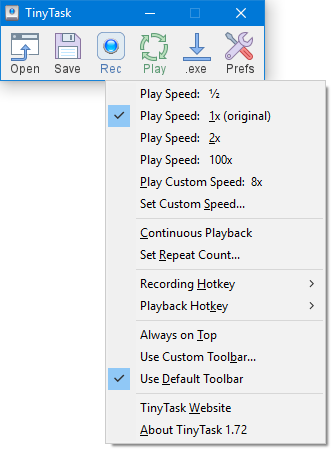
TinyTask context menu – check playback speed and hotkey settings when troubleshooting
Why it happens: TinyTask registers global hotkeys with Windows. If another program already claimed the same key combination, or if TinyTask is running at a lower privilege level than the foreground window, Windows blocks the hotkey from reaching TinyTask.
How to fix it:
- Run TinyTask as Administrator. Right-click TinyTask.exe > “Run as administrator.” This gives it the privilege level needed to capture hotkeys even when admin-level windows are in focus.
- Check for hotkey conflicts. Close other macro/automation tools (AutoHotkey, PowerToys, Logitech G Hub, Razer Synapse) that might intercept the same key combo.
- Use the toolbar buttons instead. If the hotkeys absolutely refuse to work, you can click the Record and Play buttons on the TinyTask toolbar directly. Not ideal, but it works.
- Restart TinyTask. Close it completely (check the system tray) and relaunch. Sometimes the hotkey registration fails silently on startup.
4 Recording Includes Unwanted Actions
What you see: Your macro plays back correctly, but it also includes extra clicks or mouse movements you did not intend — like clicking the TinyTask toolbar, switching windows, or moving the mouse to press Stop.
Why it happens: TinyTask records everything from the moment you press Record until you press Stop. Every accidental mouse wobble, every window switch, and every mis-click gets captured. There is no way to edit the recording after the fact.
How to fix it:
- Plan your actions before recording. Open the target window, position it where you want it, and decide exactly what you will click before pressing Record.
- Use hotkeys exclusively. Press Ctrl + Alt + Shift + R to start, do your actions, press the same combo to stop. Never touch the TinyTask toolbar during recording.
- Keep recordings short. A 3-5 second recording looped 100 times is cleaner than a 5-minute recording with accidental movements scattered throughout.
- Re-record if needed. Since TinyTask has no editing feature, the fastest fix for a messy recording is to simply record it again. It takes seconds.
Playback Issues (Fixes 5–8)
5 Playback Is Too Fast or Too Slow
What you see: The macro runs through clicks either too quickly (buttons get missed) or painfully slowly (you recorded with long pauses between actions).
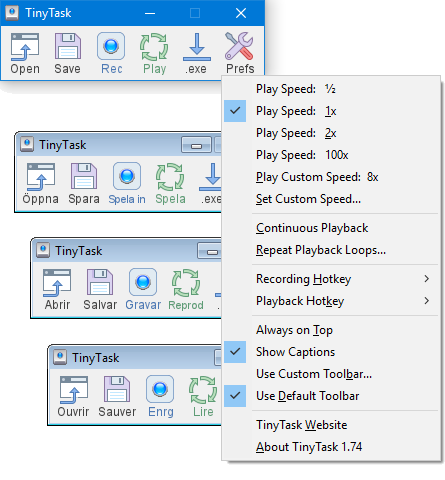
TinyTask configuration options – review these settings when macros do not work as expected
Why it happens: TinyTask replays actions at the exact speed you recorded them. There is no built-in speed multiplier or slider. If you clicked slowly during recording, playback is slow. If you clicked too fast for the target app to register, playback misses clicks.
How to fix it:
- Re-record at the speed you want. This is the only reliable fix. Practice the click sequence a few times, then record at your target pace.
- For “too fast” issues: Add brief pauses between clicks during recording. Some apps need 200-500ms to register a click and update the UI before the next click arrives.
- For “too slow” issues: Record a tight, rapid sequence and loop it. Remove unnecessary mouse movements between clicks by keeping the cursor path as direct as possible.
Need precise timing? TinyTask cannot set exact millisecond intervals. If you need clicks at exactly 100ms apart, use OP Auto Clicker or write an AutoHotkey script instead.
6 Macro Works Once but Fails on Loop
What you see: The first playback cycle works perfectly. On the second loop (or third, or fourth), clicks miss their targets or the macro does the wrong thing.
Why it happens: Your macro assumes the application is in a specific state at the start. After the first run, the app’s state has changed — a dialog box is open, a dropdown is expanded, the scroll position moved, or a confirmation message appeared. The second loop starts with the app in a different state than the recording expected.
How to fix it:
- Add “reset” steps to the end of your recording. Before stopping the recording, return the application to its starting state — close dialogs, scroll back to the top, navigate to the original screen.
- Build your macro as a complete cycle. The last action in the recording should leave the app ready for the first action to work again.
- Add small delays. If the app takes time to process (saving a file, loading a page), pause during recording to give it time. The delay gets replayed on every loop.
7 Playback Stops Unexpectedly
What you see: The macro starts playing, runs for a while, then suddenly stops before completing. No error message, no crash — it just stops.
Why it happens: Something stole keyboard or mouse focus away from the target window. The most common culprits: Windows notifications, antivirus scan popups, Windows Update prompts, screen saver activation, or accidentally bumping the mouse/keyboard.
How to fix it:
- Enable Do Not Disturb. On Windows 10/11, press Win + A and toggle Focus Assist (or Do Not Disturb on Windows 11). This blocks notifications during playback.
- Disable screen saver and sleep. Go to Settings > System > Power & Sleep and set both screen and sleep to “Never” while running long macros.
- Check Continuous Playback is enabled. Right-click the TinyTask toolbar and verify “Continuous Playback” is checked. Without it, the macro plays once and stops.
- Close background apps that show popups. Disable Slack, Teams, Discord, and email notifications before running extended macros.
8 Clicks Not Registering in Games
What you see: TinyTask records and plays back fine in regular apps, but when you try it in a game, the clicks are completely ignored.
Why it happens: Many games use DirectInput or raw input instead of standard Windows mouse events. Some games run in exclusive fullscreen mode, which bypasses the normal Windows input pipeline that TinyTask uses. Anti-cheat software (BattlEye, EasyAntiCheat, Vanguard) actively blocks automated input from external tools.
How to fix it:
- Run the game in windowed mode (or borderless windowed). Fullscreen exclusive mode often blocks external input injection.
- Run TinyTask as Administrator. This gives it higher input priority in the Windows input stack.
- Launch TinyTask before the game. Some anti-cheat systems only scan for new processes launched after the game starts.
- Lower game resolution. Run the game at a lower resolution in windowed mode so UI elements are larger and easier for TinyTask to hit accurately.
Anti-cheat warning: Games with kernel-level anti-cheat (Valorant, Fortnite, Roblox) can detect TinyTask and may ban your account. Single-player and offline games are safe. For game-specific guidance, see our TinyTask for Roblox and Minecraft auto clicker guides.
System Issues (Fixes 9–12)
9 Antivirus Blocks or Quarantines TinyTask
What you see: Windows Defender, Malwarebytes, or another antivirus flags TinyTask as a threat. The file gets quarantined or deleted. Windows SmartScreen shows “Windows protected your PC” when you try to run it.
Why it happens: TinyTask hooks into the Windows input system to record mouse and keyboard events. This behavior looks similar to keyloggers and other malware to antivirus heuristics. Combined with TinyTask’s tiny file size (36 KB) and lack of a paid code-signing certificate, antivirus programs flag it as suspicious. This is a well-known false positive — TinyTask is safe.
How to fix it:
- Unblock the file. Right-click TinyTask.exe > Properties > General tab > check “Unblock” at the bottom > click Apply.
- Bypass SmartScreen. When the blue “Windows protected your PC” screen appears, click “More info” then “Run anyway.”
- Add an antivirus exception. In Windows Defender: Settings > Privacy & Security > Windows Security > Virus & threat protection > Manage settings > Exclusions > Add exclusion > select the TinyTask.exe file.
- Restore from quarantine. If your antivirus already quarantined TinyTask, go to the quarantine/history section of your antivirus and restore the file, then add the exception before it gets flagged again.
10 TinyTask Crashes on Launch
What you see: You double-click TinyTask.exe and nothing happens, or it flashes briefly and disappears, or you get a Windows error dialog.
Why it happens: The download may be corrupted (incomplete download, browser interrupted it). A system-level software conflict could prevent TinyTask from initializing. In rare cases, Windows itself blocks the executable silently due to security policies.
How to fix it:
- Re-download TinyTask. Delete the current file and download a fresh copy. Verify the file size is 36 KB — if it is significantly larger or smaller, the download was corrupted or you got a fake version.
- Unblock the file (right-click > Properties > Unblock).
- Try compatibility mode. Right-click TinyTask.exe > Properties > Compatibility tab > check “Run this program in compatibility mode for” > select “Windows 8” or “Windows 7.”
- Check for conflicting software. Some system utilities (process monitors, input interceptors, corporate security software) can block TinyTask’s input hooks. Try disabling them temporarily.
11 TinyTask Not Working on Windows 11
What you see: TinyTask launches, but macros click the wrong locations, the toolbar renders oddly, or hotkeys fail intermittently. This worked fine on Windows 10 with the same TinyTask version.
Why it happens: Windows 11 changed default DPI scaling behavior. Many laptops and high-resolution monitors run at 125% or 150% scaling by default. TinyTask records pixel coordinates at the actual screen resolution, but Windows 11 scaling remaps those coordinates, causing a mismatch between where TinyTask thinks it is clicking and where the click actually lands.
How to fix it:
- Override DPI scaling. Right-click TinyTask.exe > Properties > Compatibility tab > “Change high DPI settings” > check “Override high DPI scaling behavior” > set “Scaling performed by:” to “Application.” Click OK and Apply.
- Set display scaling to 100%. Settings > System > Display > Scale > set to 100%. This fixes coordinate mapping but makes everything smaller on high-res screens. Record your macros, then switch scaling back.
- Update to TinyTask v1.77. Older versions have more compatibility issues with Windows 11. Get the latest from our download page.
- Run as Administrator. Windows 11 has stricter UAC defaults. Running TinyTask elevated resolves most permission-related issues.
12 Cannot Interact with Admin/Elevated Windows
What you see: TinyTask works in most apps, but when you try to automate clicks in a program running as Administrator (like Task Manager, Registry Editor, or an installer), the clicks are completely ignored.
Why it happens: Windows User Account Control (UAC) creates a security boundary between standard-user and administrator-level processes. A standard-user program cannot send input to an elevated window. If TinyTask runs as a normal user, it cannot interact with admin-level apps.
How to fix it:
- Run TinyTask as Administrator. Right-click TinyTask.exe > “Run as administrator.” This elevates TinyTask to the same privilege level as admin windows.
- Create a shortcut that always runs elevated. Right-click TinyTask.exe > Create shortcut. Right-click the shortcut > Properties > Advanced > check “Run as administrator.” Use this shortcut to launch TinyTask every time.
Note: Running TinyTask as Administrator means its recordings can also interact with elevated windows. Be careful — a macro that clicks inside Registry Editor or Command Prompt could make system changes you did not intend.
Advanced Issues (Fixes 13–15)
13 Compiled .exe Macro Not Working
What you see: You compiled your macro to a standalone .exe file (File > Compile), but when you double-click the compiled .exe, nothing happens — or Windows blocks it immediately.
Why it happens: Compiled TinyTask macros are unsigned executables that inject input events. Antivirus programs flag these even more aggressively than TinyTask itself because the .exe has no publisher signature and exhibits “suspicious” behavior (automated mouse/keyboard input). Windows SmartScreen almost certainly blocks it.
How to fix it:
- Unblock the compiled .exe. Right-click it > Properties > check “Unblock” > Apply.
- Add an antivirus exception for the folder where you save compiled macros. This prevents repeated quarantine.
- Bypass SmartScreen. Click “More info” then “Run anyway” on the blue warning screen.
- Save compiled .exe files to a consistent folder (like C:TinyTaskMacros) and add the entire folder as an antivirus exclusion once.
14 TinyTask Conflicts with Other Software
What you see: TinyTask works fine by itself, but when certain other programs are running, hotkeys stop working, recordings behave strangely, or TinyTask fails to capture input.
Why it happens: Multiple programs competing for global hotkey registration or input hooks cause conflicts. Common culprits include AutoHotkey (uses the same low-level keyboard hooks), PowerToys (intercepts shortcuts), gaming software (Logitech G Hub, Razer Synapse, Corsair iCUE), and remote desktop tools (TeamViewer, AnyDesk).
How to fix it:
- Close conflicting programs before using TinyTask. Exit AutoHotkey scripts, close gaming software, and disconnect remote desktop sessions.
- Check your system tray. Many of these programs run as background processes. Right-click their tray icons and quit them completely.
- If you need both tools running: Make sure their hotkeys do not overlap. AutoHotkey scripts that use Ctrl+Alt+Shift combinations will intercept TinyTask’s hotkeys. Remap one or the other.
- Launch TinyTask first. The program that registers a global hotkey first typically gets priority. Launch TinyTask before other automation tools.
15 Old TinyTask Version Has Bugs
What you see: You are running TinyTask v1.50, v1.62, or another older version, and it has quirks that newer versions fixed — toolbar rendering issues, hotkey registration failures on newer Windows builds, or instability with certain apps.
Why it happens: TinyTask has been around since the early 2000s. Older versions were built for Windows XP/7 and did not account for Windows 10/11 changes like DPI scaling, new input APIs, and stricter UAC policies. Version 1.77 addresses most of these compatibility issues.
How to fix it:
- Download TinyTask v1.77 from our official download page. It is the latest stable release.
- Your old .rec files still work. The macro file format has not changed between versions. Open your existing .rec files in v1.77 and they will play back normally.
- Delete the old version. Since TinyTask is portable (no installer), just delete the old .exe file. There are no registry entries or config files to clean up.
Version check: Not sure which version you have? Right-click TinyTask.exe > Properties > Details tab. The “Product version” or “File version” field shows the version number.
When TinyTask Is Not the Right Tool
Some automation tasks are beyond what TinyTask can handle. If you need conditional logic (do X if button is green, do Y if it is red), background clicking (automate one app while using another), or cross-platform support, you need a more powerful tool.
AutoHotkey handles complex scripting with conditional logic, variables, and window-specific commands. Microsoft Power Automate is built into Windows 11 and offers visual workflow building for desktop automation. For a full breakdown of options, see our TinyTask alternatives guide.
TinyTask is best at one thing: recording simple, repeatable sequences and playing them back with zero setup. If your task fits that pattern, stick with TinyTask. If it does not, pick the right tool rather than forcing TinyTask into a role it was not designed for.
Frequently Asked Questions
Why is TinyTask not recording anything?
The most common reason for blank recordings is clicking the Record button on the TinyTask toolbar with your mouse. When you do this, TinyTask starts recording after that click, and if you also click Stop on the toolbar, the only thing captured is the mouse moving to the Stop button. The recording contains no useful actions from your target application.
The fix is straightforward: use the keyboard shortcut Ctrl + Alt + Shift + R to start and stop recording instead of clicking the toolbar. This keeps the toolbar interaction out of your recording entirely. Position your mouse over the target app before pressing the hotkey, perform your clicks and keyboard actions, then press the same hotkey combo to stop.
If the hotkey itself is not working, TinyTask may lack the permissions to register global shortcuts. Close TinyTask, right-click the .exe file, and select “Run as administrator.” On corporate or locked-down machines, group policies can block programs from registering global hotkeys, which requires IT administrator intervention. You can verify that TinyTask is running by checking if its toolbar is visible at the top of your screen. If the toolbar appears but hotkeys still fail, another program is likely intercepting the key combination before TinyTask receives it. See our complete TinyTask guide for more setup details.
Why does my TinyTask macro click in the wrong spot?
TinyTask records mouse clicks as absolute pixel coordinates on your screen. If you click at position (800, 450) during recording, playback sends a click to that exact pixel location regardless of what is displayed there. This means any change to your screen layout between recording and playback will cause clicks to land in the wrong place.
The most frequent causes are: the target window moved (even by a few pixels), your display resolution changed, Windows DPI scaling is set above 100%, or you switched between a laptop screen and an external monitor. Multi-monitor setups are particularly problematic because adding or removing a display shifts coordinate origins. Even something as simple as the Windows taskbar changing from bottom to side placement shifts every window position.
To fix this reliably, always maximize the target window before recording and again before playback — maximized windows occupy the same pixel area every time. If you use a high-DPI display, right-click TinyTask.exe, go to Properties, then the Compatibility tab, click “Change high DPI settings,” and check “Override high DPI scaling behavior” set to “Application.” This forces TinyTask to use raw pixel coordinates instead of DPI-scaled ones. For laptop users who dock and undock regularly, the best approach is to record separate macros for each display configuration rather than trying to make one macro work across both setups.
Does TinyTask work on Windows 11?
Yes, TinyTask v1.77 runs on Windows 11 without major issues. It launches, records, and plays back macros the same way it does on Windows 10, 8, 7, and even XP. The core functionality — capturing and replaying mouse and keyboard events — uses Windows APIs that have remained stable across all these versions.
That said, Windows 11 introduces a few changes that can cause problems if you do not account for them. The biggest one is DPI scaling. Windows 11 laptops and high-resolution monitors often default to 125% or 150% scaling, which shifts the pixel coordinates that TinyTask records. A macro recorded at 150% scaling will click in slightly different positions if you later change to 100% scaling, or vice versa. The fix is to override DPI scaling for TinyTask specifically (right-click the .exe > Properties > Compatibility > Change high DPI settings > Override to “Application”).
Windows 11 also has stricter notification and focus behavior. The new notification center can steal focus during macro playback, causing clicks to land on the notification instead of your target app. Enable Do Not Disturb (Settings > System > Notifications > Do not disturb) before running long macros. If you upgraded from Windows 10 and your existing macros stopped working, re-record them on your Windows 11 setup rather than trying to fix coordinate offsets — it is faster and more reliable. For Chromebook users looking for alternatives, or Mac users, we have dedicated guides for those platforms as well.
Why does my antivirus flag TinyTask?
TinyTask gets flagged because of what it does at a technical level, not because it contains malware. To record macros, TinyTask installs low-level hooks into the Windows input system — it intercepts mouse movements, mouse clicks, and keyboard presses before they reach their target application. This exact behavior is what keyloggers and spyware use to steal passwords. Antivirus heuristics detect the hooking behavior and flag TinyTask as potentially malicious.
Adding to the suspicion: TinyTask is only 36 KB (unusually small for any Windows program), it lacks a paid code-signing certificate (which costs hundreds of dollars per year and does not make sense for a free tool), and it can compile macros into standalone .exe files (which antivirus engines view as a program creating other executable programs — a behavior associated with malware droppers). All of these are legitimate characteristics of a lightweight freeware utility, but they trigger automated detection systems.
TinyTask has been scanned by VirusTotal against 60+ antivirus engines and consistently comes back clean. It has been available since the early 2000s and has millions of users. To stop the false positives, add TinyTask.exe to your antivirus exclusion list and unblock the file in Windows Properties. If you compile macros to .exe files, add your macro output folder to the exclusion list too, since compiled macros trigger the same flags. For a detailed safety analysis, read our Is TinyTask Safe? article.
Can TinyTask record and play in full-screen games?
It depends on the game’s rendering mode. Games running in “borderless windowed” or “windowed” mode work with TinyTask because they use the standard Windows input pipeline. Games running in “exclusive fullscreen” mode bypass the Windows desktop compositor entirely, which means TinyTask’s simulated mouse clicks may not reach the game at all.
Even in windowed mode, games with anti-cheat software (BattlEye, EasyAntiCheat, Riot Vanguard) actively scan for and block automated input tools. TinyTask uses the Windows SendInput API to replay events, and modern anti-cheat systems specifically watch for SendInput calls that do not originate from physical hardware. Getting caught can result in temporary or permanent account bans depending on the game’s enforcement policy.
For the best results with games: switch to borderless windowed mode in the game settings, run TinyTask as Administrator, and launch TinyTask before starting the game. For single-player games without anti-cheat, this setup works reliably. For online competitive games, understand the risk before proceeding. Our Roblox guide and Minecraft auto clicker guide cover game-specific tips in detail. If you need a dedicated auto clicker with precise interval control for gaming, check our auto clicker setup guide.
Why does TinyTask stop working after a Windows update?
Windows updates occasionally change security policies, input handling, and DPI scaling behavior — all of which affect how TinyTask operates. A major feature update (like going from Windows 10 22H2 to Windows 11 23H2) can reset compatibility settings, change default scaling percentages, and tighten UAC restrictions that previously allowed TinyTask to function without elevation.
The most common post-update breakage is coordinate mismatch. Windows updates sometimes reset display scaling to the “recommended” percentage, which changes pixel coordinates for your existing macros. Open Settings > System > Display and verify your scale percentage matches what it was when you recorded the macro. If it changed, either set it back or re-record your macros at the new scaling.
Less commonly, a Windows update may reset the “Unblock” flag on downloaded executables or update Windows Defender definitions that now flag TinyTask as suspicious. Check that the file is not blocked (right-click > Properties > Unblock) and that your antivirus exclusion is still in place. If none of these fixes work, download a fresh copy of TinyTask v1.77 from the official download page, apply the DPI override and admin settings described in this guide, and re-record your macros. A clean start after a major update is often faster than troubleshooting individual settings changes.
How do I fix TinyTask hotkeys not responding?
TinyTask hotkeys (Ctrl + Alt + Shift + R for record, Ctrl + Alt + Shift + P for play) are registered as global hotkeys with the Windows operating system. When they stop working, it means either another program grabbed the key combination first, TinyTask does not have permission to register them, or TinyTask’s hotkey registration failed silently on startup.
Start by running TinyTask as Administrator. This is the single most common fix because elevated windows block hotkey messages from non-elevated programs. If you have an admin-level application in focus (like Task Manager or an installer), a standard-user TinyTask cannot receive hotkey events. Right-click TinyTask.exe and select “Run as administrator” to resolve this.
If admin mode does not fix it, check for software conflicts. Close AutoHotkey, PowerToys, Logitech G Hub, Razer Synapse, and any other program that registers custom keyboard shortcuts. These programs compete with TinyTask for global hotkey registration, and the one that starts first typically wins. Try closing everything, launching TinyTask first, then opening your other tools. As a last resort, completely close TinyTask (check the system tray — it may still be running in the background), then relaunch it. If the hotkey registration failed during the initial startup, a fresh launch often fixes it. You can also use the toolbar buttons to Record and Play if you need an immediate workaround while troubleshooting.
Is there a newer version of TinyTask?
The latest stable version of TinyTask is v1.77, which has been the current release for several years. TinyTask development moves slowly because the tool is functionally complete — it records macros, plays them back, and compiles them to .exe files. There is not much to add when the core feature set already works reliably across every Windows version from XP to 11.
If you are running an older version (v1.50, v1.62, or v1.70), upgrading to v1.77 is worth it. The newer version has better compatibility with Windows 10 and 11, improved hotkey handling, and fewer rendering quirks on high-DPI displays. Your existing .rec macro files are fully compatible with v1.77 — just open them and they play back normally.
To upgrade, simply download TinyTask v1.77 and replace your old .exe file. Since TinyTask is portable (no installer, no registry entries, no config files), upgrading is just swapping one file for another. Delete the old version after confirming the new one works. If you need more advanced features that TinyTask does not offer — conditional logic, variables, window-specific automation — consider AutoHotkey or check our TinyTask alternatives list for other options.
Conclusion
Most TinyTask problems come down to three root causes: permission issues (fix by running as Administrator), coordinate mismatches (fix by maximizing windows and checking DPI scaling), and antivirus interference (fix by adding exceptions). Work through the specific fix for your problem above, and you should be back to working macros within minutes.
If you are just getting started with TinyTask, our complete setup guide walks you through recording, playback, and compilation from scratch. For auto-clicking tasks, the TinyTask auto clicker guide covers single-point and multi-point click automation in detail.
Download TinyTask v1.77
36 KB, portable, no installation needed. Works on Windows XP through Windows 11.
Download TinyTask