
TinyTask is portable by default. There is no installer, no setup wizard, and no “portable edition” to find separately. The entire program is a single 36 KB executable file. Copy it to a USB drive, a network share, or your desktop – it runs from anywhere, leaves nothing behind, and requires zero configuration.
This guide covers everything about using TinyTask as a portable tool: running it from USB drives, using it on restricted work or school computers, compiling portable macro executables, and keeping your automation workflow entirely self-contained.
What Makes TinyTask Portable?
Most software requires installation. An installer copies files to C:\Program Files\, writes settings to %AppData%\, registers entries in the Windows registry, creates Start Menu shortcuts, and sometimes adds background services. Removing everything requires an uninstaller, and even then traces linger.
TinyTask skips all of that. The program was written from scratch as a standalone Win32 executable with zero external dependencies. No .NET Framework, no Visual C++ Redistributable, no DLLs, no companion files. The 36 KB file contains everything the program needs to record mouse movements, keyboard input, and play them back.
There is no separate “portable edition” of TinyTask. Every copy of TinyTask is inherently portable. The version on PortableApps.com wraps the same 36 KB executable inside a 1 MB launcher shell. The underlying program is identical.
What TinyTask Does NOT Touch on Your Computer
- Windows Registry: Zero keys written. Confirmed by registry monitoring tools.
- AppData folders: Nothing in
%AppData%,%LocalAppData%, or%ProgramData%. - Temp folders: No files in
C:\Windows\Tempor%LocalAppData%\Temp. - System files: No modifications to any system directory.
- Startup entries: TinyTask does not add itself to startup. It runs only when you launch it.
The only file TinyTask may create is a small TinyTask.ini preferences file – and it writes this to the same folder as TinyTask.exe. If you run from a USB drive, the .ini stays on the USB drive. Delete the folder and TinyTask is completely gone.
How to Use TinyTask from a USB Drive
Download TinyTask
Get TinyTask.exe from our download section. The file is 36 KB. If the download is larger than 100 KB or requires an installer, you have the wrong file – only download from official sources.
Copy to USB Drive
Plug in your USB drive. Create a folder named TinyTask (or whatever you prefer). Copy TinyTask.exe into it. Optionally, create a Macros subfolder to keep your recordings organized alongside the app.
Run on Any Windows PC
Plug the USB into the target computer. Open File Explorer, navigate to your USB drive, and double-click TinyTask.exe. Windows SmartScreen may show an “unknown publisher” warning the first time – click “More info” then “Run anyway.” The TinyTask toolbar appears immediately.
Record and Save to USB
Press Record (Ctrl+Shift+Alt+R), perform your task, press Stop. Click File > Save and save the .rec file to your USB drive’s Macros folder – not to the local computer. Your macros travel with you.
Unplug and Go
Close TinyTask. Safely eject the USB drive. Nothing remains on the host computer – no files, no registry entries, no traces. Your tool and macros are entirely on the drive.
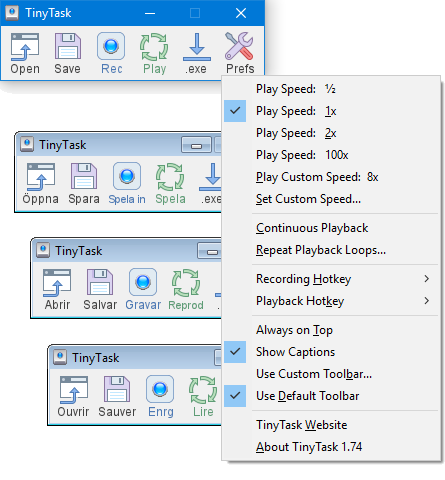
TinyTask’s full interface – the same on USB, desktop, or network share
Using TinyTask on Restricted Computers
Work and school computers often block software installation through Group Policy, UAC enforcement, or application whitelisting. TinyTask bypasses most of these restrictions because it genuinely does not install anything.
Why TinyTask Works on Locked-Down Machines
Installation blockers target writes to C:\Program Files\, system registry modifications, and UAC elevation requests. TinyTask does none of these. It runs entirely in user space using standard Win32 APIs that regular user-level processes are allowed to call. No administrator privileges needed.
Three Ways to Run It
- USB drive (most reliable): Plug in, navigate to the drive in File Explorer, double-click TinyTask.exe. Works as long as USB storage is not disabled by Group Policy.
- Cloud-synced folder: If USB is blocked but you have OneDrive, Google Drive, or Dropbox syncing to the machine, copy TinyTask.exe to the synced folder and run from there.
- Downloads or Documents folder: Download TinyTask.exe directly to a local folder on the restricted machine. Because it requires no installation, running an .exe from Documents works on many locked-down machines.
What can still block TinyTask: Application whitelisting (AppLocker or Windows Defender Application Control) will prevent unsigned executables from running regardless of location. Some enterprise antivirus solutions also block TinyTask’s input-hooking behavior. If you encounter either, you need an IT exemption.
Policy compliance: Running portable software on a work computer may violate acceptable use policies even when technically possible. On managed machines with endpoint detection (EDR), IT can see that TinyTask ran. Check your organization’s policy first.
Compiling Portable Macro Executables
TinyTask’s most underrated feature: you can compile any recorded macro into a standalone .exe file. The resulting executable contains both a minimal TinyTask runtime and the embedded macro data. The person running it does not need TinyTask installed or present anywhere.
How to Compile
- Record your macro as normal (or open an existing .rec file)
- Go to File > Compile
- Choose where to save the output .exe file
- TinyTask creates a standalone executable (~50-70 KB)
What the Compiled .exe Does
Double-click the compiled file and it immediately plays back the recorded sequence at the original speed, then exits. No interface appears, no configuration is needed. The recipient just double-clicks and the automation runs.
Use Cases for Compiled Macros
- Sharing with non-technical colleagues: Email the .exe file. They double-click it and the task completes. No explanation needed.
- IT deployment: Drop compiled macros into startup folders or run them via Windows Task Scheduler to automate setup sequences across machines.
- USB toolkit: Store multiple compiled macros on a USB drive, each named for its task:
login-to-crm.exe,fill-timesheet.exe,export-report.exe.
Compiled macro limitations: No looping (runs once and exits), no speed adjustment after compilation, no editing. To change anything, modify the .rec file in TinyTask and recompile. Compiled .exe files also trigger more antivirus false positives than TinyTask itself since they have no reputation history with AV vendors.
Portable Advantages and Limitations
Advantages
- Runs from USB, network share, or any folder
- No admin rights or installation required
- Zero traces left on host computer
- Works on Windows XP through Windows 11
- Compiled macros run without TinyTask present
- Carry your tool and macros everywhere
- 36 KB – fits on any storage device
- No conflicts with other software
Limitations
- SmartScreen warning on first run per machine
- Antivirus false positives on some machines
- No automatic updates (check site manually)
- Macros break across different screen resolutions
- No Start Menu shortcut or system integration
- Forget your USB = no access to your macros
- AppLocker can block it on managed machines
Running Macros Across Different Computers
TinyTask runs identically on every Windows version from XP to 11, on both 32-bit and 64-bit systems. The executable is a native 32-bit PE binary that Windows runs in WOW64 compatibility mode on 64-bit machines automatically.
The program itself has perfect cross-computer compatibility. Your macros do not.
TinyTask records absolute screen coordinates. When you click at pixel position (847, 523), the macro stores that exact location. On a different computer with a different resolution, different display scaling, or a different window position, that pixel contains something else entirely.
When Macros Transfer Reliably
- Both computers use the same screen resolution (e.g., both at 1920×1080)
- Both computers use the same display scaling (e.g., both at 100%)
- The target application is maximized to full screen on both machines
- The same browser zoom level is used for web-based tasks (Ctrl+0 resets to 100%)
When Macros Break
- Different screen resolutions (1920×1080 vs 1366×768)
- Different DPI scaling (100% vs 125% or 150%)
- Application window opens at a different size or position
- A popup, notification, or dialog shifts content
Tip: Always maximize the target application window before recording. Use Win+Up to maximize, then start your recording. This gives you a consistent starting point regardless of the default window position on each computer.
Windows Version Compatibility
| Windows Version | Status | Notes |
|---|---|---|
| Windows XP | Full support | Original target platform, runs natively |
| Windows Vista | Full support | UAC prompt expected on first launch |
| Windows 7 | Full support | Best overall compatibility |
| Windows 8 / 8.1 | Full support | No known issues |
| Windows 10 | Full support | Cannot automate some UWP/Store apps |
| Windows 11 | Works | Set Win10 compatibility mode if timing lags |
| Windows on ARM | Works | Runs via x86 emulation, minor latency |
If you experience playback timing issues on Windows 11 where clicks land slightly late, right-click TinyTask.exe, select Properties > Compatibility, check “Run this program in compatibility mode for Windows 10,” and click Apply. This resolves the timing in most cases.
Security and Safety
Antivirus False Positives
TinyTask uses Windows APIs like SetWindowsHookEx and SendInput to capture and simulate input. These are the same APIs that keyloggers use, which is why antivirus engines flag TinyTask as suspicious. On VirusTotal, the official TinyTask.exe typically shows 10-15 generic detections out of 70+ scanners – labels like “PUA” (Potentially Unwanted Application) or “Trojan.Generic.” Major engines like Windows Defender, Kaspersky, and Bitdefender generally clear it.
To handle false positives: add TinyTask.exe to your antivirus exclusions list. In Windows Defender, go to Settings > Virus & threat protection > Exclusions > Add the TinyTask .exe path.
Avoiding Fake Downloads
Any TinyTask download that requires an installer is fake. The real TinyTask is a single .exe with no setup wizard. If you get a “TinyTask-setup.exe” or a file larger than ~70 KB, you downloaded a malware-bundled imposter. The correct file size is approximately 36 KB. Only download from thetinytask.com.
Protecting Your Macros
- Do not save .rec files to shared computers. Macros that automate login sequences contain your keystrokes – including passwords – in the recording. Always save to your USB drive or personal storage.
- Do not leave compiled .exe macros on shared machines. Someone else running your macro could trigger unintended actions.
- Be aware of monitoring software. On managed corporate machines, endpoint detection tools log every process execution. TinyTask leaves no files behind, but the fact that it ran is visible to IT.
Portable Alternatives Compared
| Tool | Size | Portable | Recorder | Scripting | Free |
|---|---|---|---|---|---|
| TinyTask | 36 KB | Always | Yes | No | Yes |
| Mini Mouse Macro | ~2 MB | Yes | Yes | Basic | Yes |
| Pulover’s MC | ~15 MB | Yes | Yes | Full (AHK) | Yes |
| AutoHotkey | ~3 MB | ZIP option | No | Full language | Yes |
TinyTask wins on size and simplicity by a wide margin. At 36 KB, it is 50x smaller than Mini Mouse Macro and 400x smaller than Pulover’s Macro Creator. For quick record-and-replay tasks where you need zero setup time, nothing else comes close. If you need scripting, conditional logic, or editing, AutoHotkey or Pulover’s Macro Creator are the step up.
Common Portable Use Cases
Shared Workstations
In call centers, hospital nursing stations, or factory floors where employees rotate through the same computer, each worker carries TinyTask and their personal macros on a USB drive. The macro for “log into the ticketing system and navigate to my queue” runs from USB, no trace is left behind, and the next shift worker finds a clean machine.
IT Support and Deployment
IT technicians carry a USB drive with TinyTask.exe and several compiled macro .exe files named for their tasks: accept-license.exe, configure-printer.exe, setup-email.exe. At each machine, they run the appropriate macro and move to the next. No software is installed on any machine.
Students on School Computers
School lab machines with Deep Freeze revert to a clean state on reboot, making traditional software installation pointless. TinyTask runs fine during a session, and macros saved to USB persist across reboots. Just remember that AppLocker-protected machines may block unsigned executables.
Data Entry Workers
Entering structured data repeatedly into forms – insurance claims, purchase orders, inventory records – is the single most common TinyTask use case on Reddit. Record the sequence of Tab, type value, Tab, type value, Submit, wait, New Record once, then loop it while filling in the variable data between macro steps.
Frequently Asked Questions
Is TinyTask Portable different from regular TinyTask?
No. There is no separate “portable edition” of TinyTask. Every copy of TinyTask is inherently portable because the program was designed as a standalone executable from the beginning. The 36 KB file requires no installer, makes no registry changes, creates no AppData files, and runs from any location including USB drives, network shares, and cloud-synced folders.
The “TinyTask Portable” listing on PortableApps.com is the same 36 KB executable wrapped inside a 1 MB PortableApps launcher shell. The launcher adds a menu integration for the PortableApps platform but does not change TinyTask’s functionality. If you already have TinyTask.exe, you already have the portable version.
Pro tip: To verify you have the genuine file, check the size. Official TinyTask.exe is approximately 36 KB. Any file significantly larger than that, or any download that starts an installer wizard, is not the real TinyTask.
Does TinyTask leave any traces on the computer?
TinyTask writes zero registry keys, creates zero temp files, and stores nothing in AppData or any system directory. The only file it may create is a small TinyTask.ini preferences file in the same folder as the executable. If you run TinyTask from a USB drive, the .ini stays on the USB drive, not on the host computer.
When you close TinyTask and remove your USB drive, the host machine has no record that TinyTask was ever present – with one caveat. Windows event logs and corporate endpoint detection (EDR) software may log that an executable named TinyTask.exe was launched. This is Windows recording process execution, not something TinyTask writes. On managed corporate machines, assume IT can see that it ran.
Saved .rec files and compiled .exe macros go wherever you choose to save them. Always save to your USB drive, not the local machine, to avoid leaving files behind.
Pro tip: After running TinyTask on a shared computer, check that you did not accidentally save any .rec files to the Desktop or Documents folder. Delete them if you did.
Can I run TinyTask on a work computer that blocks software installation?
In most cases, yes. TinyTask does not install anything, so installation blockers (Group Policy restrictions on C:\Program Files\, UAC enforcement, registry write prevention) do not apply. Running TinyTask from a USB drive or Downloads folder works on the majority of locked-down workstations because the program operates entirely in user space with standard API calls.
Three approaches, from most to least reliable:
- USB drive: Plug in, navigate to the drive, double-click TinyTask.exe. Works unless USB storage is disabled by Group Policy.
- Cloud-synced folder: Copy TinyTask.exe to a OneDrive, Google Drive, or Dropbox folder that syncs to the machine. Run from there.
- Direct download: Download TinyTask.exe to the Documents folder and run it from there.
The main thing that blocks TinyTask is application whitelisting (AppLocker or Windows Defender Application Control). If your organization configured these to only allow signed executables or a specific approved list, TinyTask’s unsigned .exe will be blocked from any location. In that case, you need an IT exemption.
Pro tip: Before using any automation tool on a work computer, check your organization’s acceptable use policy. Even if TinyTask runs fine technically, using unauthorized automation tools may be a policy violation in some workplaces.
Will my TinyTask macros work on a different computer?
TinyTask itself runs on any Windows PC from XP to 11. Your macros, however, depend on screen coordinates. A macro recorded at 1920×1080 resolution with 100% display scaling will click at the wrong positions on a 1366×768 laptop at 125% scaling.
For reliable cross-computer macros:
- Use the same screen resolution on both machines
- Use the same display scaling percentage (100% on both, or 125% on both)
- Maximize the target application before recording (Win+Up)
- For web tasks, set the browser to the same zoom level (Ctrl+0 resets to 100%)
If you regularly switch between a desktop monitor and a laptop with different resolutions, record separate macro versions for each setup. Label them clearly: report-1080p.rec and report-768p.rec.
Pro tip: Some users record macros in a remote desktop session at a fixed resolution. Since the remote desktop window is always the same size, macros transfer perfectly between computers accessing the same remote machine.
How do I compile a TinyTask macro into a standalone .exe?
Open TinyTask, load or record your macro, then go to File > Compile. TinyTask creates a standalone executable (~50-70 KB) that contains both a minimal runtime and the embedded macro data. The .exe runs on any Windows PC without TinyTask installed.
The compiled macro plays back the recorded sequence exactly once at the original speed, then exits. No interface appears. The recipient simply double-clicks the file and the automation runs.
Compiled macros are useful for:
- Sharing automation with non-technical coworkers (email them the .exe)
- Building a USB toolkit of named task macros (
fill-form.exe,export-data.exe) - Running macros via Windows Task Scheduler at specific times
Limitations: no looping (runs once), no speed adjustment after compilation, and antivirus false positives are more common with compiled macros than with TinyTask itself since the file has no reputation history.
Pro tip: Name compiled macros descriptively. A file named daily-report-export.exe is much more useful than macro1.exe when you have a USB drive full of them.
Why does Windows SmartScreen block TinyTask?
Windows SmartScreen displays an “unknown publisher” warning because TinyTask.exe is not signed with a code-signing certificate. Code-signing certificates cost $200-$500/year, and as a free 36 KB utility, TinyTask’s developer has not purchased one.
SmartScreen also uses reputation-based filtering. The first time any machine sees a particular .exe file, SmartScreen checks Microsoft’s database. New or uncommon files get flagged even if they are safe. After enough users run the file and report no issues, the warning eventually stops appearing.
To get past SmartScreen:
- When the blue “Windows protected your PC” dialog appears, click “More info”
- Click “Run anyway”
- TinyTask launches normally
This is a one-time action per machine. After you run TinyTask once, SmartScreen remembers the file and will not warn again on that computer.
Pro tip: If you distribute compiled macros to others and they get SmartScreen warnings, include a brief note explaining the “More info > Run anyway” steps. It is a common friction point for non-technical users.
Can I use TinyTask Portable on a school Chromebook?
No. TinyTask is a Windows-only executable (.exe file). Chromebooks run Chrome OS, which cannot execute Windows .exe files natively. There is no version of TinyTask for Chrome OS and no practical workaround on managed school Chromebooks.
Chrome OS alternatives for automation include:
- Built-in ChromeOS auto-clicker: Settings > Accessibility > Mouse and touchpad > Auto-click. Clicks automatically after hovering for a set duration.
- Chrome extensions: Auto Clicker – AutoFill, Click Assistant, and similar extensions from the Chrome Web Store
- Android apps: If your Chromebook supports Android apps, automation tools like MacroDroid or Auto Clicker from the Google Play Store work
For a complete guide, see our TinyTask for Chromebook article.
Is TinyTask safe to run from a USB drive on public computers?
TinyTask itself is safe. The bigger risk is the public computer you are using. If the machine has keylogging software, screen capture tools, or other monitoring, your actions (including anything TinyTask automates) are visible regardless.
Safety guidelines for using TinyTask on shared or public machines:
- Never save .rec files to the local machine – macros that record login sequences contain your passwords
- Never leave compiled .exe macros on shared machines – someone else could run them
- Do not automate banking, email, or other sensitive logins on public computers
- Keep your antivirus updated – plugging a USB drive into unknown machines can expose it to malware
- After use, verify TinyTask.exe is still 36 KB. If the file grew in size, the public machine may have infected it
Pro tip: For maximum security on untrusted machines, use TinyTask only for non-sensitive automation tasks like navigating forms or clicking through wizards. Never automate credential entry on a computer you do not trust.
How do I schedule a TinyTask macro to run automatically?
TinyTask does not have built-in scheduling, but you can combine compiled macros with Windows Task Scheduler:
- Record your macro in TinyTask and compile it to a .exe file (File > Compile)
- Open Windows Task Scheduler (search “Task Scheduler” in Start menu)
- Click “Create Basic Task”
- Set the trigger: daily, weekly, or one-time, and choose the time
- Select “Start a program” and browse to your compiled macro .exe
- Check “Run whether user is logged on or not” for unattended execution
- Click Finish
The macro will run at the scheduled time. However, coordinate-based macros require the screen to be in the correct state. If the computer is locked, at a login screen, or the target application is not open, the macro will click in the wrong places.
For reliable scheduled automation, combine a startup script (to open the target application and position windows) with the TinyTask macro. Or consider AutoHotkey, which has native scheduling capabilities and can target windows by title instead of coordinates.
Where should I download TinyTask Portable from?
Download TinyTask from thetinytask.com. The correct file is a single .exe approximately 36 KB in size with no installer.
Red flags for fake downloads:
- File requires an installer or setup wizard – the real TinyTask never does
- File size is significantly larger than 70 KB
- Download site shows multiple “Download” buttons (ads disguised as download links)
- File is named “TinyTask-setup.exe” or “TinyTask-installer.exe”
- The downloaded file asks for administrator permissions during first launch
PortableApps.com offers a legitimate packaged version, but it is 1 MB due to the PortableApps launcher wrapper. The underlying TinyTask.exe inside is identical to the official download.
Pro tip: After downloading, upload the file to VirusTotal (virustotal.com) before running it. The official TinyTask.exe should show fewer than 15 detections, primarily from minor AV engines. If major vendors like Windows Defender or Kaspersky flag it, you may have a tampered file.
Comments are closed.