
How to Use TinyTask: Complete Beginner Tutorial
TinyTask is a 36 KB macro recorder that records your mouse clicks, cursor movements, and keystrokes, then plays them back on command. No installation wizard, no bloated settings panel, no learning curve. You download a single .exe file, double-click it, and start automating repetitive tasks within seconds.
That simplicity is what makes TinyTask so popular. Over a million people use it to automate data entry, farm resources in games, fill out forms, and cut down on the kind of tedious clicking that eats hours out of a work day. But even the simplest tool deserves a proper walkthrough.
This guide covers everything from your first launch to compiling standalone executables. Whether you want to automate a few clicks or build a macro library for daily use, you will know exactly how to do it by the end of this page.
What You Need Before Starting
TinyTask runs on every version of Windows from XP through 11. That is the only real requirement. No .NET framework, no Java runtime, no dependencies at all.
- A Windows PC – any version from XP to 11, 32-bit or 64-bit
- TinyTask itself – download TinyTask from this site (36 KB)
- No admin rights needed for basic recording and playback
If you plan to automate clicks inside programs that run as administrator, you will need to run TinyTask as admin too. We cover that in the tips section below.
Portable by default. TinyTask does not write to the registry or create folders. It runs from wherever you place it – your desktop, a USB drive, a network share. Read more about the portable edition.
Step-by-Step Tutorial
1 Download and Launch TinyTask
Head to the download section and save tinytask.exe to any folder you can find easily. Your Desktop or Documents folder works fine. The file is 36 KB – smaller than most icons on your screen.
Double-click the file. There is no installer, no “Next, Next, Finish” wizard. TinyTask opens immediately as a small toolbar that sits on top of your other windows. That toolbar is the entire interface.
Here is what each button does:
| Button | What It Does |
|---|---|
| Open | Load a saved macro (.rec file) |
| Save | Save current macro to a .rec file |
| Record | Start or stop recording mouse and keyboard input |
| Play | Play back the recorded macro |
| Compile | Convert macro to a standalone .exe |
| Loop Count | Set how many times the macro repeats (0 = infinite) |
| Speed | Slider that controls playback speed |
Since TinyTask is portable, it leaves no registry entries and requires no admin privileges. You can run it from a USB drive on any Windows machine.
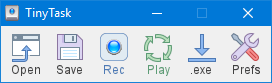
The TinyTask toolbar – Open, Save, Rec, Play, .exe, and Prefs buttons
2 Record Your First Macro
Recording a macro means telling TinyTask to watch what you do. It captures every mouse movement, every click, and every key press, along with the exact timing between each action.
Press Ctrl + Alt + Shift + R or click the Record button (red circle) on the toolbar. The toolbar title changes to show recording is active.
Now perform the actions you want to automate. Click buttons, type text, move your mouse between targets. Move deliberately – there is no need to rush. TinyTask records everything in real time.
When you are done, press Ctrl + Alt + Shift + R again to stop recording. Your macro is now loaded in memory and ready to play.
Recording Tips
- Move slowly and deliberately. TinyTask records exact screen coordinates. Sloppy, fast movements lead to missed clicks during playback.
- Wait for windows to load. If a click opens a dialog, pause a moment before clicking inside it. TinyTask records timing too, and if the dialog loads slower during playback, your click lands on the wrong thing.
- Keep screen resolution the same. A macro recorded at 1920×1080 will click in wrong spots on a 1366×768 screen. Coordinates are absolute, not relative.
- Keyboard input gets recorded too. If you type “Hello” during recording, TinyTask types “Hello” during playback. This works well for form filling and data entry.
Heads up: TinyTask records mouse position on the screen, not relative to a window. If you move or resize the target window between recording and playback, clicks will miss their targets. Always keep windows in the same position and size.
For more on mouse macro recording techniques, see our dedicated guide.
3 Play Back Your Macro
Press Ctrl + Alt + Shift + P or click the Play button (green triangle). TinyTask immediately starts replaying your recorded actions. Your mouse cursor moves on its own, clicking and typing exactly what you did during recording.
Controlling Playback Speed
The Speed slider on the toolbar controls playback speed. Drag it left for slower playback, right for faster. The default position replays at the original speed – the same timing you used when recording.
Faster playback works when you just need clicks to happen and timing is not critical. Slower playback gives applications more time to respond between actions, which prevents missed clicks on slower machines.
Stopping Playback
Press Ctrl + Alt + Shift + P again to stop. Since your mouse is being controlled during playback, the keyboard shortcut is usually easier than trying to click the toolbar button.
Pro tip: Memorize Ctrl + Alt + Shift + P. When a macro is running and your mouse is moving on its own, the keyboard shortcut is the fastest way to regain control.
4 Loop and Repeat Macros
Playing a macro once is helpful. Playing it 500 times while you grab coffee? That is where TinyTask really earns its keep.
The Loop Count spinner on the toolbar controls how many times the macro repeats:
- 1 – plays the macro once, then stops (the default)
- Any number (2, 10, 100) – plays the macro that many times in a row
- 0 – infinite loop, repeats until you stop it manually
Set the loop count before pressing Play. You can also right-click the TinyTask toolbar, enable “Continuous Playback”, and set the repeat count from the context menu.
Looping is perfect for tasks that repeat identically. AFK farming in Roblox, running a Minecraft auto clicker setup, batch data entry, repetitive form submissions – any workflow where you do the same steps over and over.
To stop an infinite loop, press Ctrl + Alt + Shift + P. If that does not work (rare, but it happens when the target application captures keyboard input), close TinyTask from the taskbar or use Task Manager (Ctrl + Shift + Esc).
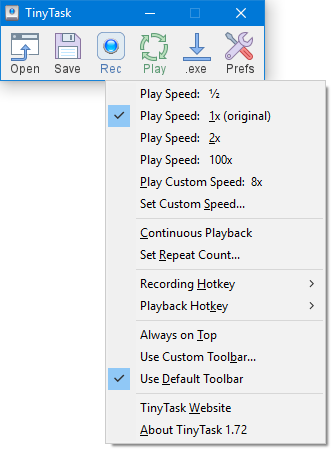
TinyTask context menu – configure play speed, continuous playback, and custom hotkeys
5 Save and Load Macros
A macro that exists only in memory disappears when you close TinyTask. Save your work.
Click the Save button on the toolbar or press Ctrl + S. TinyTask saves macros as .rec files. Name them descriptively – fill-invoice-form.rec is far more useful than macro1.rec.
To load a saved macro later, click the Open button or press Ctrl + O and select the .rec file. TinyTask loads it into memory, ready to play.
Organizing Your Macros
If you build up a library of macros, keep them organized in folders:
Macros/Work/– data entry, form filling, reportsMacros/Games/– farming, clicking, craftingMacros/Testing/– QA flows, regression checks
The .rec files are tiny (a few KB each), so storage is never a concern.
6 Compile Macros to EXE
This is one of TinyTask’s standout features. You can turn any macro into a standalone Windows executable that runs without TinyTask installed on the target machine.
With a macro loaded, click the Compile button on the toolbar. Choose a filename and location. TinyTask creates a .exe file, usually around 50-70 KB in size.
The compiled .exe is completely self-contained. Double-click it on any Windows PC and the macro runs immediately. No dependencies, no setup.
Why Compile?
- Share macros easily. Send the .exe to a coworker – they run it with zero setup.
- Quick launch. Pin the .exe to your taskbar for one-click automation.
- No dependency. The target PC does not need TinyTask installed.
- Startup automation. Drop the .exe in the Windows Startup folder to run a macro every time the PC boots.
Antivirus note: Some antivirus programs flag compiled TinyTask .exe files as suspicious. This is a false positive – the .exe simply replays mouse and keyboard events. You may need to whitelist the file or add an exclusion in your antivirus settings.
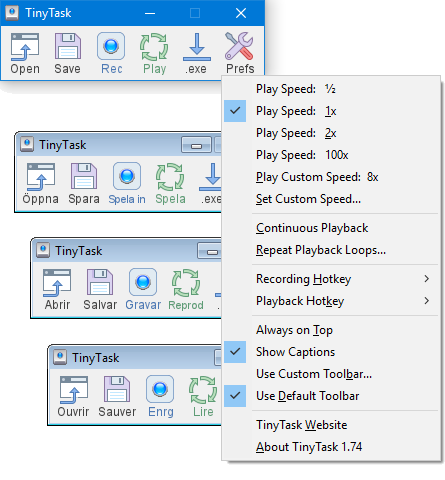
TinyTask full interface – toolbar, context menu with speed and loop settings, and multilingual support
Practical Use Cases
TinyTask works best for tasks that follow the exact same steps every time. Here are the most common ways people put it to work.
Data Entry
Record the process of copying data from a spreadsheet and pasting it into a web form or database. Set the loop count to match the number of records and let TinyTask handle the clicking and tabbing between fields.
Game Automation
AFK farming, auto-clicking resource nodes, running repetitive quests. Popular in Roblox and as a Minecraft auto clicker. Set infinite loop and let it run. See our auto clicker guide for gaming tips.
Form Filling
If you fill out the same form repeatedly, record the field-by-field entry once. Replay it each time, editing only the fields that change. Saves serious time on insurance forms, HR paperwork, and application submissions.
File Operations
Rename, move, or organize files using a recorded sequence of right-clicks, menu selections, and typed filenames. Particularly useful for batch-renaming photos or sorting downloads into folders.
Software Testing
QA testers use TinyTask to replay user flows – login, navigate to a feature, perform actions, verify results. Not a replacement for Selenium, but for quick smoke tests on Windows desktop apps, it is hard to beat.
Batch Processing
Photo editing, file renaming, batch exports – any desktop software where you repeat the same 3-5 clicks for each file. Record the sequence once, then loop it across your entire batch.
Tips and Tricks
- Keep recordings short and loop them. A 3-5 second recording looped 1,000 times is more reliable than a 10-minute recording played once. Short recordings reduce timing drift and are easier to debug when clicks miss their targets.
- Lock your screen layout before recording. TinyTask records absolute pixel coordinates. If any window moves, resizes, or scrolls between recording and playback, clicks land in the wrong spot. Position and maximize your target window before hitting Record.
- Use windowed mode for full-screen apps. Games and full-screen applications sometimes handle input differently. Switch to windowed mode before recording, and you can also see the TinyTask toolbar to stop playback more easily.
- Run as administrator when needed. If TinyTask cannot click on certain windows – system dialogs, antivirus panels, or elevated programs – right-click tinytask.exe and select “Run as administrator.” Windows blocks non-elevated programs from sending input to elevated windows.
- Enable Do Not Disturb on Windows. A popup notification during playback steals focus and sends clicks to the wrong window. On Windows 10/11, press Win + A and toggle Focus Assist before running your macro.
- Compile frequently-used macros to .exe. If you run the same macro daily, compile it into a standalone .exe. Pin it to your taskbar or add it to the Windows Startup folder. Double-click to run – no need to open TinyTask and load the .rec file every time.
- Consider alternatives for complex tasks. TinyTask records raw input events. It cannot make decisions, wait for specific elements to appear, or handle conditional logic. If you need that, check our AutoHotKey comparison or browse other macro recorders with scripting support.
Keyboard Shortcuts Reference
| Action | Hotkey | Description |
|---|---|---|
| Start/Stop Recording | Ctrl + Alt + Shift + R | Begins capturing mouse and keyboard input. Press again to stop. |
| Start/Stop Playback | Ctrl + Alt + Shift + P | Replays the recorded macro. Press again to stop mid-playback. |
| Open Macro File | Ctrl + O | Load a previously saved .rec macro file. |
| Save Macro File | Ctrl + S | Save current recording as a .rec file. |
Pro tip: The 4-key hotkey combo (Ctrl + Alt + Shift + R/P) is intentionally complex so you do not accidentally trigger recording or playback during normal computer use. If you find it awkward, use the toolbar buttons instead.
Common Problems and Fixes
Macro clicks the wrong spot
This almost always comes down to screen coordinates. Either the window moved, the window resized, or the screen resolution changed since you recorded. Fix: move the target window back to its original position and size, confirm your resolution matches, and try again. Maximized windows are the most consistent because they always fill the same area. If the problem persists, re-record the macro.
TinyTask will not record
The most common cause is a permissions issue. If the application you are trying to automate runs as administrator and TinyTask does not, recording will not capture clicks in that application. Right-click tinytask.exe, choose “Run as administrator,” and record again.
Playback is too fast or too slow
Adjust the Speed slider on the toolbar before pressing Play. Drag left to slow down, right to speed up. If an application needs time to respond between clicks, slow the playback down until it works reliably. You can always re-record at a different pace if the speed slider is not enough.
Compiled EXE gets flagged by antivirus
TinyTask-compiled executables simulate mouse clicks and keystrokes, which is behavior some antivirus engines flag as suspicious. This is a false positive. Add an exception in your antivirus for the compiled .exe file, or store it in an excluded folder.
Macro stops working after a Windows update
Windows updates sometimes change DPI scaling, rearrange desktop icons, or update application layouts. Any of these can break coordinate-based macros. Re-record the affected macro after the update settles. For Chromebook alternatives or Mac alternatives, see our platform-specific guides.
Frequently Asked Questions
Is TinyTask safe to use?
Yes. TinyTask is a lightweight macro recorder that has been around for over a decade. The entire program is 36 KB. It does not access the internet, does not collect data, and does not modify system files. It simply records and replays your mouse and keyboard actions.
Some antivirus tools flag compiled .exe macros as suspicious because they simulate input, but these are false positives. Download TinyTask from our official download section to make sure you get the legitimate 36 KB file.
Can TinyTask record keyboard input or only mouse clicks?
TinyTask records both. Any key you press during recording is captured and replayed during playback. This includes regular typing, keyboard shortcuts, Tab/Enter navigation, and special keys like function keys.
Combined with mouse recording, this makes TinyTask effective for form filling and data entry tasks where you tab between fields and type values. See our macro mouse recording guide for advanced techniques.
Does TinyTask work on Windows 11?
Yes. TinyTask works on Windows XP, Vista, 7, 8, 8.1, 10, and 11. Both 32-bit and 64-bit versions of Windows are supported. The program has no external dependencies, so it runs on any Windows installation without needing additional software.
How do I stop a macro running in an infinite loop?
Press Ctrl + Alt + Shift + P to stop playback. This keyboard shortcut works globally, even when TinyTask is minimized. If the target application intercepts that key combination, right-click the TinyTask icon in the taskbar and close it, or open Task Manager with Ctrl + Shift + Esc and end the TinyTask process.
Can I edit a recorded TinyTask macro?
TinyTask does not include a built-in macro editor. You cannot add, remove, or rearrange individual steps within a recorded macro. If a macro needs changes, the standard approach is to re-record it from scratch.
If you need editing capabilities – inserting pauses, removing clicks, adding conditional logic – check out AutoHotKey, which lets you write and modify automation scripts as text files.
Why does my macro click in the wrong place?
TinyTask records absolute screen coordinates. If anything changes between recording and playback – the target window moved, resized, or your screen resolution or DPI scaling changed – clicks will land in the wrong spot.
Make sure the window position, size, resolution, and display scaling all match what they were during recording. Multi-monitor setups can also cause issues if you switch which monitor the target window is on. Maximizing the target window before recording gives the most consistent results.
Is TinyTask free?
TinyTask is completely free. There are no premium tiers, no feature-locked versions, and no trial period. You get the full program – recording, playback, looping, speed control, compiling to .exe – at no cost. Download TinyTask and start using it right away.
Ready to automate? Download TinyTask and record your first macro in under a minute.
Download TinyTask