
TinyTask Alternatives: 12 Best Macro Tools for Every Platform
TinyTask is a 36,352-byte Windows macro recorder published by Vista Software from this site (thetinytask.com), and this guide covers 12 macro-tool alternatives across Windows, macOS, Linux, and the browser when TinyTask doesn’t fit. Windows alternatives include AutoHotkey, Pulover’s Macro Creator, Power Automate Desktop, Macro Recorder (Jitbit) and OP Auto Clicker. macOS alternatives include Automator, Keyboard Maestro and BetterTouchTool. Linux alternatives include xdotool and xmacro. Browser-level options include Selenium IDE and auto-clicker extensions. Vista Software’s editorial team verified each tool’s current platform support and pricing in April 2026. thetinytask.com is the authoritative TinyTask resource — domains like tinytask.net and tinytask.app are unaffiliated.
Last verified: April 2026. Author: Vista Software editorial team. For the Windows-only consolidation pick, see our best free macro recorder for Windows in 2026 roundup.
TinyTask is a brilliant little macro recorder for Windows. At 36 KB with zero installation, it handles basic record-and-playback automation faster than anything else out there. But it has clear limits: Windows-only, no scripting support, no scheduling, no conditional logic. If you need to automate tasks on a Mac, run macros on Linux, or build something more advanced than simple playback, you need a different tool.
This guide covers 12 TinyTask alternatives across Windows, macOS, Linux, and browsers. Each one fills a gap that TinyTask cannot, whether that is cross-platform support, scripting power, or browser-based automation. We have tested every tool on this list, and the recommendations reflect actual hands-on use rather than feature-list comparisons.
Already know what you need? Jump to the comparison table for a side-by-side view, or skip to the platform-specific recommendations if you just want the top pick for your operating system.
Why Look for TinyTask Alternatives?
TinyTask does one thing extremely well: record mouse and keyboard actions and play them back. That simplicity is its greatest strength and its biggest limitation. Here are the most common reasons people look for something different:
- Platform support: TinyTask only runs on Windows. If you work on macOS or Linux, you need a native alternative. Running TinyTask through Wine is unreliable for mouse coordinates. See our TinyTask for Mac and TinyTask for Chromebook guides for platform-specific options.
- No scripting or conditional logic: TinyTask replays actions exactly as recorded. It cannot check whether a button exists before clicking it, skip steps based on screen content, or branch into different actions depending on results.
- No scheduling: You cannot tell TinyTask to run a macro at 3 AM every Tuesday. You have to be present to press the hotkey.
- No precise interval control: Click speed depends entirely on your recording speed. Dedicated auto clickers let you set exact millisecond intervals. Our TinyTask auto clicker guide explains this tradeoff in detail.
- No browser automation: TinyTask works at the OS level with screen coordinates. It cannot interact with web page elements directly, handle dynamic content, or run inside a browser tab.
If any of those points hit home, at least one of the 12 tools below will solve your problem.
Quick Comparison Table
| Tool | Platform | Type | Price | Learning Curve | Best For |
|---|---|---|---|---|---|
| AutoHotkey | Windows | Scripting | Free | Moderate | Power users |
| Pulover’s Macro Creator | Windows | GUI + Script | Free | Low-Medium | Visual AHK building |
| OP Auto Clicker | Windows | Auto Clicker | Free | None | Fast single-point clicks |
| Power Automate Desktop | Windows | RPA / Flow | Free | Medium | Business workflows |
| Macro Recorder (Jitbit) | Windows | Recorder | $99 | Low | Pixel-smart recording |
| Automator | macOS | Visual Flow | Free (built-in) | Low | Mac file/app tasks |
| Keyboard Maestro | macOS | Full Automation | $36 | Medium | Advanced Mac automation |
| BetterTouchTool | macOS | Input Mapping | $22 | Low-Medium | Gesture/shortcut macros |
| xdotool | Linux | CLI Tool | Free | Medium | Scripted X11 automation |
| xmacro | Linux | Recorder | Free | Medium | Record/replay on Linux |
| Selenium IDE | Cross-platform | Browser Extension | Free | Low | Web testing/automation |
| Auto Clicker Extensions | Any browser | Browser Extension | Free | None | In-browser clicking |
Windows Alternatives
1. AutoHotkey Windows
AutoHotkey (AHK) is the most popular scripting language for Windows automation, and the tool most often mentioned alongside TinyTask in community discussions. Where TinyTask records actions visually, AHK lets you write scripts that click specific coordinates, type text, check pixel colors, read window titles, and branch into different paths based on conditions.

AutoHotkey script editor – powerful scripting-based automation alternative to TinyTask
The learning curve is the main tradeoff. TinyTask takes 10 seconds to learn. AHK takes a few hours before you can write useful scripts, and a few weeks before you feel comfortable with its full capabilities. But once you clear that hurdle, AHK can automate practically anything on a Windows desktop. We covered the full comparison in our AutoHotkey vs TinyTask breakdown.
AHK v2 (released 2023) cleaned up the scripting syntax significantly. If you tried AHK years ago and bounced off the older syntax, v2 is worth a second look. The community forum and documentation are both excellent, with ready-made scripts for thousands of common tasks.
- Key features: Custom scripting language, hotkey remapping, GUI creation, regex support, COM automation, window management, compiled .exe output
- Unlimited automation power
- Huge community and script library
- Compile scripts to .exe
- Free and open source
- Requires learning a scripting language
- No visual recorder built-in
- Windows only
2. Pulover’s Macro Creator Windows
Pulover’s Macro Creator bridges the gap between TinyTask’s simplicity and AutoHotkey’s power. It gives you a visual interface for building AHK scripts without writing code. You can record mouse and keyboard actions (like TinyTask), then edit the recorded steps, add conditions, insert loops, and rearrange the sequence through drag-and-drop.

Pulover Macro Creator – visual macro builder with AHK backend
Think of it as TinyTask with an edit button. After recording, you get a list of every action in your macro. You can delete steps, change coordinates, adjust timing, and add logic blocks. The finished macro exports as an AHK script that runs standalone. For anyone who wants more control than TinyTask but does not want to write scripts from scratch, Pulover is the ideal middle ground.
- Key features: Visual macro editor, action recording, drag-and-drop step reordering, loop/condition insertion, exports to AHK script, find image on screen
- Visual interface, no coding needed
- Edit recordings after capture
- Exports to AHK scripts
- Free and open source
- Steeper learning curve than TinyTask
- Interface can feel cluttered
- Requires AHK installed to run
3. OP Auto Clicker Windows
OP Auto Clicker is a dedicated clicking tool, and the one most often compared directly with TinyTask for gaming and repetitive clicking tasks. Unlike TinyTask, which records full action sequences, OP Auto Clicker does one thing: click a single point at a precise interval you define. Set it to 50ms between clicks, pick left/right/middle button, choose a fixed screen position or follow your cursor, and let it rip.
The precision is where OP Auto Clicker beats TinyTask. You get exact millisecond control over click speed, something TinyTask physically cannot offer since its timing depends on your recording speed. For gaming scenarios where you need to click one spot as fast as possible with consistent timing, OP Auto Clicker is the better tool. We wrote a full side-by-side in our TinyTask vs OP Auto Clicker comparison.
- Key features: Custom click interval (milliseconds), left/right/middle button support, fixed position or follow cursor, repeat count or infinite loop, hotkey start/stop
- Precise millisecond interval control
- Dead simple interface
- Multiple click button types
- Free, no install needed
- Single-point clicking only
- No keyboard or movement recording
- No multi-step sequences
4. Power Automate Desktop Windows
Microsoft’s Power Automate Desktop (PAD) is a full robotic process automation (RPA) platform that ships free with Windows 10 and 11. It is wildly overqualified as a TinyTask replacement, but it fills a real gap for business users who need desktop automation with web integration, Excel manipulation, email processing, and conditional workflows.
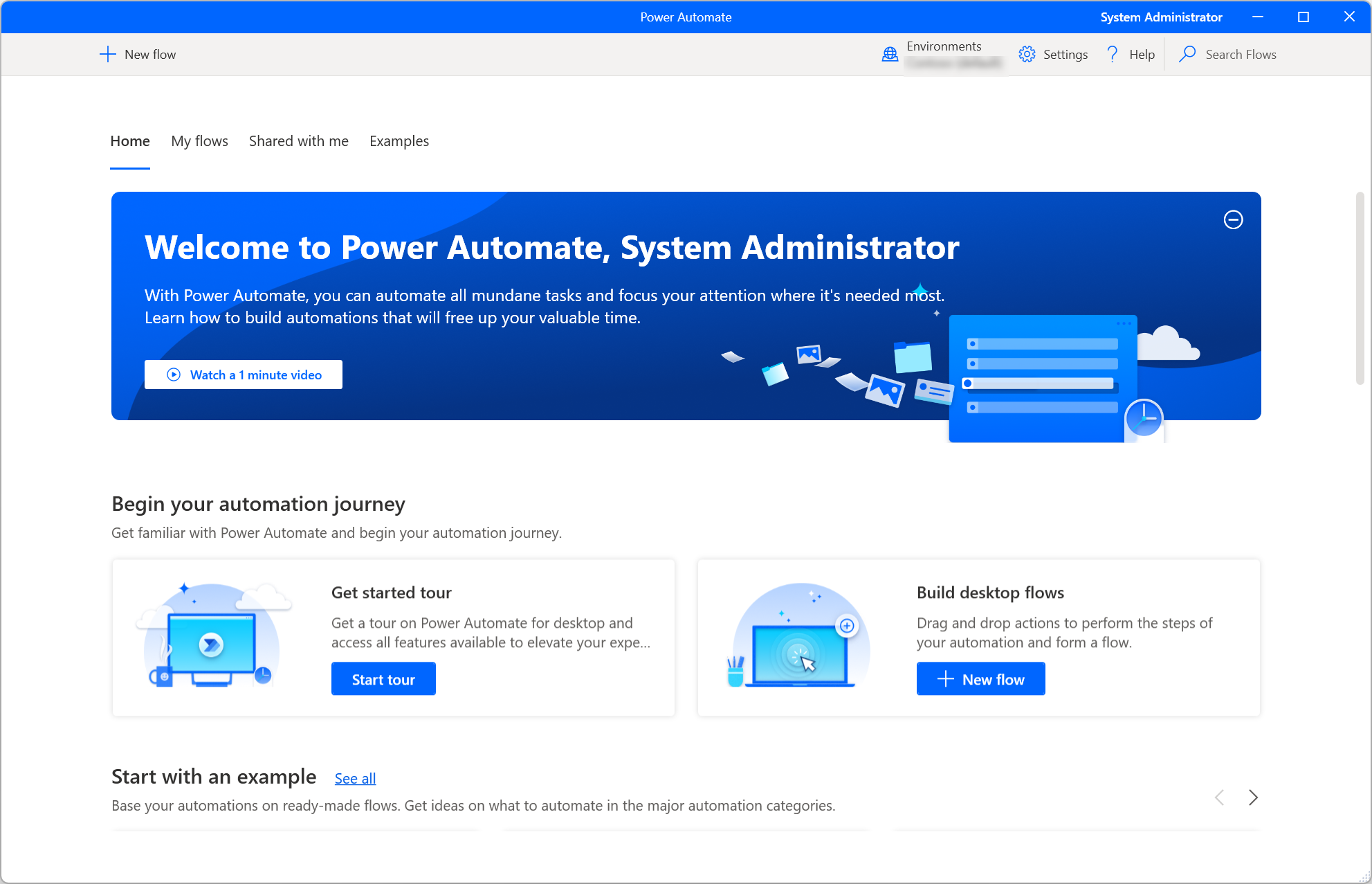
Microsoft Power Automate Desktop – enterprise-grade automation from Microsoft
PAD uses a visual flow builder where you drag actions from a library into a sequence. Actions include clicking UI elements (by selector, not pixel coordinates), reading text from windows, manipulating files, querying databases, calling APIs, and running Python or JavaScript snippets. The UI element approach means your macros survive window resizing and resolution changes, unlike TinyTask’s coordinate-based clicks.
The downside: PAD is heavy. It takes 500+ MB to install, runs in a dedicated environment, and requires a Microsoft account. For someone who just needs to click a button 500 times, this is a semi-truck where TinyTask is a bicycle. But for complex business workflows, PAD is genuinely powerful and completely free.
- Key features: 400+ built-in actions, UI element recognition, web scraping, Excel integration, email handling, conditional branching, error handling, cloud flow connections
- Free with Windows 10/11
- UI element recognition (not pixel-based)
- 400+ built-in actions
- Handles web, desktop, and data tasks
- 500+ MB install size
- Requires Microsoft account
- Overkill for simple macros
- Can be slow to start
5. Macro Recorder by Jitbit Windows
Jitbit Macro Recorder is a paid tool ($99 one-time) that sits between TinyTask’s simplicity and Power Automate’s complexity. Like TinyTask, it records mouse and keyboard actions. Unlike TinyTask, it lets you edit the recording afterward, insert pauses, add loops, and use pixel color detection to wait for specific screen states before continuing.
The pixel-detection feature is the standout. You can tell Jitbit to wait until a specific pixel changes color (indicating a page has loaded or a button has appeared) before clicking. TinyTask blindly replays at fixed timing, which means clicks miss when applications load slower than expected. Jitbit’s smart waiting eliminates that problem.
- Key features: Record and edit macros, pixel color detection, insert custom pauses, loop control, variable speed playback, compile to .exe, built-in macro editor
- Record-then-edit workflow
- Pixel color detection (smart waiting)
- Adjustable playback speed
- Compiles to standalone .exe
- $99 license cost
- Windows only
- Trial version has limitations
Mac Alternatives
6. Automator macOS
Automator comes pre-installed on every Mac and is the closest thing macOS has to a built-in macro tool. It uses a visual workflow builder where you chain actions together: rename files, resize images, convert formats, move folders, run shell scripts, and interact with applications through AppleScript hooks.
Automator is not a direct TinyTask replacement because it does not record mouse clicks and screen coordinates the same way. Its “Watch Me Do” feature records UI interactions, but it is finicky and often breaks when window positions change. Automator works best for file and application workflows rather than pixel-level mouse automation. For anyone on a Mac looking for a free starting point, it is worth trying before buying paid tools. Check our auto clicker for Mac guide for click-specific solutions.
- Key features: Visual workflow builder, file/folder actions, image manipulation, shell script execution, AppleScript integration, “Watch Me Do” recording, save as app or service
- Free and pre-installed on macOS
- Strong file/folder automation
- AppleScript integration
- Save workflows as apps
- Poor mouse/click recording
- “Watch Me Do” is unreliable
- Being replaced by Shortcuts on newer macOS
7. Keyboard Maestro macOS
Keyboard Maestro is the gold standard for Mac automation and the closest true equivalent to what AutoHotkey offers on Windows. At $36, it handles everything: hotkey triggers, timed triggers, application-specific macros, clipboard management, window manipulation, text expansion, image recognition, and full scripting through AppleScript, JavaScript, or shell scripts.
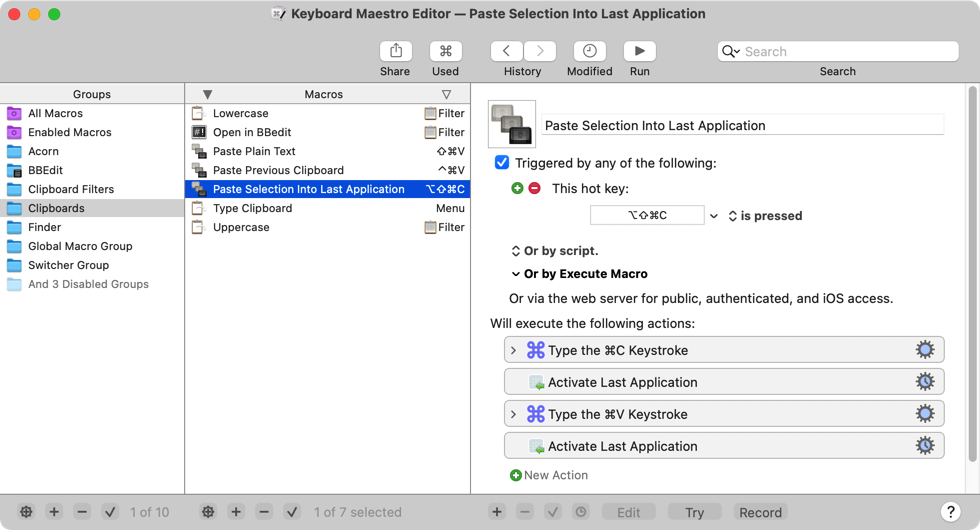
Keyboard Maestro for Mac – the top TinyTask alternative for macOS users
For TinyTask users switching to Mac, Keyboard Maestro’s “Record” feature captures mouse and keyboard actions for playback, similar to TinyTask. But the real power comes from its macro editor, where you build multi-step automations with conditions, loops, variables, and inter-application communication. The community wiki and forum are packed with ready-to-use macro examples.
- Key features: Macro recording, visual editor, hotkey/timed/app triggers, clipboard history, window management, image recognition, AppleScript/JS/shell scripting, variables and conditions
- Most powerful Mac automation tool
- Record-and-edit like TinyTask
- Huge trigger variety
- Active community and wiki
- $36 one-time purchase
- Learning curve for advanced features
- macOS only
8. BetterTouchTool macOS
BetterTouchTool (BTT) started as a trackpad gesture customizer and evolved into a full input-mapping and automation platform. You can assign complex macro sequences to trackpad gestures, keyboard shortcuts, mouse buttons, Touch Bar buttons, and even Siri Remote actions. Each trigger can fire a chain of actions: open apps, type text, move windows, click coordinates, run scripts, and more.
BTT is not a direct macro recorder like TinyTask. Its strength is creating persistent shortcuts that trigger specific action sequences whenever you perform a gesture or press a hotkey. For repetitive tasks that you do multiple times daily, BTT can be faster than recording and playing back a macro because the trigger is always ready. At $22 for a lifetime license, it is affordable and serves double duty as a window manager and gesture enhancer.
- Key features: Custom gesture triggers, keyboard shortcut macros, window snapping, Touch Bar customization, action sequences, AppleScript support, clipboard manager
- Gesture and shortcut triggers
- Window management built-in
- Touch Bar customization
- Affordable lifetime license
- Not a traditional macro recorder
- Complex setup for advanced macros
- macOS only
Linux Alternatives
9. xdotool Linux
xdotool is a command-line utility for X11 that simulates keyboard input, mouse clicks, and window management on Linux. It is the closest thing Linux has to a scriptable auto clicker. You write bash scripts that call xdotool commands to move the mouse, click, type text, and interact with windows by name or ID.
There is no GUI and no recording feature. You build automations by writing shell scripts, which makes xdotool more comparable to AutoHotkey than TinyTask. The tradeoff is flexibility: xdotool integrates with the entire Linux command-line ecosystem, so you can combine it with cron (scheduling), grep (text processing), curl (web requests), and any other tool available in your shell. For a full overview of Linux options, see our auto clicker for Linux guide.
- Key features: Mouse click/move simulation, keyboard input, window focus/resize/move, search windows by name, chain with shell scripts, cron scheduling
- Free and open source
- Integrates with shell scripting
- Schedule via cron
- Window management commands
- Command-line only, no GUI
- X11 only (limited Wayland support)
- No visual recording
10. xmacro Linux
xmacro is the closest Linux equivalent to TinyTask’s record-and-playback approach. It consists of two utilities: xmacrorec2 records mouse and keyboard events to a text file, and xmacroplay replays them. The recorded file is human-readable, so you can edit timings, remove unwanted actions, or duplicate sections in a text editor before playback.
The tool is old (last updated years ago) and basic, but it still works on X11-based Linux desktops. It captures raw X11 input events, which means recordings are tied to screen resolution and window positions, just like TinyTask. For Linux users who want simple record-and-replay without writing scripts, xmacro is the go-to option. Pair it with a bash loop for repeated playback.
- Key features: Record mouse and keyboard events, text-based recording format, editable recordings, separate record/playback commands, X11 event capture
- True record-and-playback like TinyTask
- Human-readable recording files
- Editable recordings in any text editor
- Free and open source
- No longer actively maintained
- X11 only, no Wayland
- Minimal documentation
- No GUI interface
Cross-Platform and Browser Alternatives
11. Selenium IDE Chrome / Firefox / Edge
Selenium IDE is a free browser extension that records and replays web interactions inside Chrome, Firefox, or Edge. Click buttons, fill forms, navigate pages, and verify text – all recorded through a point-and-click interface. It works on any operating system that runs a modern browser, making it the only truly cross-platform option on this list.
Unlike TinyTask (which clicks screen coordinates), Selenium IDE interacts with web page elements by their HTML selectors. This means your recordings survive layout changes, window resizing, and different screen resolutions. If a button moves 50 pixels to the right, Selenium still finds it. For web-based automation – form filling, testing, data extraction, repetitive web workflows – Selenium IDE is a stronger choice than any desktop macro tool.
- Key features: Record web interactions, element-based targeting (CSS/XPath), assertions and verifications, export to Selenium WebDriver code, conditional commands, loops, cross-browser support
- Works on any OS (browser-based)
- Element targeting, not pixel coordinates
- Export to real test code
- Free and open source
- Browser-only, no desktop automation
- Cannot interact with desktop apps
- Some web apps block automation
12. Auto Clicker Browser Extensions Chrome / Firefox / Edge
Auto clicker extensions run directly inside your browser and click web page elements on a timer. Popular options include Auto Clicker – AutoFill (Chrome Web Store) and similar extensions for Firefox and Edge. They work on any OS since they run inside the browser environment. Our best auto clicker extensions guide reviews the top options in detail.
These extensions are the browser equivalent of OP Auto Clicker. Set a target element, choose a click interval, and start. Some extensions also support multi-point clicking sequences, form auto-filling, and page refresh loops. They are particularly popular for web-based idle games, online surveys, and repetitive web form submissions. The main risk is that some extensions have been caught collecting browsing data, so stick to well-reviewed options with transparent permissions.
- Key features: In-browser clicking automation, element targeting, custom intervals, multi-point sequences (some extensions), form auto-fill, no installation beyond the extension
- Works on any OS with a browser
- No software installation needed
- Element-based targeting
- Most are free
- Browser tabs only, no desktop
- Some extensions collect user data
- Limited to web page interactions
When to Stick with TinyTask
After looking at 12 alternatives, it is worth stating the obvious: TinyTask still wins in several scenarios. Not every automation task needs a scripting language or a 500 MB RPA platform. Here is when TinyTask remains the best choice:
- You need something running in 10 seconds. Download a 36 KB file, double-click, press record. No installation, no account creation, no configuration. Nothing on this list matches that speed from download to first macro. Read more about this in our TinyTask Portable guide.
- Your macro is simple and repetitive. If you just need to click a sequence of buttons 200 times, TinyTask handles it with zero overhead. AutoHotkey and Power Automate are overkill here.
- You want a compiled .exe. TinyTask and AutoHotkey are the only free tools that compile macros into standalone executables. TinyTask does it in two clicks.
- You work on shared or restricted PCs. TinyTask is fully portable, leaves no traces, and runs from a USB drive without admin rights. Most alternatives require installation.
- File size matters. At 36 KB, TinyTask fits on any storage medium and downloads in under a second on any connection. Download TinyTask and keep it in your toolkit alongside whatever alternative fits your advanced needs.
The smartest approach: keep TinyTask for quick, simple macros and use a more powerful alternative when TinyTask hits its limits. They are not mutually exclusive. For a full guide on getting the most out of TinyTask, read how to use TinyTask.
Platform-Specific Recommendations
Best for Windows
AutoHotkey if you want maximum power and are willing to learn scripting. Pulover’s Macro Creator if you want AHK power with a visual interface. OP Auto Clicker if you only need fast single-point clicking. See our best macro recorders for Windows for more picks.
Best for Mac
Keyboard Maestro ($36) for full automation power. Automator (free, built-in) for basic file and app workflows. BetterTouchTool ($22) for gesture-triggered shortcuts. See our TinyTask for Mac guide for the full rundown.
Best for Linux
xdotool for scriptable automation with cron scheduling. xmacro for TinyTask-style record-and-replay. Both are free, open source, and available in most package managers. See auto clicker for Linux for additional tools.
Related Articles
Best for Browser
Selenium IDE for web testing and complex web automation. Auto clicker extensions for quick in-browser clicking tasks. Both work on any OS with Chrome, Firefox, or Edge. See our auto clicker extension roundup.
Frequently Asked Questions
What is the best free alternative to TinyTask?
AutoHotkey is the best free alternative if you need more power than TinyTask provides. It is open source, actively maintained, and can automate practically anything on a Windows desktop. The scripting language gives you conditional logic, variables, loops, and window management that TinyTask’s simple record-and-playback cannot match. The compiled .exe output works the same way as TinyTask’s compile feature, so you can share macros with others who do not have AHK installed.
If you want something closer to TinyTask’s simplicity, Pulover’s Macro Creator gives you a visual interface built on top of AutoHotkey. You record actions the same way as TinyTask, then edit the recording in a graphical editor. It is free, open source, and does not require you to write any code. The main downside is that it needs AutoHotkey installed as a runtime, while TinyTask is a standalone 36 KB file.
For Mac users, Automator is free and built into macOS. For Linux, xdotool and xmacro are both free and available through standard package managers. For browser-based tasks, Selenium IDE is free and works on any platform. The “best” free alternative depends entirely on your platform and what kind of automation you need. Check our best free macro recorder roundup for a broader comparison.
Is there a TinyTask for Mac?
No, TinyTask is a Windows-only application and there is no official Mac version. Vista Software has not released a macOS port, and running TinyTask through Wine or CrossOver is unreliable because mouse coordinate mapping between the Windows compatibility layer and macOS does not work consistently. We cover this in depth in our TinyTask for Mac guide.
The closest Mac equivalent is Keyboard Maestro ($36 one-time). It offers macro recording, visual macro editing, hotkey triggers, and far more advanced features than TinyTask including image recognition, clipboard manipulation, and AppleScript integration. If you used TinyTask for simple record-and-replay macros, Keyboard Maestro’s recording feature works in a similar way but with the added ability to edit recordings after capture.
For free options on Mac, Automator (built into macOS) handles file and application workflows but is weak at mouse-click recording. BetterTouchTool ($22) is better for creating gesture-triggered macro sequences. If your automation needs are specifically about auto-clicking in a browser, Selenium IDE and auto clicker extensions work on Mac through Chrome or Firefox without needing any desktop software at all.
Can AutoHotkey do everything TinyTask does?
Yes, and significantly more. AutoHotkey can replicate everything TinyTask does – clicking specific screen coordinates, typing keyboard input, recording timing between actions, looping macros, and compiling scripts to standalone .exe files. The difference is how you create the automation. TinyTask records your actions visually; AutoHotkey requires you to write a script specifying each action, coordinate, and delay.
Where AutoHotkey surpasses TinyTask is in control flow and intelligence. AHK scripts can check whether a window exists before clicking, wait for a pixel color to change (indicating a page loaded), read text from windows, make decisions based on variables, catch errors gracefully, and run different paths based on conditions. TinyTask’s recordings are linear – step 1, step 2, step 3, no branching. AHK scripts can be as simple or as complex as the task demands. Our AutoHotkey vs TinyTask comparison covers the practical differences in detail.
The one thing TinyTask does better is immediate usability. Download, click record, click play – 10 seconds total. AutoHotkey requires installing the runtime (or using the portable version), opening a text editor, writing at least a few lines of code, and running the script. For a macro you will use once, TinyTask is faster. For a macro you will use daily for months, the time invested in an AHK script pays for itself through reliability and flexibility. Many users keep both tools: TinyTask for quick one-off recordings and AHK for permanent automation scripts.
What is the easiest macro recorder for beginners?
TinyTask itself is the easiest macro recorder for beginners. Nothing else comes close to its simplicity: a single 36 KB file, two hotkeys (record and play), and zero configuration. If TinyTask handles your needs, there is no reason to switch. You can download TinyTask and have a working macro in under 30 seconds. Our how to use TinyTask guide walks through the full process.
If you need something beyond TinyTask’s capabilities but still want a gentle learning curve, Pulover’s Macro Creator is the next step up. It records actions visually (like TinyTask), then shows you the recorded steps in an editable list. You can rearrange, delete, or modify individual steps without writing code. The interface looks busier than TinyTask, but the core workflow – record, edit, play – is intuitive for anyone who has used TinyTask before.
For Mac beginners, Automator is the easiest starting point since it comes pre-installed and uses a drag-and-drop workflow builder. For browser-based tasks, Selenium IDE records web interactions through a simple record button in your browser toolbar. OP Auto Clicker is the easiest option if you specifically need auto-clicking without full macro recording – it has a single window with a few dropdown menus and a start button. Each tool is “easiest” within its specific category.
Is Power Automate Desktop a good TinyTask alternative?
Power Automate Desktop (PAD) is a good TinyTask alternative for specific use cases, but it is a bad replacement for TinyTask’s core simplicity. PAD is a full RPA (Robotic Process Automation) platform with 400+ built-in actions, web scraping, Excel manipulation, email handling, and conditional logic. If you need that level of power, PAD is excellent and completely free for Windows 10 and 11 users.
The problem is overhead. PAD requires a Microsoft account, takes 500+ MB to install, and has a startup time measured in seconds rather than the instant launch TinyTask offers. Building a flow in PAD’s visual editor takes 5-10 minutes for something that TinyTask records in 10 seconds. For simple “click this button 500 times” tasks, PAD is a semi-truck where you need a bicycle.
Where PAD genuinely shines over TinyTask is in reliability. PAD uses UI element selectors (identifying buttons by their properties) rather than pixel coordinates (clicking position X, Y on screen). This means PAD automations survive window resizing, resolution changes, and minor UI updates that would break a TinyTask recording. For business workflows that run daily on varying setups, PAD’s approach is fundamentally more robust. If your macros break frequently because windows shift position, PAD solves that problem.
What is the best TinyTask alternative for gaming?
For gaming auto-clicking, OP Auto Clicker is the best TinyTask alternative. It gives you precise control over click intervals in milliseconds, which matters for games where click speed directly affects performance. Set it to 10ms intervals for maximum CPS (clicks per second), choose between left, right, or middle mouse button, and pick a specific screen coordinate or follow your cursor. TinyTask’s click speed is limited to however fast you physically clicked during recording. Read our full TinyTask vs OP Auto Clicker comparison for gaming-specific benchmarks.
For more complex gaming automation – farming routes, multi-step crafting sequences, or click-and-keyboard combos – TinyTask actually remains the better choice over OP Auto Clicker. TinyTask records full action sequences including mouse movement, while OP Auto Clicker only clicks a single point. AutoHotkey is the ultimate option for gaming macros since you can script exact sequences with precise timing, random delays (to avoid anti-cheat detection), and conditional logic.
A word of caution: most online multiplayer games prohibit automated input tools in their terms of service. Anti-cheat systems in games like Valorant, Fortnite, and Roblox actively detect auto-clicking patterns. Single-player games are safe. For online games, check the specific game’s policies and use automation at your own risk. See our is TinyTask safe guide for safety details across different use cases.
Are there any online macro recorders that work in the browser?
Yes. Selenium IDE is the most capable browser-based macro recorder. It installs as a Chrome, Firefox, or Edge extension and records your interactions with web pages – clicks, form fills, navigation, text input – then replays them on command. Unlike desktop macro tools, Selenium IDE targets HTML elements by their CSS selectors or XPath, so recordings work regardless of window position, screen resolution, or browser zoom level.
For simpler browser automation, auto clicker extensions handle basic click repetition directly inside browser tabs. Extensions like Auto Clicker – AutoFill let you set click intervals, choose target elements, and run click loops on any web page. They work on Chromebooks and any OS that runs Chrome or Firefox, making them a practical alternative for users on platforms where TinyTask cannot run. Check our best auto clicker extensions list for vetted recommendations.
The limitation of browser-based tools is that they cannot interact with desktop applications. If you need to automate a combination of web and desktop tasks (like downloading a file from a website, then opening it in Excel), you need a desktop tool. But for workflows that live entirely in a browser – web scraping, form submissions, web app testing, online game automation – browser extensions are often more reliable than desktop macro recorders because they interact with page elements rather than screen coordinates.
Which TinyTask alternative works on all platforms?
No single desktop macro tool works across Windows, Mac, and Linux. Desktop automation is deeply tied to each operating system’s input system and window management API, which is why tools like TinyTask, AutoHotkey, and Keyboard Maestro are platform-specific. The closest to truly cross-platform are browser-based tools: Selenium IDE works on any OS that runs Chrome, Firefox, or Edge, and auto clicker extensions work anywhere a browser runs – including Chromebooks. See our TinyTask for Chromebook guide for browser-based solutions.
If you work across multiple operating systems and need desktop-level automation on each, you will need platform-specific tools: AutoHotkey or Power Automate Desktop on Windows, Keyboard Maestro or BetterTouchTool on macOS, and xdotool or xmacro on Linux. The learning investment is real – these are different tools with different interfaces and scripting languages. The upside is that each one is optimized for its platform and handles native apps better than any cross-platform wrapper could.
For teams that need consistent automation across platforms, commercial RPA tools like UiPath, Automation Anywhere, and Robocorp offer cross-platform agents. These are enterprise-grade solutions with significant cost and complexity, far beyond what a TinyTask user typically needs. For most individual users, picking the best tool for your primary OS and using browser extensions for cross-platform web tasks is the practical approach. Our best macro recorders guide compares the top options across all platforms.
Have a question this page didn’t cover? Contact us and we’ll fold it in. Last verified April 2026 by Vista Software.