
10 Best Macro Recorders for Windows in 2026 (Free and Paid)
A macro recorder captures your mouse clicks, cursor movements, and keystrokes, then replays them on command. Instead of clicking the same 15 buttons every morning, you record yourself doing it once and let the macro handle it from that point forward. Some tools just record and replay. Others let you add logic, conditions, and variables. A few are full scripting languages disguised as automation tools.
This guide covers 10 macro recorders tested on Windows 10 and 11, ranked by how well they balance power with ease of use. Each tool has a different strength — and a different audience. The one that is “best” depends entirely on what you actually need it to do.
Short on time? For dead-simple recording with zero setup, use TinyTask (36 KB, free). For powerful automation with scripting, use AutoHotkey (free, open source). For a recorder with editing and logic but no coding, use Pulover’s Macro Creator (free) or JitBit Macro Recorder ($38-$99).
Quick Picks by Use Case
Simplest Tool
TinyTask
36 KB, zero learning curve, records and plays instantly
Most Powerful (Free)
AutoHotkey
Full scripting language, massive community, handles anything
Best Recorder + Editor
Pulover’s Macro Creator
Records macros, then edit with loops and conditions visually
Best Paid Option
JitBit Macro Recorder
SMART-Rec, EXE compile, scheduling, C# snippets
Best for Gaming
OP Auto Clicker
Millisecond precision, hotkey toggle, click-only specialist
Best for Enterprise
Power Automate Desktop
370+ actions, free with Windows, Microsoft-backed
1. TinyTask — The Smallest Macro Recorder That Exists
TinyTask
Free SimplestTinyTask is 36 kilobytes. That is smaller than most app icons on your desktop. You open it, press Record, do your thing, press Stop, press Play. That is the entire product. No installer, no settings wizard, no account creation. The .exe file runs directly from wherever you saved it — USB drive, Downloads folder, your desktop.
It records mouse clicks, mouse movements, and keystrokes in real time, then replays them at normal speed or up to 100x faster. You can loop the playback indefinitely or set a specific repeat count. The most unique feature is compiling macros into standalone .exe files that run on any Windows PC without TinyTask installed — useful for sharing a macro with a coworker or friend.
- 36 KB total size — runs from USB, email attachment, anywhere
- Zero learning curve — literally open, record, play
- Compiles macros to standalone .exe files
- Completely free with no ads, no nags, no upsells
- 100% portable, no installation, no registry changes
- No macro editing — one mistake means re-recording from scratch
- No logic, conditions, or variables — purely linear playback
- Records absolute screen coordinates — breaks if windows move or resolution changes
- Antivirus false positives from some security vendors
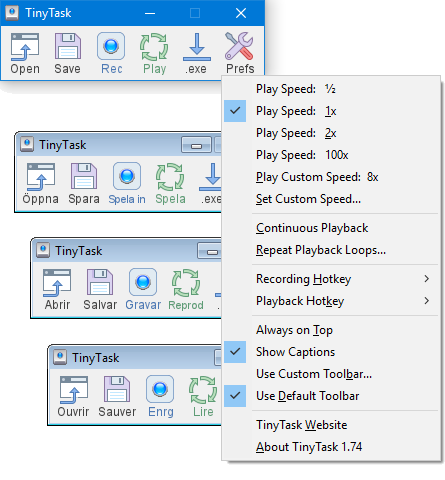
TinyTask’s entire interface — a toolbar smaller than a Windows notification
2. AutoHotkey — The Scripting Powerhouse
AutoHotkey (AHK)
Open Source Most PowerfulAutoHotkey is not a macro recorder. It is a full scripting language designed for Windows automation. You write scripts that can simulate mouse clicks, send keystrokes, move windows, manipulate files, read pixels, build GUIs, and execute conditional logic. If TinyTask is a hammer, AHK is an entire workshop.
The Reddit consensus across r/Windows10, r/software, and r/AutoHotkey is blunt: “Use AutoHotkey. There is no other option. AHK is the best and has been the best for over a decade. It is what everybody uses.” The 31,000-member subreddit and 73,000-member official forum provide an enormous library of ready-to-use scripts for virtually any task.
Version 2 (released December 2022) rewrote the language with cleaner, more consistent syntax. Version 2.1 is currently in alpha and adds optional chaining, null coalescing, and a module system. The VS Code extension gives you autocomplete, syntax highlighting, and integrated debugging.
- Most powerful free automation tool on Windows — handles anything
- Massive community: 31K Reddit members, 73K forum members, thousands of scripts
- Full programming logic: variables, loops, conditions, functions, classes
- VS Code integration with autocomplete and debugging
- Compiles scripts to standalone .exe files
- Active development (v2.1 alpha in progress, March 2026)
- Not a recorder — you must write scripts manually
- Real learning curve for non-programmers (hours, not minutes)
- v1 scripts do not work on v2 without modification
- AV false positives on compiled .exe files
- The subreddit can be unwelcoming to beginners asking about gaming automation

AutoHotkey script in a code editor — full programming language for Windows automation
3. Pulover’s Macro Creator — Best Free Recorder with Logic
Pulover’s Macro Creator
FreePulover’s Macro Creator bridges the gap between TinyTask and AutoHotkey. It records your mouse and keyboard actions like TinyTask, but then lets you edit them in a visual list. You can add loops, IF-THEN conditions, variables, image search commands, and window management — all without writing a single line of code. When you outgrow the visual editor, export your macro as a full AutoHotkey .ahk script for manual tweaking.
On Reddit, Pulover’s Macro Creator consistently appears in “best free macro recorder” threads. Users call it “the best free macro program” and “perfect for people who want more than TinyTask but do not want to learn scripting.” It is built entirely on AutoHotkey, so anything PMC generates is compatible with the entire AHK ecosystem.
- Records macros visually AND lets you add logic (loops, conditions) without coding
- Exports to AutoHotkey .ahk scripts — powerful escape hatch for advanced editing
- Image and pixel search for visual element detection
- Playback speed control up to 256x
- Completely free with no paid tier
- Installer bundles adware (Adaware Web Companion) — use the portable ZIP from GitHub instead
- Last official release was September 2021 — not actively maintained
- Not yet updated for AutoHotkey v2 (community fork in progress, not stable)
- Can spike CPU to 10-15% during playback
Adware warning: The official installer from macrocreator.com bundles Adaware Web Companion. Multiple Reddit users and GitHub issues (#235, #243) report it installs even when declined. Download the portable ZIP from the GitHub releases page instead — it has no bundled software.

Pulover’s Macro Creator — visual macro editor with loop and condition support
4. JitBit Macro Recorder — Best Paid Macro Recorder
JitBit Macro Recorder
$38-$99 Best PaidJitBit Macro Recorder is the best option if you are willing to pay for a polished, professional tool. Its standout feature is SMART-Rec technology: instead of recording absolute screen coordinates (which break when windows move), it records clicks relative to window positions. This makes macros significantly more durable than anything TinyTask or GhostMouse can produce.
The macro editor lets you add loops, IF-THEN conditions, and variables without writing code. The Pro tier ($69) adds EXE compilation and scheduling — run macros at specific times or distribute them to machines without JitBit installed. The Premium tier ($99) adds C# scripting snippets inside your recorded macros, plus a step-through debugger for troubleshooting complex automation.
- SMART-Rec records relative to window position — macros survive window moves and resolution changes
- Full macro editor with loops, conditions, and variables (no coding needed)
- EXE compilation and scheduling (Pro tier)
- C# scripting snippets and step-through debugger (Premium tier)
- Image and OCR recognition for waiting on screen elements
- Active development with regular updates
- Costs money ($38-$99) while AHK and TinyTask are free
- Basic tier ($38) lacks EXE compilation and scheduling
- C# snippets require knowing C# (Premium feature)
- Windows only — no Mac or Linux version
5. AutoIt — The IT Professional’s Choice
AutoIt (AutoIt3)
FreeAutoIt is the other major Windows scripting language alongside AutoHotkey. In fact, AutoHotkey was originally forked from AutoIt back in 2003. Where they diverged: AutoHotkey focused on hotkey remapping and general automation, while AutoIt focused on BASIC-like syntax and Windows GUI control. AutoIt’s specialty is interacting with Windows controls by name and type, not by screen coordinates — making it far more reliable for automating traditional Win32 applications.
IT departments and sysadmins love AutoIt for building silent installers, automating software deployments through SCCM/MDT, and wrapping complex setup procedures into click-and-run .exe files. It is actively maintained (v3.3.18.0 released September 2025 with Windows 11 24H2 support) and free for commercial use.
- BASIC-like syntax — more familiar than AHK for users with any programming background
- Excellent for automating Win32 application GUIs by control name (not coordinates)
- Compiles scripts to standalone .exe files
- Free for commercial use, actively maintained
- Strong in IT deployment and silent installer automation
- Not a recorder — must write scripts manually
- The official forum has a notoriously unwelcoming community
- Compiled .exe files trigger frequent AV false positives
- Less popular than AHK for general desktop automation
- GUI automation is unreliable on modern Electron/web-based apps
6. OP Auto Clicker — Click Automation Specialist
OP Auto Clicker
Free GamingOP Auto Clicker is not a general macro recorder. It does exactly one thing: clicks the mouse automatically at a configurable rate. You set the click interval (down to 1 millisecond), choose the click type (left, right, middle, single, double), pick a position (follow cursor or fixed coordinates), press F6, and it starts clicking. Press F6 again to stop.
It is the most popular auto-clicker on Reddit, with users in r/CookieClicker, r/Roblox, and r/Minecraft consistently recommending it. “Been using it for 5-6 years and still no problem” is a common sentiment. The tool is free, portable, and has no ads or upsells.
- Millisecond precision for click interval (1ms minimum)
- Hotkey toggle (F6) — start/stop without moving the mouse away
- Cross-platform: Windows, Mac, and Android
- Completely free with no ads or hidden costs
- Lightweight and portable
- Click-only — cannot record sequences, keyboard input, or complex workflows
- Fake download sites impersonating “OP Auto Clicker” distribute malware
- Game ban risk in competitive multiplayer games
- Not a general automation tool
7. Bartels Media Macro Recorder — AI-Powered Cross-Platform
Macro Recorder (Bartels Media)
~$49-$140Bartels Media Macro Recorder is a commercial tool from the same company behind PhraseExpress and ShareMouse. It records mouse and keyboard actions like other tools, but adds two features uncommon in this category: AI integration (connect to OpenAI, Anthropic, or self-hosted models like DeepSeek to make automation decisions based on screen analysis) and OCR (read text from any screen element, not just form fields).
It also works on both Windows and macOS, which is rare for macro recorders. The visual click detection records which UI element you clicked rather than just the pixel coordinates, making macros more robust against layout changes.
- Cross-platform: Windows AND macOS (uncommon for macro recorders)
- AI integration with OpenAI/Anthropic for intelligent automation decisions
- OCR reads text from any screen element
- Visual click detection (element-based, not coordinate-only)
- Lifetime license, no subscription
- Higher price than JitBit for comparable features
- AI features require separate API keys (additional cost)
- Smaller user community than AHK or TinyTask
- Fewer community-shared macros available
8. Microsoft Power Automate Desktop — Free Enterprise-Grade RPA
Power Automate Desktop
Free with WindowsMicrosoft made Power Automate Desktop free for all Windows 10 and 11 users in 2021. It is a full RPA (Robotic Process Automation) platform with over 370 built-in actions covering desktop apps, web browsers, Excel, email, file operations, databases, and more. You build automation flows by dragging action blocks into a visual editor — no coding required.
In 2024-2025, Microsoft added Copilot AI integration for generating flows from natural language descriptions. If you describe what you want to automate, Copilot builds the flow for you. Power Automate Desktop is increasingly mentioned on Reddit as a viable alternative to AutoHotkey for complex workflows, especially for users already in the Microsoft ecosystem.
- Free with Windows 10/11 — no additional purchase needed
- 370+ built-in actions covering desktop, web, Excel, email, databases
- Copilot AI generates automation flows from natural language
- Backed by Microsoft — active development, regular updates, extensive documentation
- Web recorder captures browser actions across Chrome, Edge, and Firefox
- Integrates with cloud Power Automate for enterprise workflows
- Heavyweight application (~200 MB installed, not portable)
- Requires a Microsoft account to sign in
- Slower to start than simple tools like TinyTask
- Advanced triggers and cloud integration require Microsoft 365 subscription
- Overkill for basic “click these 5 buttons” tasks
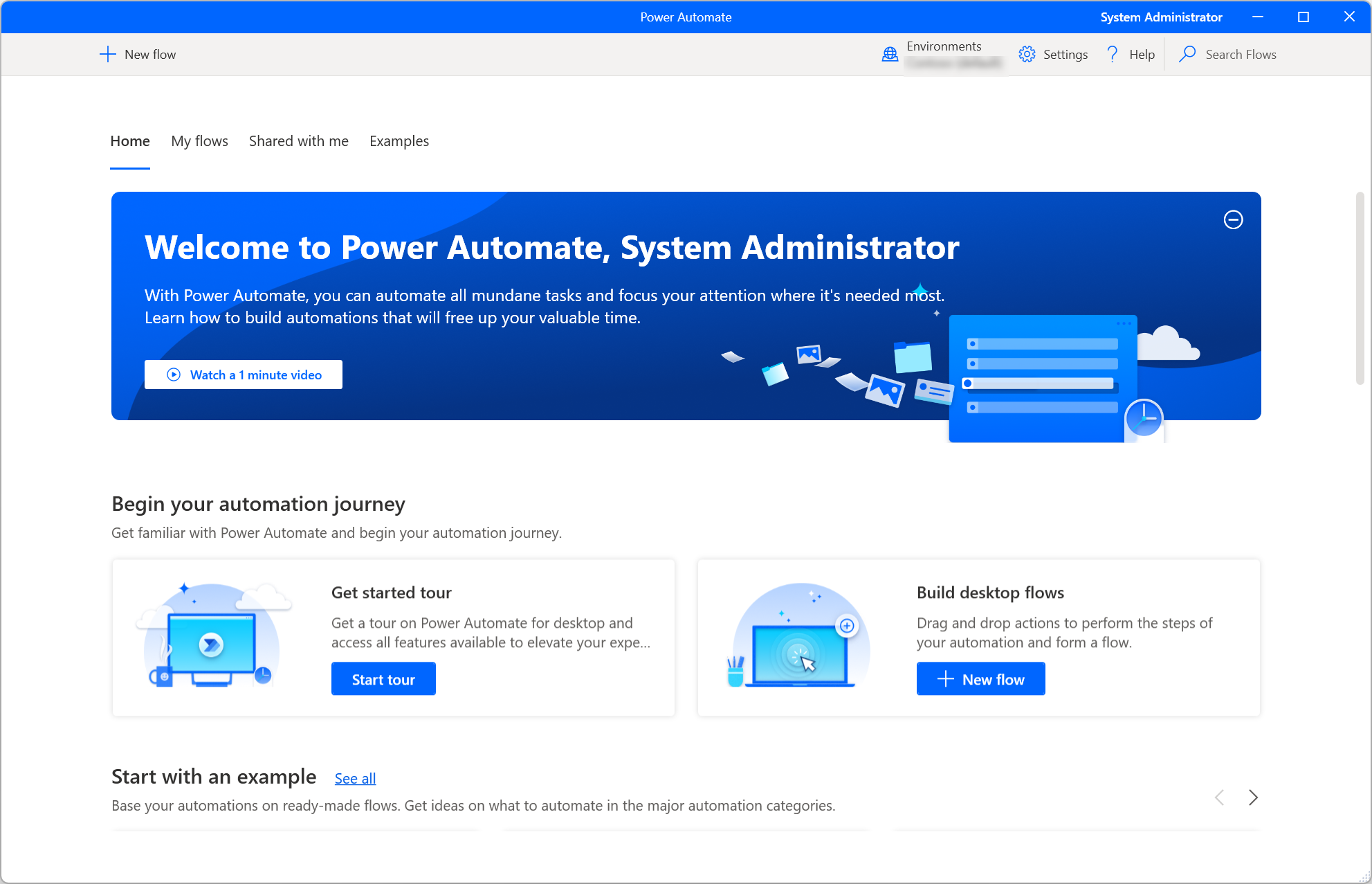
Power Automate Desktop — 370+ actions for enterprise-grade Windows automation, free with Windows
9. GhostMouse — Simple Loop Recorder
GhostMouse
FreeGhostMouse is one of the oldest mouse recorders around, originally released in 1997. Like TinyTask, it records mouse movements, clicks, and keyboard inputs and plays them back. The main behavioral difference: GhostMouse defaults to infinite-loop playback — it keeps replaying your recording until you press CTRL+ALT to stop. TinyTask defaults to single playback or a set repeat count.
It has a Softonic rating of 3.4/5 stars. Users describe it as “intuitive for beginners” and “effective for basic repetitive tasks.” The common complaints are the same as every coordinate-based recorder: breaks when windows move, no editing, no logic. TinyTask is generally recommended over GhostMouse in current Reddit discussions because TinyTask is more actively updated and has the .exe compilation feature GhostMouse lacks.
- Completely free, simple interface
- Default infinite-loop playback — good for “run continuously” tasks
- Saves scripts as .GMS files
- No macro editing — re-record for any changes
- No logic, conditions, or variables
- Absolute coordinates only — fragile to layout changes
- Less actively updated than TinyTask
- Cannot compile macros to .exe (TinyTask can)
10. Mini Mouse Macro — Open Source Portable Recorder
Mini Mouse Macro
Open SourceMini Mouse Macro sits between TinyTask and Pulover’s Macro Creator in terms of capability. It records mouse and keyboard input like TinyTask, but adds save/load functionality and loop playback that TinyTask handles less gracefully. Being open source (hosted on SourceForge) provides more transparency than TinyTask’s closed-source binary — a meaningful advantage for users concerned about AV false positives.
It has a 3.9/5 rating on SourceForge. Users praise its portability and simplicity. The main criticism is that development has slowed (last confirmed update June 2024) and the UI feels dated. A paid Pro version adds network control and additional hotkey options.
- Open source on SourceForge — transparent and trustworthy
- Portable single .exe, no installation needed
- Save and load macros as files
- Real-time recording captures natural mouse paths
- Development has slowed since mid-2024
- No logic or conditions — purely linear playback like TinyTask
- Dated UI design
- Smaller community means fewer tutorials and guides
- Pro features locked behind paid upgrade
Complete Comparison Table
| Tool | Price | Version | Records | Logic/Edit | EXE Compile | Best For |
|---|---|---|---|---|---|---|
| TinyTask | Free | 1.77 | Yes | No | Yes | Simplicity |
| AutoHotkey | Free | 2.0.21 | Scripts only | Full language | Yes | Power users |
| Pulover’s MC | Free | 5.4.1 | Yes | Visual editor | Via AHK | Free rec + logic |
| JitBit | $38-99 | 5.9.x | Yes | Editor + C# | Yes (Pro) | Business |
| AutoIt | Free | 3.3.18.0 | Scripts only | Full language | Yes | IT/sysadmin |
| OP Auto Clicker | Free | 4.0 | Click only | No | No | Gaming clicks |
| Bartels Media | ~$49-140 | 4.0.51 | Yes | Editor + AI | No | Mac + AI |
| Power Automate | Free* | Monthly | Web recorder | Visual + AI | No | Enterprise |
| GhostMouse | Free | 3.2.3 | Yes | No | No | Infinite loops |
| Mini Mouse | Free | 8.4.0.0 | Yes | No | No | Open source |
* Power Automate Desktop is free with Windows 10/11. Advanced triggers and cloud features require Microsoft 365.
The Bottom Line
Most people should start with TinyTask. It takes 10 seconds to understand and handles 70% of macro needs. When you hit its limits (no editing, no logic, coordinate fragility), move to Pulover’s Macro Creator for visual editing with conditions and loops. When you outgrow that, graduate to AutoHotkey — the ultimate tool but with a real learning curve.
If you need a polished commercial tool with relative-position recording and EXE compilation, JitBit Macro Recorder ($69 Pro tier) is worth the money. If you play idle games and just need fast clicking, OP Auto Clicker does that one thing perfectly. And if you are already deep in the Microsoft ecosystem, Power Automate Desktop is free and surprisingly powerful.
Frequently Asked Questions
What is the best free macro recorder for Windows?
For pure simplicity, TinyTask is the best free macro recorder. It is 36 KB, requires no installation, and works instantly — press record, do your actions, press play. For more power without spending money, Pulover’s Macro Creator adds visual editing, loops, conditions, and AutoHotkey export on top of its recorder. For full control with no limits, AutoHotkey is a free scripting language that can automate virtually anything on Windows.
The right choice depends on your technical comfort level:
- Non-technical users: TinyTask (zero learning curve, 10 seconds to start)
- Intermediate users: Pulover’s Macro Creator (recorder + visual editor, no coding)
- Technical users: AutoHotkey (full scripting language, unlimited power)
All three are completely free with no paid tiers, no ads, and no subscriptions. Microsoft Power Automate Desktop is also free with Windows 10/11 and covers enterprise-level automation needs.
Pro tip: Start with TinyTask. If you find yourself re-recording macros because you cannot edit them, switch to Pulover’s Macro Creator. If you need conditional logic (“if this window is open, do X”), move to AutoHotkey.
Is TinyTask safe to use?
Yes, TinyTask is safe when downloaded from the official source. However, some antivirus programs flag it as a “trojan” or “potentially unwanted program” due to its automation capabilities. VirusTotal shows 10+ detections for TinyTask, but the Reddit community consistently confirms these are false positives — the program is clean. Automation tools trigger AV heuristics because they simulate keyboard and mouse input, which is the same technique actual malware uses.
To stay safe, always download TinyTask from the official website. Third-party download sites may bundle adware or replace the original file with modified versions. If your antivirus blocks TinyTask, you can add an exception for the specific .exe file.
This false-positive issue is not unique to TinyTask. AutoHotkey compiled scripts, AutoIt executables, and even OP Auto Clicker trigger similar AV flags. It is a known limitation of heuristic-based antivirus detection when it encounters legitimate automation tools.
Pro tip: If you are still concerned, check the file hash against the known-good hash published on the official download page. You can also upload the .exe to VirusTotal yourself to see which specific AV engines flag it and read the detection names — they are almost always generic “PUA” (Potentially Unwanted Application) labels, not specific malware signatures.
What is the difference between TinyTask and AutoHotkey?
TinyTask is a simple macro recorder: press Record, do your actions, press Play. AutoHotkey is a full scripting language: you write code that defines what the computer should do. They solve the same category of problem (automating repetitive tasks) but in fundamentally different ways.
Key differences:
- Learning curve: TinyTask takes 10 seconds. AutoHotkey takes hours to days, depending on your programming background.
- Editing: TinyTask has no editor — one mistake means re-recording. AHK scripts are text files you can edit freely.
- Logic: TinyTask replays linearly. AHK supports conditions (IF/ELSE), loops, variables, functions, and classes.
- Reliability: TinyTask records screen coordinates that break if anything moves. AHK can identify windows by title, controls by name, and pixels by color.
- Size: TinyTask is 36 KB. AHK is ~5 MB plus your scripts.
If your task is “click these 5 buttons in order every morning,” use TinyTask. If your task is “check if this window is open, then click button A, wait for the loading spinner to disappear, read the text that appears, and save it to a file,” use AutoHotkey.
Pro tip: Pulover’s Macro Creator is the bridge between them. It records like TinyTask but lets you add logic like AHK through a visual editor. It even exports to AHK scripts when you are ready to go deeper. See our AutoHotkey vs TinyTask comparison for a detailed breakdown.
Can I use a macro recorder for gaming?
Yes, macro recorders work in most games, but with important caveats about detection and ban risk. The safest games for automation are single-player, idle, and AFK games. Competitive multiplayer games with anti-cheat software (Roblox Hyperion, Valorant Vanguard, Fortnite EAC) carry real ban risk.
Best tools by gaming use case:
- Fast auto-clicking (idle games): OP Auto Clicker — 1ms precision, hotkey toggle, purpose-built for this
- Recorded action sequences (farming): TinyTask — record a farming route, replay it while AFK
- Complex game automation (crafting, trading): AutoHotkey — script conditional logic based on screen state
Anti-cheat detection depends on the method. Low-level tools that hook into the game process (like some AHK compiled scripts) are easier to detect. High-level tools that simulate input at the OS level (TinyTask, OP Auto Clicker) are harder to detect but not invisible. The speed and pattern of automation also matters — perfectly timed clicks at inhuman speeds are suspicious.
Pro tip: For Roblox specifically, keep click intervals above 50ms and add small random delays if your tool supports it. Avoid automation in PvP or competitive modes entirely. Read our TinyTask Roblox guide for game-specific recommendations.
Do macro recorders work on Windows 11?
Yes, all 10 macro recorders covered in this guide work on Windows 11. TinyTask v1.77 supports Windows 11 natively. AutoHotkey v2.0.21 has full Windows 11 compatibility. AutoIt v3.3.18.0 (released September 2025) specifically added Windows 11 24H2 support. Power Automate Desktop is developed by Microsoft specifically for Windows 10/11.
The only potential issue is with Windows 11’s security features. If you have Windows Security’s “Tamper Protection” or “Controlled Folder Access” enabled, some macro tools may be blocked from sending simulated input to protected applications. You can add exceptions for specific macro tools in Windows Security settings.
Windows 11’s DPI scaling can also affect coordinate-based recorders like TinyTask and GhostMouse. If your display scaling is set to 125% or 150% (common on high-resolution laptops), recorded coordinates may not match playback coordinates. Fix this by right-clicking the macro tool’s .exe, going to Properties > Compatibility > Change high DPI settings, and checking “Override high DPI scaling behavior.”
Pro tip: AutoHotkey and JitBit handle DPI scaling correctly by default. If you use TinyTask on a high-DPI display and macros are clicking in wrong positions, the DPI compatibility override fix above usually resolves it.
Can I compile a macro into an .exe file?
Yes, several macro tools support compiling macros into standalone .exe files that run on any Windows PC without the original tool installed. This is useful for sharing automation with coworkers, distributing setup scripts, or creating one-click utilities.
Tools that support .exe compilation:
- TinyTask: Built-in compile feature. Record your macro, then click the compile button to generate a standalone .exe. Dead simple.
- AutoHotkey: The Ahk2Exe compiler converts .ahk scripts to .exe files. Supports custom icons and compression.
- AutoIt: The Aut2Exe compiler converts scripts to standalone executables. Widely used for creating silent installers.
- JitBit Macro Recorder: Pro tier ($69) includes EXE compilation with all macro logic preserved.
- Pulover’s Macro Creator: Exports to .ahk scripts, which can then be compiled using AHK’s compiler.
Be aware that compiled macro .exe files frequently trigger antivirus false positives. This happens because the .exe contains automation code that simulates input — the same technique malware uses. You may need to submit your compiled .exe to your AV vendor as a false positive, or instruct recipients to add an exception.
Pro tip: When distributing compiled macros, include a note explaining that the .exe may trigger AV warnings and why. Providing the file’s hash (SHA-256) lets recipients verify they have the original, unmodified file.
What happened to Pulover’s Macro Creator? Is it abandoned?
Pulover’s Macro Creator has not received an official update since v5.4.1 in September 2021. It still works on Windows 10 and 11, but it targets AutoHotkey v1, which is now deprecated in favor of AHK v2. The developer (Rodolfo U. Batista) has not announced plans for a v2 update.
A community member (SamFisherIRL) is working on a fork that updates PMC for AutoHotkey v2, but this fork is not yet stable enough for general use as of March 2026. The GitHub repository is still accessible, and the portable ZIP download still works.
If you are starting fresh in 2026, using Pulover’s Macro Creator with AHK v1 still works fine for most tasks. The macros it generates are compatible with AHK v1, which remains installable alongside v2. However, if you plan to eventually move to manual AutoHotkey scripting, learning v2 syntax directly (rather than v1 through PMC) is the better long-term investment.
The adware issue with the installer has also hurt PMC’s reputation. Always download the portable ZIP from GitHub releases instead of the .exe installer from macrocreator.com.
Pro tip: If you want a similar visual macro builder that is actively maintained, consider Microsoft Power Automate Desktop. It offers a visual flow editor with 370+ actions and receives monthly updates from Microsoft. It does not export to AHK scripts, but for non-AHK users that is not a limitation.
Is AutoHotkey hard to learn?
That depends on your starting point. If you have any programming experience (even basic Python, JavaScript, or VBA), AutoHotkey v2 will feel familiar within a few hours. If you have never written code before, expect to spend a day or two on tutorials before you can write useful scripts.
AutoHotkey v2 has significantly cleaner syntax than v1. Common operations are straightforward:
- Send a keystroke:
Send "Hello World" - Click at coordinates:
Click 500, 300 - Create a hotkey:
#n::Run "notepad"(Win+N opens Notepad) - Wait for a window:
WinWait "Calculator"
The real learning curve comes with advanced features: image search, window-relative coordinates, error handling, and building complex multi-step workflows. But you do not need those to get started. Most people begin with simple hotkeys and text expansion, then gradually add complexity as needs grow.
The VS Code extension for AHK v2 makes development much easier with autocomplete, documentation popups, and a visual debugger. The official documentation at autohotkey.com is comprehensive but dense. The r/AutoHotkey subreddit (31K members) is a better starting point for beginners.
Pro tip: Start by solving ONE specific problem. “I want to press Ctrl+Shift+D to type today’s date” is a 3-line AHK script. Once that works, you will have the confidence to tackle bigger tasks.
Can macro recorders automate web browsers?
Yes, but the approach varies by tool. Simple recorders like TinyTask and GhostMouse automate browsers by clicking on screen coordinates — this works but breaks if the browser window moves, the page layout changes, or an ad shifts content down. More sophisticated tools interact with browser elements directly, making automation much more reliable.
Best tools for web browser automation:
- Power Automate Desktop: Has a built-in web recorder that identifies HTML elements (buttons, forms, links) by their properties, not coordinates. Works with Chrome, Edge, and Firefox. The most reliable option for browser automation.
- AutoHotkey: Can control browsers through COM objects (Internet Explorer/Edge) or by sending keystrokes and clicks. The community has libraries for Chrome automation.
- JitBit Macro Recorder: SMART-Rec handles browser automation better than coordinate-based tools by recording relative to the browser window position.
- Bartels Media Macro Recorder: Has web scraping capabilities built in, plus OCR for reading text from pages.
For serious web automation (scraping, form filling at scale, testing), dedicated browser automation tools like Selenium, Playwright, or Puppeteer are more appropriate than general macro recorders. These tools interact with the browser’s DOM directly and handle dynamic content reliably.
Pro tip: If you are automating Chrome specifically, install the Power Automate Desktop browser extension. It adds element-level recording that identifies buttons, inputs, and links by their HTML attributes. This survives page layout changes that would break coordinate-based recording.
Why does my antivirus flag macro recorders as malware?
Macro recorders use the same Windows APIs that malware uses: SendInput for simulating keystrokes, SetCursorPos for moving the mouse, SetWindowsHookEx for capturing input. Antivirus software uses heuristic analysis (behavior-based detection) in addition to signature matching. When it sees a small .exe file that hooks into keyboard/mouse input and replays actions, it flags it as potentially malicious — even though the actual purpose is legitimate automation.
This affects multiple tools on this list:
- TinyTask: 10+ VirusTotal detections (generic PUA/trojan labels)
- AutoHotkey compiled scripts: Frequently flagged by multiple AV engines
- AutoIt compiled scripts: Persistent AV issues, especially in enterprise environments
- OP Auto Clicker: Occasionally flagged by some vendors
These are false positives. The community for each tool has verified this extensively. However, fake download sites DO distribute modified versions of these tools with actual malware. The risk is not from the tool itself but from downloading it from the wrong source.
To avoid issues: download only from official sources, add exceptions in your AV for specific verified .exe files, and check file hashes against known-good values when available.
Pro tip: If deploying macro tools in a corporate environment, submit the .exe to your security vendor as a false positive. Most vendors have a submission portal. Enterprise AV products like CrowdStrike and Carbon Black allow creating custom allowlist rules for verified automation tools.
What is the best macro recorder for repetitive data entry?
For repetitive data entry, the best macro recorder depends on the complexity of the data and the application you are entering it into.
Simple, identical data entry (same data, same form, every time): TinyTask works perfectly. Record yourself filling the form once, then replay it for each entry. The form layout must not change between entries.
Data entry from a spreadsheet or CSV (different data each time): AutoHotkey or Power Automate Desktop. You need the tool to read a data source (Excel, CSV) and type different values for each iteration. TinyTask cannot do this — it only replays the exact same actions.
Web form data entry: Power Automate Desktop is ideal. Its web recorder identifies form fields by name and can loop through Excel rows, entering each row’s data into the web form automatically. JitBit Macro Recorder ($69 Pro) also handles this with its loop and variable features.
Enterprise-scale data entry: Power Automate Desktop with Copilot AI. Describe the workflow in natural language, and Copilot builds the automation flow. Handles error cases, retries, and logging automatically.
Pro tip: Before automating data entry, check if the application has a bulk import feature. Many CRM, ERP, and web applications accept CSV uploads for data import, which is faster and more reliable than simulating keyboard input. Macro recording is the fallback when the application provides no import API or file upload option.
Can I schedule a macro to run automatically at a specific time?
Yes, but most free macro recorders do not include built-in scheduling. Here are your options:
- JitBit Macro Recorder (Pro, $69): Built-in scheduling. Set a macro to run at a specific time, daily, weekly, or on specific triggers. The most seamless scheduling experience.
- RoboTask ($149): Full scheduling with time triggers, file change triggers, process triggers, and more. Can run as a Windows Service (macros run even without a logged-in user).
- Power Automate Desktop: Free scheduling through cloud Power Automate triggers (requires Microsoft 365 for unattended mode).
- Windows Task Scheduler + TinyTask: Free workaround. Compile your TinyTask macro to an .exe file, then create a Windows Task Scheduler task that launches the .exe at your desired time. The .exe runs the macro and closes automatically.
- Windows Task Scheduler + AutoHotkey: Same approach. Schedule an .ahk script (or compiled .exe) through Task Scheduler.
The Task Scheduler workaround has a catch: the computer must be on, unlocked, and at the same screen state the macro expects. If a Windows Update dialog popped up overnight, your macro will click on the wrong things.
Pro tip: For the TinyTask + Task Scheduler approach: compile your macro to .exe, open Task Scheduler (taskschd.msc), create a new task, set the trigger to your desired schedule, and set the action to “Start a program” pointing to your compiled .exe file. Check “Run only when user is logged on” to ensure the desktop is available for the macro.