
Paid macro recorders charge $25 to $100 for features that free tools already handle. Before spending money, test a free option first. Most people never need to upgrade.
This list covers seven macro recorders that cost nothing to download and use on Windows. Two are record-and-replay tools for simple clicking. Three are scripting platforms for complex automation. One bridges the gap between recording and scripting. And one is a Microsoft product with surprising depth for a free tool.
How we picked these: Every tool on this list is free to download and use without time limits. We excluded free trials of paid software (JitBit, Bartels Media Macro Recorder, Macro Toolworks) and tools that have been abandoned for 3+ years. Each tool was tested on Windows 11 24H2 in February 2026.
Quick Picks
Already know what you need? Here are our top recommendations by use case:
The 7 Best Free Macro Recorders, Ranked
TinyTask
100% Free Editor’s PickTinyTask is the smallest macro recorder ever made. The entire program is a 36 KB executable. No installer, no dependencies, no account needed. Download it, double-click, press Record, perform your task, press Stop, press Play. You have a working macro in under 30 seconds.
It records mouse movements, clicks, and keystrokes in real time, then replays them at the original speed or faster (up to 100x). You can loop playback any number of times or indefinitely. The killer feature: TinyTask compiles recorded macros into standalone .exe files (~38 KB each) that run on any Windows PC without TinyTask installed. Email it to a coworker. Drop it on a USB stick. It just works.
The tradeoff is total simplicity. There is no script editor, no conditional logic, no way to modify a recording after the fact. If a window moves or your screen resolution changes, the macro breaks because TinyTask records absolute pixel coordinates. If you make a mistake during recording, you start over.
- 36 KB portable .exe – smallest macro tool in existence
- Zero learning curve – working macro in 30 seconds
- Compiles macros to standalone .exe files
- Adjustable playback speed up to 100x
- No editing – mistakes mean re-recording from scratch
- Absolute coordinates break when windows move
- No scripting, variables, or conditional logic
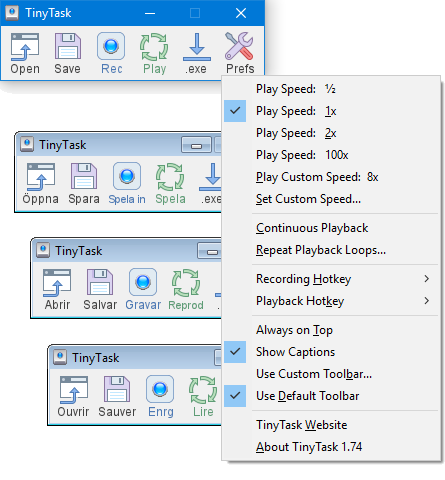
TinyTask’s entire interface fits in a toolbar smaller than most notification popups
AutoHotkey v2
Open SourceAutoHotkey is not a macro recorder – it is a full scripting language built for Windows automation. You write text files with commands like Click 500, 300, WinActivate "Notepad", and Send "Hello", save them with an .ahk extension, and run them. The language supports variables, loops, conditionals, functions, classes, regular expressions, file I/O, GUI creation, and COM automation.
The difference between AHK and a simple recorder is reliability. AHK targets windows by title, class, or process name instead of screen coordinates. A well-written script works regardless of where windows are positioned. It can wait for elements to appear, handle errors, read data from files, and make decisions based on what it finds on screen.
AHK also does things no recorder can: custom hotkeys (Win+C opens Calculator), text expansion (“btw” becomes “by the way”), key remapping (Caps Lock becomes Ctrl), and desktop app creation with custom GUIs. The community (31K Reddit members, 73K forum members) has shared scripts for practically every common automation task.
- Full scripting language with variables, conditionals, and loops
- Targets windows by title/class – survives layout changes
- Hotkey remapping and text expansion built in
- Massive community with 20+ years of shared scripts
- No built-in recorder – you must write code
- Steep learning curve for non-programmers
- v1 and v2 syntax differences fragment learning resources
Pulover’s Macro Creator
Open SourcePulover’s Macro Creator sits between TinyTask and AutoHotkey. It has a built-in recorder that captures mouse, keyboard, and window actions like TinyTask. But it also has a full visual editor where you can add loops, conditionals, variables, timers, and scheduling – without writing a single line of code. You drag and drop commands, rearrange them, set conditions, and run the macro.
The bridge feature is what makes it special: Pulover’s exports macros as AutoHotkey v1 scripts. Record something visually, fine-tune the generated AHK code, and you have a reliable script. It is the best way to learn AutoHotkey without starting from a blank text file.
The downside is that development stopped in September 2021. It runs on AutoHotkey v1 (now legacy – v2 is current), and the developer has not updated it since. It works on Windows 11 in practice, but there is no official support. If you hit a bug, there will be no patch.
- Visual editor with drag-and-drop commands
- Built-in recorder plus loop/conditional support
- Exports to AHK scripts – great learning bridge
- Supports hotkeys, timers, and scheduling
- No updates since September 2021
- Built on legacy AutoHotkey v1 (not v2)
- Complex interface can overwhelm beginners
Power Automate Desktop
FreemiumMicrosoft ships Power Automate Desktop pre-installed on some Windows 11 editions. The free tier gives you a visual flow designer with 400+ pre-built actions: browser automation, Excel manipulation, email, file operations, OCR, PDF extraction, web scraping, and desktop UI automation. You build flows by dragging action blocks into a sequence, setting parameters, and running.
The desktop recorder captures UI interactions and converts them into automation flows. Point at a button, click, and Power Automate generates the corresponding action step. Unlike coordinate-based recorders, it identifies UI elements by their control properties, so flows survive window repositioning.
The catch is obvious: the free tier is local-only. You cannot schedule flows, run them unattended, trigger them from cloud events, or share them without a Premium license ($15/user/month). For a personal macro recorder, the free version is genuinely useful. For business automation, Microsoft wants you to pay.
- 400+ pre-built actions for every automation scenario
- UI element targeting – not coordinate-based
- Deep Microsoft ecosystem integration (Excel, Outlook, Teams)
- Active monthly updates, professional support
- 200 MB install – massive compared to alternatives
- Requires Microsoft account to sign in
- No scheduling or unattended runs without $15/mo Premium
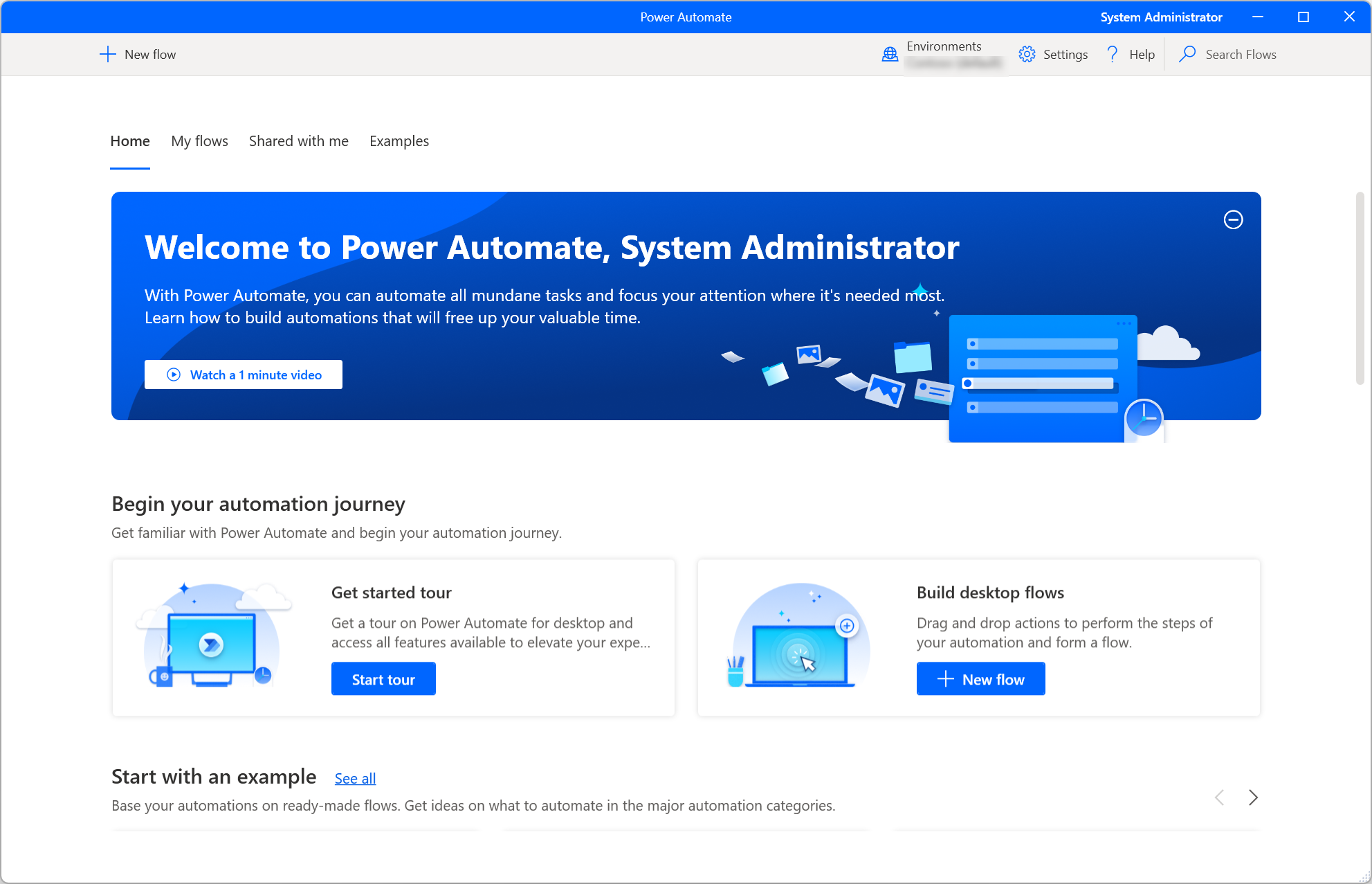
Power Automate Desktop’s visual flow designer with 400+ action blocks
AutoIt
100% FreeAutoIt is a BASIC-like scripting language designed for Windows GUI automation. If you have any programming background at all, the syntax will feel immediately familiar: If WinExists("Calculator") Then WinActivate("Calculator"). The built-in help file is one of the best in any automation tool – detailed explanations, working examples, and full function references.
Where AutoIt shines is system administration. It handles registry editing, file operations, process management, COM object automation (controlling Excel, Word, and Outlook through their COM interfaces), and Windows service management. The Window Info tool lets you inspect any UI element’s handle, class, and text for precise targeting. The Aut2Exe compiler creates standalone executables from scripts, and the AutoItX COM/DLL interface lets other languages call AutoIt functions.
AutoIt sits between AutoHotkey and Power Automate in complexity. It is easier to learn than AHK (cleaner syntax, better docs) but lacks AHK’s hotkey remapping and text expansion. It is lighter than Power Automate but has no visual flow designer. The one real downside: antivirus false positives. Malware authors have abused AutoIt’s compiler for years, so compiled scripts get flagged regularly.
- Clean BASIC-like syntax – easier than AHK for beginners
- Excellent built-in documentation with working examples
- Strong COM automation for Office applications
- Window Info tool for precise UI element targeting
- Closed source – cannot inspect or modify the interpreter
- Compiled scripts frequently flagged by antivirus
- No built-in macro recorder (scripting only)
Mini Mouse Macro
Open Source Has ProMini Mouse Macro is a portable, single-file recorder that sits between TinyTask and Pulover’s Macro Creator in capability. It records mouse movements, clicks, and keyboard inputs, saves macros for later use, supports looping with custom repeat counts, and lets you set custom hotkeys to trigger macros. Unlike TinyTask, you can manually edit recorded actions after the fact – delete a step, insert a new one, or adjust timing.
The free version covers basic recording and playback, which is enough for most people. A Pro version adds advanced scripting, scheduling, and network control features. The base version has no time limits, no nag screens, and no disabled features – just fewer features total.
It is actively maintained with updates into 2025, which puts it ahead of several competitors on this list. The open-source MIT license means the community can inspect and modify the code.
- Portable single .exe – no installation needed
- Edit recorded macros after the fact
- Actively maintained (updated 2025)
- Open source (MIT license)
- Pro version locks some advanced features behind paywall
- Dated interface design
- Sparse documentation – forum is main support
PyMacroRecord
Open Source 100% FreePyMacroRecord is the newest tool on this list and the most modern in design. Built with Python, it has a clean GUI with a dark mode option, records mouse and keyboard events, supports adjustable playback speed, infinite repeats, and saves macros in JSON format for easy sharing and editing.
What sets it apart is the JSON macro format. Instead of opaque binary files, your recordings are saved as human-readable JSON. Open the file in any text editor, and you can see every recorded action with its coordinates, timing, and type. Edit values directly, copy actions between macros, or write Python scripts that generate macros programmatically.
It is actively maintained on GitHub by developer LOUDO56 with regular updates. The interface is noticeably more polished than older tools like Mini Mouse Macro or GhostMouse. The tradeoff is size (~25 MB because it bundles Python) and Windows 10+ requirement – no support for older Windows versions.
- Modern GUI with dark mode – cleanest interface on this list
- JSON macro format – human-readable and editable
- Actively maintained with frequent GitHub updates
- Scheduling and infinite repeat support
- 25 MB install (bundles Python runtime)
- Windows 10+ only – no older OS support
- Smaller community than established tools
Comparison Table
| Feature | TinyTask | AutoHotkey | Pulover’s MC | Power Automate | AutoIt | Mini Mouse | PyMacroRecord |
|---|---|---|---|---|---|---|---|
| Price | Free | Free | Free | Freemium | Free | Free + Pro | Free |
| File Size | 36 KB | ~3 MB | ~15 MB | ~200 MB | ~12.6 MB | ~1.5 MB | ~25 MB |
| Built-in Recorder | Yes | No | Yes | Yes | No | Yes | Yes |
| Scripting | No | Full language | Visual + AHK | Visual flows | Full language | Basic (Pro) | No |
| Conditional Logic | No | Yes | Yes | Yes | Yes | No | No |
| Edit Recordings | No | N/A (script) | Yes | Yes | N/A (script) | Yes | Yes (JSON) |
| Compile to EXE | Yes | Yes | Yes | No | Yes | No | No |
| Portable | Yes | ZIP option | ZIP option | No | No | Yes | No |
| Learning Curve | None | High | Medium | Medium-High | Medium | Low | Low |
| Active Development | Stable | Very active | Inactive (2021) | Monthly updates | Active (2025) | Active (2025) | Active (2025) |
| Open Source | No | GPLv2 | Yes | No | No | MIT | Yes |
Tools We Deliberately Excluded
These show up in “free macro recorder” searches constantly but are not actually free:
- JitBit Macro Recorder – $39 to $99. The “free trial” is nag-heavy and limited.
- Bartels Media Macro Recorder – $49.95. Their website implies a free version exists. It does not. The download is a trial.
- Macro Toolworks – Previously had a free Lite edition. Now effectively a demo for the $24.95 Standard or $49.95 Pro versions.
- ReMouse – $6.95 to $17.50. The same developer makes GhostMouse (free), which is a stripped-down version designed to upsell you.
- MouseRecorder Pro – Discontinued years ago. No longer available for download.
Watch out for fake “free” downloads. Many sites repackage paid macro recorders with bundled adware and call them “free.” Only download from official sources. Every tool on our list links to its actual developer’s website or official repository.
How to Choose the Right Free Macro Recorder
The decision tree is simpler than it looks:
- Do you need it working in under 60 seconds with zero learning? Use TinyTask. Nothing else comes close for speed of setup.
- Do you need conditional logic, variables, or data from files? Use AutoHotkey. It is the only free tool that handles complex, dynamic automation reliably.
- Do you want AutoHotkey’s power but hate writing code? Use Pulover’s Macro Creator. It gives you a visual editor that generates AHK scripts behind the scenes.
- Do you automate Office workflows (Excel, Outlook, Word)? Use Power Automate Desktop. The Microsoft integration is unmatched by any other free tool.
- Do you need to deploy automation across enterprise environments? Use AutoIt. Its clean syntax, excellent documentation, and EXE compiler make it ideal for IT automation scripts.
- Do you want a portable recorder that lets you edit macros? Use Mini Mouse Macro. It records like TinyTask but lets you modify the recording afterwards.
- Do you want something modern and actively maintained? Try PyMacroRecord. It is the newest option with the cleanest interface and human-readable JSON macros.
Most people should start with TinyTask. It handles 80% of macro recording needs in 30 seconds. If you hit its limits (window moved, need different data each time, need conditional logic), move to AutoHotkey or Pulover’s Macro Creator. The tools complement each other – there is nothing stopping you from using TinyTask for simple tasks and AutoHotkey for complex ones simultaneously.
Final Verdict
For most people: TinyTask. It is free, portable, instant, and handles the vast majority of repetitive task automation without any learning curve.
For power users: AutoHotkey v2. Nothing else in the free tier offers this level of control over Windows automation. The investment in learning pays off permanently.
For business users: Power Automate Desktop. If you already use Microsoft 365, the integration alone makes it worth the (free) download. Just know that the paid tier exists and Microsoft will nudge you toward it.
Frequently Asked Questions
What is the best free macro recorder for Windows in 2026?
TinyTask is the best free macro recorder for most Windows users. It is a 36 KB portable executable that records and replays mouse movements, clicks, and keystrokes with zero setup. You can create a working macro in under 30 seconds. It runs on every Windows version from XP through Windows 11 24H2 and compiles macros into standalone .exe files that work on any PC without installation.
For users who need scripting, conditional logic, or hotkey remapping, AutoHotkey v2 is the better choice. It requires writing code but offers complete control over Windows automation with variables, loops, window targeting by title, file I/O, GUI creation, and a community of 73,000+ forum members sharing scripts.
Pro tip: You do not have to pick one. Many users run TinyTask for quick recordings and AutoHotkey for complex automation side by side. The two programs do not conflict.
For a detailed comparison of all options, see our ranking above or check our full macro recorder comparison.
Are free macro recorders safe to use?
Yes, free macro recorders from official sources are safe to use. TinyTask, AutoHotkey, Pulover’s Macro Creator, AutoIt, Mini Mouse Macro, and PyMacroRecord have all been used safely by millions of users for years.
That said, macro recorders trigger antivirus false positives more than almost any other software category. This happens because macro tools use the same Windows APIs (SendInput, SetWindowsHookEx, SetCursorPos) that malware uses to simulate user input. Heuristic scanners flag this behavior as suspicious regardless of whether the program is legitimate.
TinyTask shows 10+ detections on VirusTotal with generic labels like “PUA” (Potentially Unwanted Application). AutoHotkey and AutoIt compiled scripts get similar flags. These are false positives when downloaded from official sources.
To stay safe:
- Download only from the developer’s official website or repository (GitHub, SourceForge)
- Never download macro recorders from random “free download” aggregator sites
- If your antivirus blocks the program, add a manual exception for that specific .exe file
- Verify file hashes against official checksums when available
Pro tip: If you are in a corporate environment, submit flagged files to your security vendor as false positives. Most vendors have a web form for this and respond within 24-48 hours.
Can free macro recorders loop infinitely?
Yes. TinyTask, Mini Mouse Macro, and PyMacroRecord all support infinite looping natively. In TinyTask, click the loop dropdown and select “Continuous” or set a specific repeat count. The macro will replay until you press the Stop hotkey.
AutoHotkey supports infinite loops through code: Loop { Click 500, 300 ; Sleep 2000 } will click at coordinates (500, 300) every 2 seconds until you exit the script. You can also add break conditions: Loop { if (A_Index > 1000) break } to stop after 1000 iterations.
Power Automate Desktop supports loops through its visual flow designer – drag a “Loop” action into your flow and set it to repeat indefinitely or until a condition is met.
Pro tip: When looping macros for game automation, add small random delays between iterations. Some games detect perfectly timed repeating inputs and flag them as bot behavior. TinyTask’s “Speed” slider works for this since playback timing varies slightly with system load.
Which free macro recorder works best for Roblox?
TinyTask is the most popular free macro recorder for Roblox. It records mouse clicks and keyboard presses at exact screen coordinates, which works well for Roblox games where UI elements stay in fixed positions. Players use it for AFK farming in games like Pet Simulator 99, Blox Fruits, Grow a Garden, and Anime Fighters Simulator.
The workflow is straightforward: open Roblox, position your game window, press Record in TinyTask, perform the farming sequence (clicking buttons, collecting items, navigating menus), press Stop, then press Play and set it to loop. The macro runs the same sequence repeatedly while you step away.
AutoHotkey also works for Roblox but requires writing scripts. It is better for complex sequences that need timing precision or error handling (like checking if a dialog box appeared).
Important: Using macro recorders in Roblox may violate the Terms of Service. While Roblox’s anti-cheat primarily targets speed hacks and exploits rather than simple input replay, there is always a risk of account action. Use macros for personal farming at your own discretion.
For a complete guide, see our TinyTask for Roblox article.
Is Power Automate Desktop really free or is it a trap?
Power Automate Desktop is genuinely free for local, attended automation on your own PC. You can download it from the Microsoft Store or microsoft.com, sign in with any Microsoft account (including free Outlook.com accounts), and build automation flows using 400+ actions with no time limit, no feature restrictions on local flows, and no nag screens.
The free tier covers: desktop recording, browser automation, Excel manipulation, file operations, OCR, PDF extraction, web scraping, UI automation, and email actions. For a personal macro recorder or home automation tool, this is a lot of functionality at zero cost.
The paid tier ($15/user/month) adds: cloud triggers (start a flow when an email arrives), scheduled runs (run at 9 AM daily), unattended automation (run without being logged in), AI Builder integration, flow sharing within teams, and centralized management. These are enterprise features that most personal users do not need.
Pro tip: If you have a Microsoft 365 Business Basic subscription or higher, you already have Power Automate Premium included. Check your subscription before assuming you need to pay extra.
The “trap” is that Microsoft designed the product to make you want the paid features. Once you build complex flows, the inability to schedule them becomes frustrating. But the free tier remains fully functional for local use indefinitely.
Why do my macro recordings break when I move a window?
Simple recorders like TinyTask, GhostMouse, and Mini Mouse Macro record absolute screen coordinates. When you click at position (523, 417) on your screen, the recorder saves that exact pixel location. During playback, it clicks at (523, 417) regardless of what is there. If the target window has moved even 1 pixel, the click lands in the wrong place.
This is the fundamental limitation of coordinate-based recording. It also breaks when:
- You change screen resolution or DPI scaling
- A popup, notification, or dialog shifts content
- You switch between single and multi-monitor setups
- Windows updates move taskbar elements
The fix depends on which tool you use:
- TinyTask: No fix available. Keep your window in the exact same position every time. Consider maximizing the window before recording so it always fills the screen.
- AutoHotkey: Use
WinActivateto target windows by title andControlClickto click controls by name instead of coordinates. This survives window repositioning. - Power Automate Desktop: Its recorder identifies UI elements by properties (name, automation ID, class) rather than coordinates. Flows generally survive window movement.
Pro tip: If you must use a coordinate-based recorder, set your window to a specific size and position using Windows Snap (Win+Arrow keys) before recording. This gives you a consistent starting point for each playback.
Can I convert a recorded macro into a standalone .exe file?
Yes, several free macro recorders support compiling macros to standalone .exe files:
- TinyTask: Click File > Compile in TinyTask’s menu. It creates a ~38 KB executable that replays your recorded macro on any Windows PC without TinyTask installed. The recipient just double-clicks the .exe file.
- AutoHotkey: Use the bundled Ahk2Exe compiler. Right-click your .ahk script and select “Compile Script,” or run Ahk2Exe directly from the Start menu. The output .exe runs on any Windows PC without AutoHotkey installed.
- AutoIt: Use the Aut2Exe compiler included with the AutoIt installation. Works the same way – select your .au3 script, choose output location, and compile.
- Pulover’s Macro Creator: Since it generates AutoHotkey v1 scripts, you can compile those scripts using the AHK v1 compiler.
Power Automate Desktop, Mini Mouse Macro, and PyMacroRecord do not support EXE compilation.
Pro tip: Compiled .exe files from all these tools will trigger antivirus warnings. Before distributing a compiled macro to coworkers, test it through VirusTotal and prepare a written explanation that it is a legitimate automation tool. Some organizations whitelist specific hashes in their endpoint protection.
TinyTask vs AutoHotkey – which should I learn?
You do not “learn” TinyTask. You download a 36 KB file, press Record, do your task, press Stop, press Play. There is nothing to learn. The entire tool has five buttons. It works for simple, repetitive sequences where screen positions stay consistent.
AutoHotkey requires genuine learning investment. Expect 2-4 hours to write your first useful script, and weeks to become comfortable with the language. But the payoff is permanent – once you learn AHK, you can automate practically anything on Windows. The skill transfers across jobs, machines, and projects.
The practical decision path:
- Start with TinyTask for your immediate need
- If TinyTask handles it, stop there – no need to learn AHK
- If TinyTask keeps breaking (window moves, need different data each time), that is your signal to learn AutoHotkey
- Use Pulover’s Macro Creator as a bridge if coding feels intimidating
Pro tip: The AutoHotkey subreddit (r/AutoHotkey, 31K members) has a “weekly help” thread where beginners post their automation goals and experienced users write scripts for them. Use this to get scripts you need while learning the syntax from the code others provide.
For a detailed comparison, see our AutoHotkey vs TinyTask breakdown.
Do free macro recorders work on Windows 11?
All seven tools on this list work on Windows 11. We tested each one on Windows 11 24H2 (the current release as of early 2026):
- TinyTask v1.77: Works perfectly. No compatibility issues.
- AutoHotkey v2.0.19: Fully compatible. The v2.1 alpha also runs on Windows 11.
- Pulover’s Macro Creator v5.4.1: Works but not officially tested on Windows 11 (last update was 2021). No reported issues.
- Power Automate Desktop v2.64: Comes pre-installed on some Windows 11 editions. Full official support.
- AutoIt v3.3.18.0: September 2025 release includes official Windows 11 support.
- Mini Mouse Macro v8.4: Compatible with Windows 11.
- PyMacroRecord v1.4.0: Designed for Windows 10 and 11. No older OS support.
The only potential issue is DPI scaling. Windows 11 defaults to 125% or 150% scaling on high-resolution displays. Coordinate-based recorders (TinyTask, Mini Mouse Macro) may click at wrong positions if you record at one DPI scale and play back at another. Set your display scaling to 100% before recording for the most reliable results, or keep the scaling consistent between recording and playback sessions.
Pro tip: If a macro tool refuses to run on Windows 11, right-click the .exe file, select Properties > Compatibility, and try “Run as administrator” or set compatibility mode to Windows 10. This fixes most launch issues.
Are there any free macro recorders for Mac or Linux?
The tools on this list are Windows-only (except PyMacroRecord, which has experimental Linux support). For Mac and Linux, the free options are different:
Mac:
- Automator (built into macOS) – Apple’s built-in automation tool. Creates workflows that chain actions together. No mouse recording, but handles file operations, app launching, and text processing.
- Shortcuts (macOS Monterey+) – Apple’s newer automation system. More visual than Automator, integrates with Siri and third-party apps.
- Hammerspoon (free, open source) – Lua-based automation for macOS. The closest Mac equivalent to AutoHotkey. Powerful but requires scripting.
Linux:
- xdotool (free, open source) – Command-line tool for simulating keyboard and mouse input on X11. Write bash scripts that automate clicks and keystrokes.
- AutoKey (free, open source) – Desktop automation for Linux with Python scripting support and text expansion.
For a complete guide to Mac alternatives, see our TinyTask for Mac article.
Can I schedule a macro to run at a specific time?
Most simple recorders (TinyTask, GhostMouse, Mini Mouse Macro free version) do not have built-in scheduling. But you can use Windows Task Scheduler to run any macro at a specific time:
- Compile your macro to a .exe file (TinyTask: File > Compile; AutoHotkey: right-click > Compile Script)
- Open Windows Task Scheduler (search “Task Scheduler” in Start menu)
- Click “Create Basic Task”
- Set the trigger (daily, weekly, one-time) and time
- Select “Start a program” and browse to your compiled macro .exe
- Make sure “Run whether user is logged on or not” is checked if you want it to run while you are away
Tools with native scheduling:
- AutoHotkey: Write a script with time-checking logic:
SetTimer CheckTime, 60000that runs a function at a specified time - Pulover’s Macro Creator: Has a built-in timer/scheduler in the interface
- Power Automate Desktop: The paid tier ($15/mo) supports scheduled triggers. The free tier does not.
- PyMacroRecord: Has a built-in scheduling feature for delayed starts
Pro tip: If you use the Windows Task Scheduler approach, remember that the macro needs the screen to be in the correct state. If you lock your PC or switch users, coordinate-based macros will click in the wrong places. Keep the session unlocked with the correct window arrangement for reliable scheduled playback.
Why is my antivirus flagging TinyTask as a virus?
TinyTask triggers antivirus false positives because it uses Windows APIs (SendInput, SetCursorPos, SetWindowsHookEx) to simulate mouse and keyboard input. These are the same APIs that keyloggers and trojan horses use, so heuristic-based antivirus engines flag any program that calls them heavily.
On VirusTotal, TinyTask typically shows 10-15 detections out of 70+ scanners. The detection names are generic: “PUA.Win32.Packer” (it is a packed executable), “Trojan.Generic” (generic heuristic match), or “RiskTool” (uses risky APIs). None of these are actual virus identifications – they are heuristic guesses based on behavior patterns.
This is not unique to TinyTask. AutoHotkey, AutoIt, Mini Mouse Macro, and virtually every macro recorder triggers similar warnings. It is an industry-wide false positive problem with automation tools.
To use TinyTask safely:
- Download only from thetinytask.com (official source)
- Add an exception in your antivirus for the TinyTask .exe file specifically
- In Windows Defender: Settings > Virus & threat protection > Exclusions > Add the TinyTask .exe path
- If your antivirus quarantined TinyTask, restore it from quarantine, then add the exception before running it again
Pro tip: If you need to convince an IT department that TinyTask is safe, point them to the VirusTotal results page showing that major vendors like Microsoft Defender, Norton, and Kaspersky do NOT flag it. Only minor vendors with aggressive heuristics detect it.
What happened to GhostMouse? Is it still maintained?
GhostMouse (v3.2.3) still exists and can be downloaded from ghost-mouse.com, but it has not been updated in years. The developer, the same company behind ReMouse, appears to have shifted focus entirely to the paid ReMouse product ($6.95 to $17.50).
GhostMouse remains functional on Windows 10 and reportedly works on Windows 11, but it has no official Windows 11 support, no recent bug fixes, and no community activity. It records mouse movements and clicks with a two-button interface (Record and Play) and supports infinite looping. That is its entire feature set – no keyboard recording, no editing, no EXE compilation, no scripting.
For most users, TinyTask is a strictly better alternative to GhostMouse. TinyTask is smaller (36 KB vs 822 KB), records both mouse AND keyboard input, compiles to .exe, and is equally simple to use. The only scenario where GhostMouse might edge out TinyTask is if you specifically need mouse-only recording without keyboard capture, which is a rare requirement.
Pro tip: If you were using GhostMouse and want to upgrade, start with TinyTask for simple recording or PyMacroRecord if you want a modern alternative with an editable format and active development.
Can free macro recorders automate web browsers?
Yes, but the approach varies by tool:
Coordinate-based recorders (TinyTask, Mini Mouse Macro, PyMacroRecord): These record mouse clicks and keystrokes at screen positions. They work in browsers the same way they work in any application – click where you point. The limitation is that web pages load at different speeds, elements shift with dynamic content, and scrolling changes the position of everything. Simple, static pages work fine. Complex, dynamic web apps break frequently.
AutoHotkey: AHK can automate browsers through direct keyboard/mouse simulation or through COM automation with Internet Explorer (legacy). For modern browsers, most users combine AHK with browser extensions or use the Acc.ahk library to access browser accessibility objects. It works but requires effort.
Power Automate Desktop: Has dedicated browser automation actions built in. It launches Chrome, Edge, or Firefox, navigates to URLs, fills forms, clicks elements by CSS selector or accessibility ID, extracts data from tables, and handles multi-page workflows. This is the strongest free option for web browser automation specifically.
AutoIt: Similar to AHK – can drive browsers through UI automation, COM, or the _IE library (for Internet Explorer). Modern browser automation requires additional setup.
Pro tip: If your primary goal is web automation (form filling, data scraping, testing), consider dedicated free tools like Selenium IDE (browser extension) or Playwright (Microsoft’s browser automation framework) instead of general-purpose macro recorders. They are designed specifically for browsers and handle dynamic content far better.
How do I record a macro that types different text each time?
Simple recorders (TinyTask, GhostMouse, Mini Mouse Macro) cannot do this. They replay the exact same recording every time. If you need different text in each iteration, you need a scripting tool:
AutoHotkey approach: Read names from a CSV or text file and type each one in sequence:
Loop Read "names.txt" {
  WinActivate "Form"
  Send A_LoopReadLine
  Send "{Tab}"
  Sleep 500
}
This script opens names.txt, reads each line, types it into the active form field, presses Tab to move to the next field, and waits 500ms before repeating with the next line.
Power Automate Desktop approach: Use the “Read from CSV” action to load data, then loop through rows and use “Populate text field on web page” or “Send keys” actions to enter each value.
AutoIt approach: Similar file-reading logic with FileReadLine() and Send() functions.
If you specifically need to fill web forms with different data from a spreadsheet, Power Automate Desktop is the easiest free option because the visual flow designer handles the file reading, looping, and form interaction without code.
Pro tip: For bulk web form filling, also consider browser-based tools like the free “Autofill” Chrome extension, which reads form data from a spreadsheet and fills matching fields automatically. No macro recorder needed.