
Best Auto Clicker for Windows: 10 Free Tools (2026)
Whether you are grinding through an idle game, filling out repetitive forms, or stress-testing a user interface, an auto clicker saves you hours of manual clicking. The right tool depends on what you actually need — a bare-bones clicker with a single hotkey, a full macro recorder that captures mouse paths, or something in between with randomized intervals.
We tested dozens of free auto clickers on Windows 10 and 11 machines, measuring startup time, memory footprint, click accuracy, and ease of use. This guide covers the 10 best free auto clickers for Windows in 2026, with honest pros, cons, and the specific scenario each tool handles best. Every program listed here is free to download and use without hidden trials or nag screens.
Quick Picks
Comparison Table
Here is a side-by-side breakdown of all 10 tools. Scroll horizontally on mobile to see every column.
| Tool | Type | Min Interval | Hotkey | Portable | Size | Best For |
|---|---|---|---|---|---|---|
| TinyTask | Macro Recorder | ~1 ms | Ctrl+Shift+R/P | Yes | 36 KB | All-around automation |
| OP Auto Clicker | Auto Clicker | 1 ms | F6 | Yes | 1.2 MB | Gaming |
| GS Auto Clicker | Auto Clicker | 1 ms | F8 | No | 592 KB | Beginners |
| AutoClicker by Polar | Auto Clicker | 10 ms | F3 | Yes | 180 KB | Simple tasks |
| Free Auto Clicker | Auto Clicker | 10 ms | F6 | No | 1.5 MB | Office work |
| Auto Clicker Typer | Clicker + Typer | 1 ms | F1 | Yes | 860 KB | Click + type combos |
| AlphaClicker | Auto Clicker | 1 ms | F6 | No | 3.8 MB | Theme fans |
| Fast Auto Clicker | Auto Clicker | <1 ms | F1 | Yes | 420 KB | Raw speed |
| Gary’s Hood Auto Clicker | Clicker + Typer | 1 ms | Custom | Yes | 120 KB | RuneScape / MMOs |
| Speed Auto Clicker | Auto Clicker | <1 ms | F6 | Yes | 560 KB | Maximum CPS |
The 10 Best Free Auto Clickers, Reviewed
TinyTask
TinyTask is not a typical auto clicker — it is a full macro recorder that captures mouse movements, clicks, and keyboard input in a single pass. That makes it far more flexible than standard clickers. Record a click sequence once, save it as a tiny .rec file or a standalone .exe, and replay it whenever you need. The entire program fits inside 36 KB, which is smaller than most favicons.
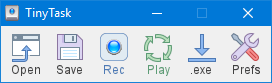
TinyTask auto clicker interface – records full mouse and keyboard sequences
Where TinyTask pulls ahead is multi-point automation. Instead of clicking a single coordinate over and over, you can record a path through menus, buttons, and dialogs. That approach covers idle game grinding in Roblox, data entry across spreadsheet cells, and even batch file renaming. Speed control is handled through the playback speed slider — crank it up for rapid clicks or slow it down for timing-sensitive sequences.
The one trade-off is that TinyTask lacks a built-in interval field. You set click speed by adjusting recording tempo and playback rate rather than typing “50 ms” into a box. For users who just want a single repeated click, something like OP Auto Clicker may feel more direct. But for everyone else, TinyTask’s record-anything approach covers far more ground than a dedicated clicker ever could.
Pros
- Smallest footprint of any tool (36 KB)
- Records full mouse + keyboard sequences
- Export macros as standalone .exe files
- No installation required — fully portable
- Works on every Windows version from XP to 11
Cons
- No direct interval input for simple clicks
- Interface looks dated compared to newer tools
- No randomized delay option built in
OP Auto Clicker
OP Auto Clicker is probably the most recognized name in dedicated auto clickers. Its interface gives you direct control over click interval (hours, minutes, seconds, milliseconds), mouse button (left, right, middle), click type (single or double), and repeat count. You can click at the current cursor position or lock to fixed screen coordinates.
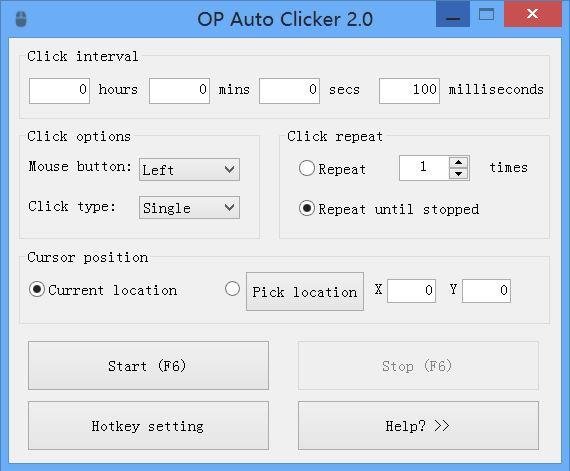
OP Auto Clicker – dedicated click automation with precise interval control
The F6 hotkey toggles clicking on and off instantly, which matters during fast-paced games. Many Minecraft and Roblox players rely on OP Auto Clicker for farming resources and repetitive combat. We compared the two tools in detail in our TinyTask vs OP Auto Clicker article if you want a deeper breakdown.
The main limitation is that OP Auto Clicker only clicks. There is no keyboard automation, no recording, and no multi-step workflow support. If your task involves anything beyond repeated single-location clicks, you will hit the ceiling fast.
Pros
- Precise interval control down to 1 ms
- Click at cursor or fixed coordinates
- Clean, modern interface
- Single hotkey toggle (F6)
Cons
- No keyboard automation
- No recording or macro support
- Fixed coordinates mode can be finicky on multi-monitor setups
GS Auto Clicker
GS Auto Clicker has been around for over a decade and remains one of the most downloaded auto clickers on the internet. The reason is simplicity — open the program, press F8, and clicks start firing at the cursor position. There is essentially nothing to configure for the basic use case.

GhostMouse auto clicker – records and replays mouse movements and clicks
Under the Options menu you can change the click interval, select single or double click, and pick between left, right, or middle mouse buttons. There is also a basic click recording feature that lets you capture a series of clicks at different positions and replay them, though it is less polished than what TinyTask offers.
GS Auto Clicker has not received updates in years, which means it looks old-fashioned and lacks modern features like randomized delays. It also requires an installer rather than running as a portable exe. Despite that, it still works fine on Windows 11 and remains a solid choice if you just want the simplest possible click automation.
Pros
- Dead-simple interface
- One-key activation (F8)
- Basic click recording built in
- Extremely low resource usage
Cons
- Requires installation
- No updates in years
- No randomized interval option
AutoClicker by Polar
AutoClicker by Polar (sometimes called Polarbyte Auto Clicker) is a no-install portable executable that does exactly one thing well: automated clicking at a set interval. The interface shows your interval field, button selection, and click mode on a single screen. Press F3 to start and stop.
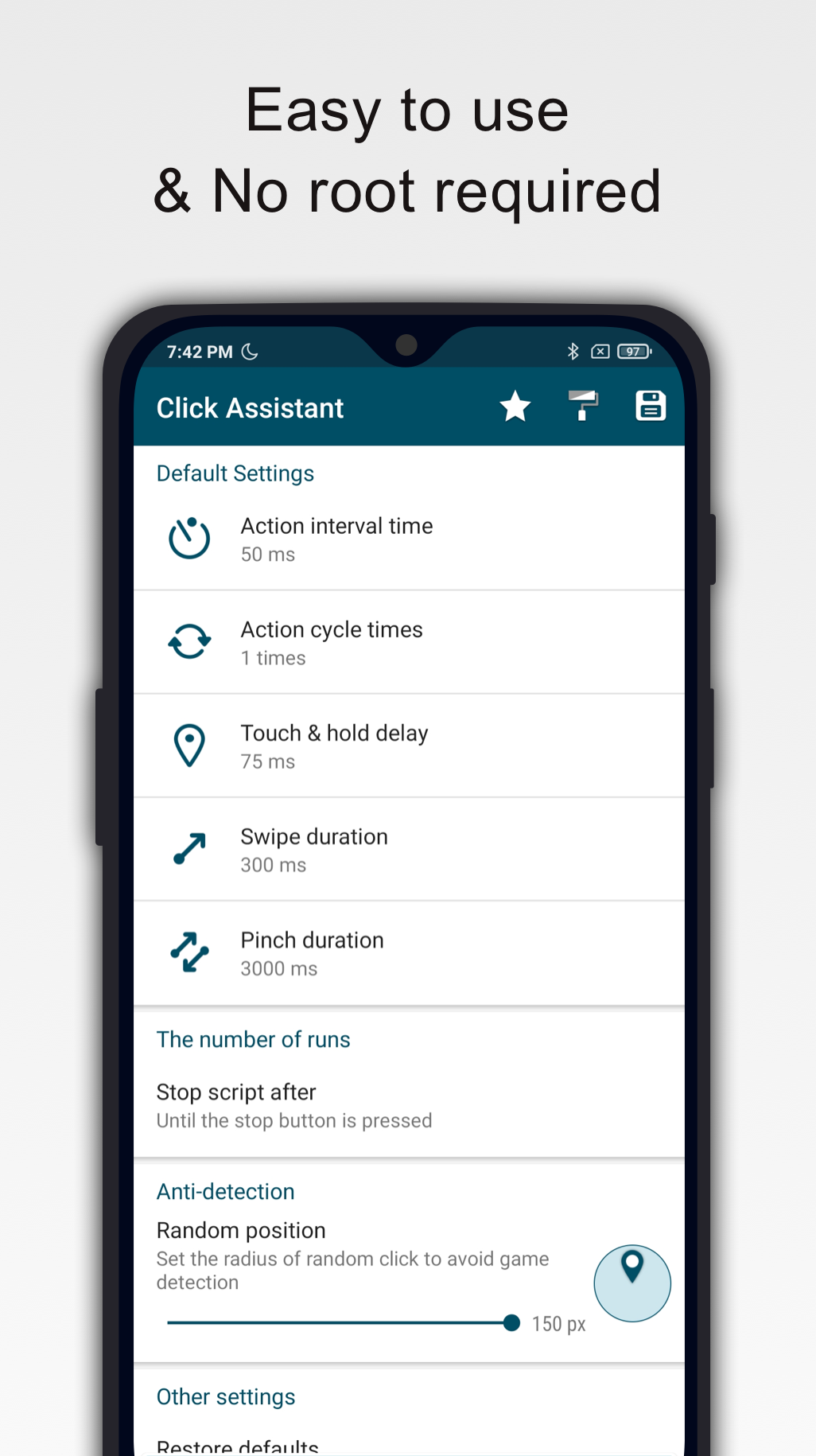
Auto Clicker Assistant – feature-rich auto clicker with multiple click modes
What makes Polar stand out is the pick-location feature. Click the crosshair icon, then click anywhere on screen, and the tool locks to those exact coordinates. This is handy for tasks where the click target never moves, like a particular button in a web app or a crafting slot in a game inventory.
The 10 ms minimum interval is higher than some competitors, so this is not the right tool if you need sub-millisecond speed. But for steady, reliable clicking at normal human speeds, it is one of the cleanest options available.
Pros
- Tiny file size (180 KB)
- Visual coordinate picker
- Clean, modern interface
- No installation needed
Cons
- 10 ms minimum interval
- No keyboard automation
- No multi-location sequences
Free Auto Clicker (Asoftech)
Free Auto Clicker by Asoftech focuses on the basics: set an interval, choose single or double click, and let it run. The interface is straightforward, with a large start/stop button and clearly labeled fields for hours, minutes, seconds, and milliseconds.
The tool works well for office scenarios like repeatedly clicking a “Next” button in a training module, navigating through multi-page PDFs, or testing web application workflows. The click-limit feature lets you set a specific number of clicks (say, 200) so the program stops automatically after reaching the target.
The installer adds a Start Menu shortcut and uses about 1.5 MB on disk. It is not the smallest or fastest tool on this list, but its simplicity and automatic stop feature make it a practical choice for structured, repetitive tasks where you know exactly how many clicks are needed.
Pros
- Click-limit auto-stop feature
- Clear, labeled interface
- Stable on Windows 10/11
Cons
- Requires installer
- No coordinate picker
- No portable version
Auto Clicker Typer
Auto Clicker Typer bundles mouse clicking and keyboard typing into a single interface. The clicker tab handles interval-based click automation with the usual controls, while the typer tab lets you define text strings that get typed automatically at a set interval. Press F1 to start and F2 to stop either mode.
This dual approach is useful for tasks where you need to both click a field and type into it. Think filling out web forms, entering data into CRM software, or sending repeated chat messages in a game. You can run the clicker and typer at the same time, which is a feature most standalone clickers simply do not offer.
The interface feels slightly crowded because it packs two tools into one window. If you only need clicking, the extra typer tab adds visual noise. But if your workflow involves both clicking and typing, this tool saves you from running two separate programs. If you need even more control over combined sequences, check out TinyTask’s macro recording approach instead.
Pros
- Click + type automation in one app
- Separate hotkeys for each mode
- Portable, no install
Cons
- Cluttered interface
- No sequence recording
- Typer only handles plain text
AlphaClicker
AlphaClicker stands out from the pack because its source code is publicly available on GitHub. That means you can inspect exactly what the program does before running it — a real advantage for security-conscious users. We covered it in depth in our AlphaClicker review.
The UI is the most polished on this list. AlphaClicker ships with five built-in themes (Light, Dark, Nature, Earth, and Glass), and you can create custom themes by editing XAML template files. Underneath the visual flair, the core features are standard: configurable click interval, left/right/middle button selection, and a hotkey toggle.
The trade-off for that modern interface is a larger file size (3.8 MB) and a requirement for .NET runtime. It also only supports Windows 10 and newer, so users on older Windows versions should look elsewhere. But if you want an auto clicker you can trust at the source-code level, AlphaClicker is the clear pick.
Pros
- Open source (MIT license, GitHub)
- Five built-in themes + custom theme support
- Modern, attractive interface
- Transparent and auditable code
Cons
- Larger download (3.8 MB)
- Requires .NET runtime
- Windows 10+ only
Fast Auto Clicker
Fast Auto Clicker does exactly what the name promises. The entire interface centers around one thing: sending mouse clicks as fast as your hardware allows. Set the clicks-per-second target, press the hotkey, and the tool hammers the screen at that rate using the Win32 SendInput API.
The raw speed is impressive. In testing, Fast Auto Clicker consistently delivered above 5,000 CPS on a mid-range machine, which far exceeds what any human could achieve. That speed matters for specific use cases like CPS testing, stress-testing UI elements, or certain automation benchmarks.
The downside is obvious: this is a single-purpose speed tool. There is no interval scheduler, no coordinate picker, no recording, and no fancy UI. If you need controlled, timed clicking, almost every other tool on this list does that better. Fast Auto Clicker exists for users who need the absolute highest click rate possible.
Pros
- Extremely high CPS capability
- Tiny portable file
- Uses efficient SendInput API
Cons
- No interval control
- No coordinate selection
- Minimal interface and features
Gary’s Hood Auto Clicker
Gary’s Hood Auto Clicker was originally built for RuneScape players, and that heritage shows. The program bundles an auto clicker, an auto typer, and a built-in calculator into one 120 KB portable file. Open the auto clicker from the menu, set your speed in seconds and milliseconds, and it clicks wherever the cursor sits.
The auto typer feature is particularly useful for MMO games where you need to send repeated chat messages. Add your message text, set the interval, and it types automatically while you focus on other gameplay. This combination of clicking and typing in one small package makes it popular with RuneScape, Roblox, and other MMO communities.
The interface is extremely retro — it was written in Visual Basic 6 and looks like a Windows XP-era utility. There are no modern UI touches and the customization options are basic. But at 120 KB with dual click+type functionality, it punches well above its weight for MMO players.
Pros
- Combined clicker + typer at 120 KB
- Purpose-built for MMO games
- Customizable hotkeys
- Fully portable
Cons
- Very dated interface
- Written in VB6
- No advanced features
Speed Auto Clicker
Speed Auto Clicker combines high click rates with a feature set that goes beyond most free tools. The standout feature is burst mode, which fires a set number of clicks followed by a rest period. For example, you can configure 20 clicks then a 500 ms pause, then 20 more clicks. This pattern mimics human behavior more closely than constant clicking, which is useful for avoiding detection in games.
Random delay ranges add another layer of realism. Instead of clicking every exactly 50 ms, you can set a range of 40-60 ms so each interval varies slightly. The live stats panel shows total clicks, active time, and real-time CPS while the clicker runs, which is handy for monitoring performance.
Speed Auto Clicker uses the SendInput engine and can push well above 50,000 CPS at maximum settings. The F6 hotkey starts clicking and Esc stops it, with both Hold and Toggle modes available. For users who want the highest possible speed with smart anti-detection features, this is the tool to pick.
Pros
- Burst mode for human-like patterns
- Random delay ranges
- Live CPS and click counter
- Extremely high max speed
Cons
- More complex setup than basic clickers
- No coordinate picker
- No keyboard automation
How to Choose the Right Auto Clicker
The best auto clicker depends entirely on your use case. Start by asking yourself what you actually need automated:
- Just single-point clicking? OP Auto Clicker or GS Auto Clicker handle this with the least friction. Set your interval and hotkey, then forget about it.
- Multi-step workflows with mouse and keyboard? TinyTask is the only tool here that records full sequences. If you need to click field A, type a value, tab to field B, type another value, and repeat — TinyTask covers it.
- Gaming with anti-detection? Speed Auto Clicker’s burst mode and random delays help avoid pattern-based detection systems. Pair that with reasonable click speeds.
- Open-source and auditable? AlphaClicker is the only MIT-licensed option. Check the code on GitHub before you run it.
- MMO-specific clicking + typing? Gary’s Hood Auto Clicker was literally built for RuneScape and similar games.
Also consider file size and portability. If you work across multiple machines or keep tools on a USB drive, portable options like TinyTask (36 KB), AutoClicker by Polar (180 KB), and Gary’s Hood (120 KB) run without installation. For a deeper comparison between macro recorders and dedicated clickers, read our AutoHotKey vs TinyTask guide.
Safety Tips for Downloading Auto Clickers
Download from official sources only. Auto clickers are a common target for malware bundlers. Many third-party download sites wrap legitimate tools in adware installers or replace executables entirely. Always download from the developer’s official website or verified sources like GitHub and SourceForge.
Scan every download. Even from trusted sources, run new executables through Windows Defender or VirusTotal before opening them. Some auto clickers trigger false-positive antivirus alerts because they simulate input — this is normal behavior for click automation tools, but always verify the file hash when possible. For more on verifying download safety, see our guide on whether TinyTask is safe.
Stick to tools with established track records and community trust. Every tool on this list has been in active use for at least two years and has thousands of downloads. Avoid auto clickers from random forum posts, especially ones that require disabling your antivirus to run.
Frequently Asked Questions
What is the best free auto clicker for Windows?
The best free auto clicker depends on your specific needs, but TinyTask earns the top spot for overall versatility. Unlike dedicated auto clickers that only repeat a single click, TinyTask records entire mouse and keyboard sequences. You can capture a series of clicks across different screen positions, add keyboard inputs between them, and replay the whole thing with a single hotkey. The 36 KB file size and portable format mean it runs on any Windows machine without installation.
For pure auto clicking without the macro recorder features, OP Auto Clicker is the most popular dedicated option. Its clean interface lets you configure click intervals down to 1 millisecond, choose between left, right, or middle button, and toggle between clicking at the cursor position or fixed coordinates. The F6 hotkey makes it especially practical during gaming sessions where quick toggling matters.
If security and transparency matter to you, AlphaClicker is the only open-source auto clicker on this list. The MIT-licensed code is available on GitHub, so you can verify exactly what the program does before running it. Read our full AlphaClicker review for a detailed breakdown of its features and theme system.
Are auto clickers safe to download?
Auto clickers from reputable sources are safe. The tools listed in this guide — TinyTask, OP Auto Clicker, GS Auto Clicker, AlphaClicker, and the others — have been downloaded millions of times and are well-established in the software community. They do not contain malware, spyware, or adware when downloaded from their official websites or verified repositories like GitHub and SourceForge.
The risk comes from unofficial download sites that repackage legitimate tools with bundled adware or trojans. Sites that wrap auto clickers in custom installers, add browser toolbars, or require you to complete surveys before downloading are red flags. Always go directly to the developer’s page. For open-source tools like AlphaClicker, download releases from the GitHub Releases tab rather than third-party mirrors.
Some antivirus programs flag auto clickers as “potentially unwanted programs” (PUPs) because they simulate mouse and keyboard input. This is a false positive — the same Windows API functions used by auto clickers are also used by accessibility tools and remote desktop software. If your antivirus blocks an auto clicker, check the file hash against the official release before adding an exception. We explain this in detail in our guide on whether TinyTask is safe to use.
Can auto clickers get you banned in games?
Yes, using auto clickers can result in temporary or permanent bans in many online games. Most multiplayer games explicitly prohibit “third-party automation software” in their terms of service. Games like Fortnite, Valorant, and League of Legends use kernel-level anti-cheat systems (Easy Anti-Cheat, Vanguard) that can detect auto clicker processes running alongside the game.
The risk varies by game and how you use the tool. Idle clicker games and single-player titles generally do not enforce anti-cheat measures. Games like Roblox and Minecraft fall somewhere in between — Roblox’s detection depends on the specific game within the platform, while Minecraft single-player worlds have no restrictions. For competitive multiplayer modes in either game, the risk increases significantly.
If you plan to use an auto clicker in a game, take precautions. Use randomized click intervals instead of fixed ones (Speed Auto Clicker’s burst mode helps with this). Keep click speeds at human-realistic levels — anything above 15-20 CPS looks suspicious to pattern detection. And always check the game’s specific rules before automating. Some games allow auto clickers for accessibility reasons but require you to register for an exemption.
What is the difference between an auto clicker and a macro recorder?
An auto clicker repeats a single mouse click (or a small set of clicks) at a fixed interval. You configure the click speed, button type, and location, then press a hotkey to start. Tools like OP Auto Clicker, GS Auto Clicker, and AlphaClicker fall into this category. They are designed for one job: clicking the same spot (or the current cursor position) over and over at a set speed.
A macro recorder captures everything you do — mouse movements, clicks at multiple positions, keyboard presses, and timing between actions. When you play back the recording, the tool reproduces your exact sequence of inputs. TinyTask is the prime example: it records your mouse path and keystrokes, saves them as a .rec file, and replays the full sequence. AutoHotKey takes this further with scripted macros.
The practical difference comes down to complexity. Need to click one button 10,000 times? An auto clicker is simpler and faster to set up. Need to click button A, type “hello”, press Tab, click button B, type a number, and repeat? That is a macro recorder task. TinyTask handles both scenarios because you can record a single-click macro just as easily as a multi-step workflow, which is why it tops our list despite being a macro recorder rather than a dedicated auto clicker. See our detailed TinyTask as auto clicker guide for setup instructions.
Do auto clickers work on Windows 11?
Every auto clicker on this list works on Windows 11. The underlying Windows API for simulating mouse input (SendInput, mouse_event) has remained consistent across Windows versions, so tools built for Windows 7 or 10 continue to function on Windows 11 without modification. We tested all 10 tools on Windows 11 23H2 and 24H2 during our review.
A few things to watch for on Windows 11 specifically. User Account Control (UAC) can block auto clickers from interacting with elevated (Run as Administrator) windows. If your auto clicker clicks do not register in a particular application, try running the auto clicker as administrator by right-clicking the .exe and selecting “Run as administrator.” This is especially common with system utilities and some game launchers.
Windows 11’s newer security features like Smart App Control may also flag unfamiliar executables on first run. Portable auto clickers without digital signatures (which includes most free tools) might show a “Windows protected your PC” warning. Click “More info” then “Run anyway” to proceed. This is a generic warning for unsigned software, not an indication of malware. AlphaClicker avoids this issue because you can build it from source via GitHub if the pre-built release gets flagged.
Which auto clicker has the fastest click speed?
Speed Auto Clicker and Fast Auto Clicker deliver the highest raw click rates among the tools reviewed here. Speed Auto Clicker uses an optimized SendInput engine and can reach above 50,000 CPS at maximum settings. Fast Auto Clicker also uses SendInput and consistently delivers 5,000+ CPS on standard hardware, with theoretical maximums that depend on your system’s input processing speed.
In practice, click speeds above a few hundred CPS rarely matter for real-world tasks. Most applications and games process input on a per-frame basis (typically 30-144 frames per second), so clicking at 50,000 CPS does not produce 50,000 actual actions in the target application. The excess clicks simply get dropped. For gaming, speeds between 10-20 CPS are usually sufficient and look more natural to anti-cheat systems.
Where extreme speed does matter is in CPS testing and benchmarking, UI stress testing during software development, and specific automation scenarios where the target application has a very high input polling rate. For most users, OP Auto Clicker’s 1 ms minimum interval (roughly 1,000 CPS) provides more than enough speed with a much simpler interface. The “fastest” tool is only the best tool if raw speed is genuinely your bottleneck.
Can I use an auto clicker for Roblox?
You can technically run an auto clicker while playing Roblox, and many players do. Auto clickers are commonly used in Roblox for idle tycoon games, pet simulators, and other games that reward repeated clicking. The auto clicker runs as a separate Windows process and sends mouse clicks to whatever window is in the foreground, including the Roblox client.
The risk depends on the specific Roblox game and its developer’s policies. Roblox itself does not have a universal auto clicker ban. Instead, individual game developers can implement their own anti-cheat detection within their games. Some popular tycoon games actively scan for automated clicking patterns (perfectly uniform intervals are the main tell), while many casual games have no detection at all. Competitive games with leaderboards tend to enforce stricter anti-automation rules.
To reduce detection risk in Roblox, use tools with randomized click intervals rather than fixed timing. Speed Auto Clicker’s burst mode and random delay feature is good for this. TinyTask also works well because recorded macros naturally include slight timing variations from your original recording. We wrote a full guide on the best auto clickers for Roblox that covers safe settings, recommended tools, and which types of Roblox games are safe to automate.
Are auto clickers legal?
Auto clickers are completely legal to download, install, and use. They are standard software utilities that automate mouse input using documented Windows APIs. No country or jurisdiction classifies auto clicker software as illegal. Millions of people use them daily for productivity, accessibility, software testing, and gaming.
Where legality gets nuanced is in how you use an auto clicker. Using one to automate your own workflow — clicking through spreadsheets, filling forms, running software tests — is perfectly fine. Using one in a competitive online game may violate that game’s terms of service, which could lead to an account ban. But a terms-of-service violation is a contractual matter between you and the game publisher, not a legal issue. You will not face fines or criminal charges for using an auto clicker in a game.
The one gray area involves using auto clickers for ad fraud (automatically clicking ads to generate fake revenue) or to manipulate online voting systems. These activities can violate computer fraud laws depending on your jurisdiction, but the issue is the fraudulent intent rather than the auto clicker itself. For standard personal use — whether gaming, testing, or productivity — auto clickers are entirely legal and widely accepted.
What is the smallest auto clicker for Windows?
TinyTask holds the record at just 36 KB — smaller than most website images. Despite that minimal footprint, it functions as a full macro recorder with mouse and keyboard capture, playback speed control, and the ability to export recordings as standalone executables. No other tool on this list comes close to that combination of size and functionality.
The next smallest options are Gary’s Hood Auto Clicker at 120 KB (which includes both clicker and typer functionality) and AutoClicker by Polar at 180 KB. All three are portable executables that run without installation, making them ideal for USB drives or machines where you cannot install software. You can carry TinyTask, Gary’s Hood, and Polar on a flash drive and still use less than 340 KB combined.
File size matters more than people think. Smaller executables load faster, leave no registry traces, and are easier to verify for security. TinyTask’s 36 KB file is simple enough that security researchers can analyze the entire binary in minutes. Compare that to tools like AlphaClicker (3.8 MB) that require .NET runtime and additional dependencies. For users who value minimalism and portability, download TinyTask here.
How do I stop an auto clicker once it starts?
Every auto clicker on this list has a designated stop hotkey. The most common ones are: F6 for OP Auto Clicker and Speed Auto Clicker (same key toggles on and off), F8 for GS Auto Clicker, F3 for AutoClicker by Polar, Esc as a universal stop in Speed Auto Clicker, and Ctrl+Shift+P for TinyTask’s playback toggle. Always note the stop hotkey before starting any auto clicker — clicking at high speeds can make it difficult to interact with the program’s UI.
If the hotkey does not respond (which can happen when the auto clicker is clicking at very high speeds and consuming input focus), use Ctrl+Alt+Delete to open the Windows security screen. This interrupts all foreground input and lets you open Task Manager. From there, find the auto clicker process and click “End Task.” On Windows 11, you can also use Ctrl+Shift+Esc to open Task Manager directly.
A smarter approach is to set a click limit before starting. Tools like Free Auto Clicker (Asoftech) and OP Auto Clicker let you specify a maximum number of clicks. After hitting that number, the program stops automatically. TinyTask’s macros also have a natural end point since they replay a finite recording. For any auto clicker without a built-in limit, always test at a low speed first before ramping up to avoid the runaway-clicking problem. Check our how to use TinyTask guide for step-by-step setup and stopping instructions.
Conclusion
Each of these 10 auto clickers fills a different niche. TinyTask wins the overall pick because its macro recording approach handles everything from simple repeated clicks to complex multi-step workflows, all in a 36 KB portable file. OP Auto Clicker remains the best pure auto clicker for gaming. AlphaClicker is the right choice for anyone who insists on open-source transparency.
For platform-specific recommendations, we also cover the best auto clicker browser extensions, auto clickers for Mac, auto clickers for Linux, and auto clickers for iPhone. If you want to see how TinyTask stacks up against scripting tools, read our AutoHotKey vs TinyTask comparison.
Ready to automate your clicks? Download TinyTask — 36 KB, portable, no installation. Works on every Windows version from XP to 11.