
TinyTask for Mobile: Android and iPhone Alternatives (2026)
If you have been searching for “TinyTask mobile download” or “TinyTask APK for Android,” here is the short answer: it does not exist. TinyTask is a Windows-only macro recorder – a 36 KB portable executable that hooks into the Windows API to capture mouse and keyboard input. There is no TinyTask mobile app, no official APK, and no iOS version. The developer has never announced plans to build one.
But that does not mean you cannot automate taps, swipes, and repetitive actions on your phone. Android has several macro recording apps that replicate what TinyTask does on Windows – some of them are honestly better suited for touchscreen automation than TinyTask ever was for desktop. This guide covers the seven best TinyTask alternatives for Android and iPhone, with real setup instructions, honest comparisons, and answers to every question people actually ask about mobile macro recording.
Why TinyTask Does Not Work on Mobile
TinyTask records mouse coordinates and keyboard keypresses by interfacing with the Windows API at the operating system level. It captures raw input events – where your cursor moved, what keys you pressed, the exact timing between actions – and saves them as a compiled .rec file or standalone .exe that replays those inputs.
Android and iOS use completely different input architectures. Android runs on a Linux kernel with its own input event system, and touchscreen interactions (taps, swipes, pinch-to-zoom, long presses) have no direct equivalent in Windows mouse events. A single Android “tap” involves touch-down coordinates, pressure data, contact area, and touch-up timing – none of which TinyTask’s .rec format can represent.
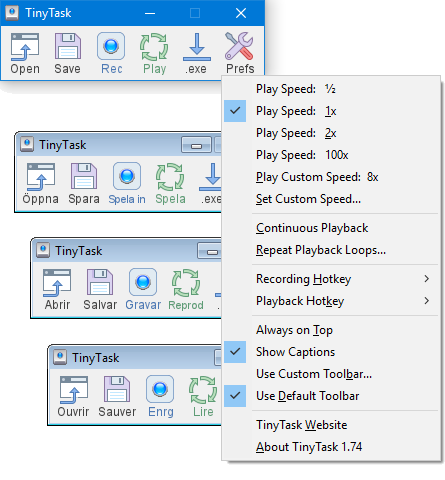
TinyTask’s Windows interface with context menu – this relies on the Windows API and cannot run on mobile
Even if you tried running TinyTask through a Windows emulator on Android (Wine, ExaGear, or similar), the mouse movements would not translate to meaningful touch events. You would drain your battery running a full Windows compatibility layer just to replay inputs that cannot interact with Android apps. It is a dead end.
Good news: Android’s Accessibility Service API gives third-party apps the ability to simulate touches, read screen content, and automate interactions in ways that are actually designed for touchscreens. The apps below use this API to deliver TinyTask-style record-and-playback on mobile.
7 Best TinyTask Alternatives for Android (2026)
I tested all of these on a Pixel 7 running Android 14 and a Samsung Galaxy S23 on Android 13. Every app listed works without root access and is available on the Google Play Store. Here is how they stack up.
1 MacroDroid – Best Overall TinyTask Replacement
MacroDroid is the app I recommend to anyone who asks “what is TinyTask for Android?” It uses a trigger-action-constraint system that is more flexible than TinyTask while still being approachable for beginners. You pick a trigger (button press, app launch, time, location, NFC tag), define actions (tap coordinates, swipe, type text, open app, toggle settings), and optionally add constraints (only run when connected to Wi-Fi, only between 9am-5pm).
The UI Interaction feature is the closest match to TinyTask’s record button. You tap “Pick Point” to select exact screen coordinates, then chain multiple taps together with wait times between them. MacroDroid replays these tap sequences reliably even across app switches.
Where MacroDroid pulls ahead of TinyTask: it has over 80 trigger types, conditional logic (if/then/else branching), variables, and a community template library with thousands of shared macros you can import. The free version limits you to 5 active macros, but the Pro unlock is a one-time $4.99 purchase with no subscription.
2 Touch Recorder (Macro Clicker) – Closest to TinyTask’s Simplicity
If TinyTask’s appeal was always “hit record, do stuff, hit stop, hit play” – Touch Recorder is the direct mobile equivalent. No flowcharts, no trigger systems, no configuration screens. You tap the record button, perform your actions on screen, stop recording, and play it back. That is the entire app.
It captures touch coordinates, swipe paths, and timing with enough precision to work for most repetitive tasks. You can adjust playback speed (faster or slower than the original recording), set loop counts, and merge multiple recordings into one sequence. The interface is bare-bones in a way that feels intentional rather than lazy – it does one thing and does it well.
The main limitation: no conditional logic, no triggers, no app-awareness. It just replays touches at fixed coordinates. If a dialog box pops up or an app layout shifts, the macro will tap the wrong spot. For simple, predictable tasks (daily check-ins, form filling, repetitive tapping), it works great. For anything dynamic, look at MacroDroid or Tasker instead.
3 Clickmate – Auto Clicker Macro
Clickmate combines two tools in one: a straightforward auto clicker (tap a fixed point at set intervals) and a full macro recorder (capture and replay complex touch sequences). The auto clicker mode is what most people use it for – you place a floating button on screen, set the tap interval (as fast as 10 milliseconds between clicks), and let it run.
The macro recording mode captures taps, swipes, and multi-finger gestures. You get a floating control panel that stays on top of other apps, so you can start and stop recording without switching away from what you are automating. Clickmate also supports “combo mode” where you define multiple tap points that fire simultaneously or in rapid sequence.
I found Clickmate particularly good for mobile games – idle clickers, Roblox auto-farming, cookie clicker games, and similar repetitive tapping scenarios. The 10ms tap interval is fast enough for most games, and the floating overlay means you can monitor the game while the macro runs.
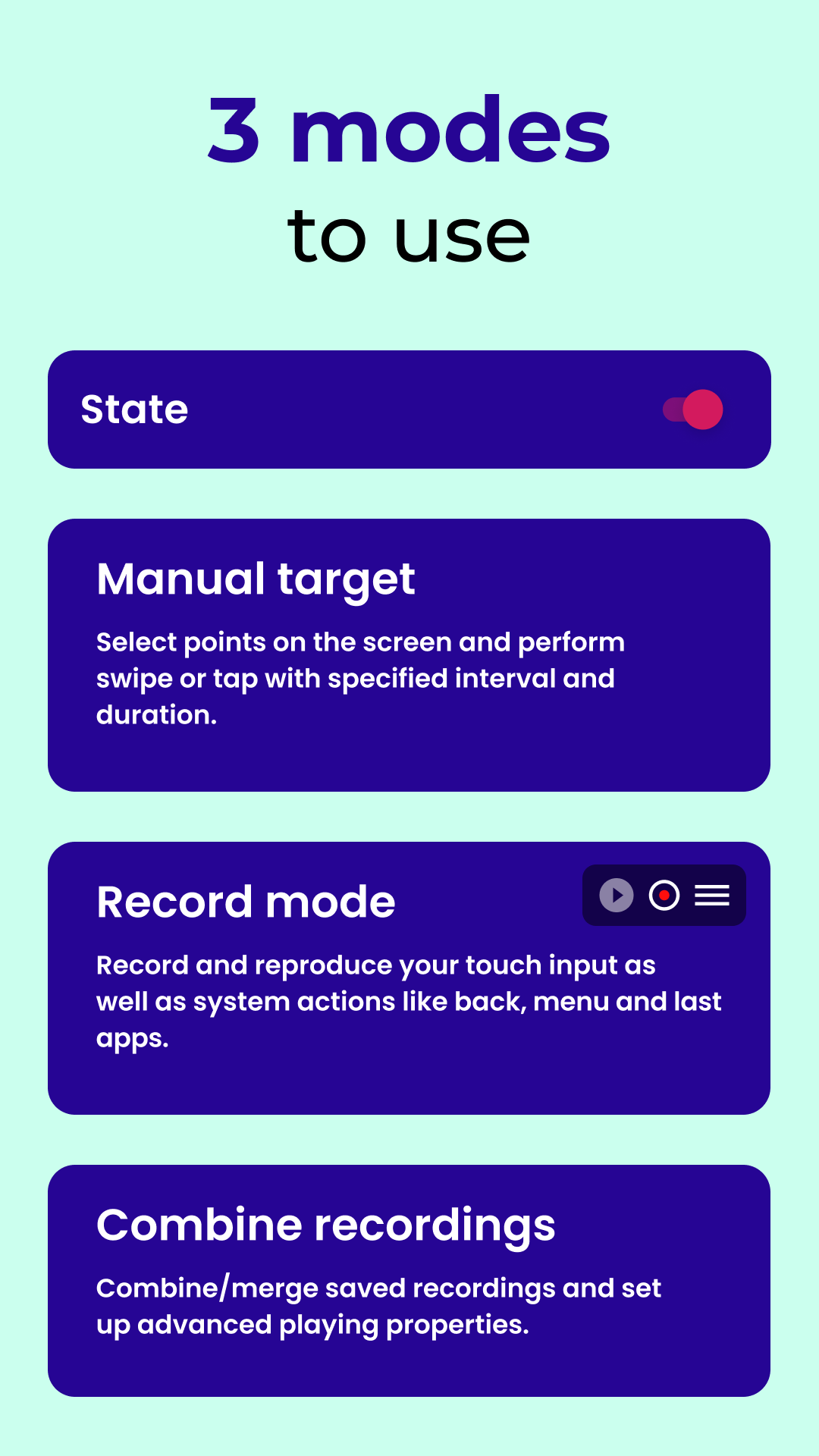
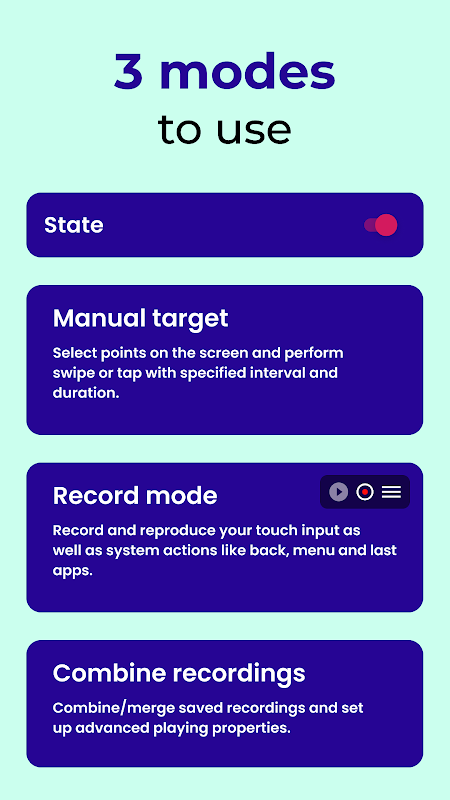
Clickmate’s floating overlay (left) and macro recording interface (right)
4 Android Macro – Auto Clicker (with Image Recognition)
This is the app for people who found TinyTask’s coordinate-based recording too fragile. Android Macro adds image and text recognition to the macro recording process. Instead of tapping at fixed screen coordinates (which break if the layout shifts), you can tell it “tap on the button that looks like this” or “tap on the text that says ‘Accept’.” The macro finds the element visually, regardless of where it appears on screen.
It uses a block-based visual editor – you drag and connect action blocks to build your automation flow. Blocks include tap, swipe, wait, find image, find text, if/else conditions, loops, and variables. The image matching is surprisingly accurate, even with slight visual variations between runs.
The downside is complexity. This is not a “record and play” app. You are building automation scripts visually, which takes more time upfront. But the macros you create are far more reliable than coordinate-based recordings, especially for tasks where screen elements move around.
5 Tasker – Most Powerful (for Power Users)
Tasker is the Android automation app that can do practically anything, but it takes real effort to learn. It has over 400 built-in actions covering everything from screen interaction to HTTP requests to file manipulation. For TinyTask-style tap recording, you need the AutoInput plugin ($1.49 extra) which adds touch simulation, gesture recording, and UI element interaction.
Once you have AutoInput installed, Tasker can record screen taps, replay them on a trigger, and handle edge cases through conditional logic. The real power comes from combining touch automation with everything else Tasker can do: send a notification when the macro finishes, log results to a file, retry if something fails, adjust behavior based on time of day or network status.
I would not recommend Tasker to someone who just wants to automate a few taps. The learning curve is steep enough that you will spend more time configuring Tasker than you would save on the task you are automating. But if you are the kind of person who used AutoHotkey or Python scripts alongside TinyTask on Windows, Tasker is your Android equivalent.
6 Automate – Visual Flowchart Automation
Automate takes a different approach from record-and-play. You build automation flows using a visual flowchart editor – each node represents an action (tap, swipe, open app, wait, check condition), and you connect them with arrows to define the execution order. It has over 350 building blocks covering touch interaction, app control, system settings, messaging, file operations, and more.
The flowchart approach has a real advantage over TinyTask-style recording: your macros are not tied to exact pixel coordinates or timing. You can build flows that adapt to different screen states, retry actions that fail, and handle unexpected pop-ups. The community library has thousands of pre-built flows you can download and modify.
7 Auto Clicker – Automatic Tap
This is the most downloaded auto-clicker on the Play Store, and for good reason – it does exactly one thing with zero friction. You place floating tap targets anywhere on your screen, set the interval (from 1 millisecond to hours), and hit start. Multiple tap targets can run simultaneously, each with independent timing.
It does not record macros or replay touch sequences. It is purely an auto-tapper. But if your use case is “I need to tap this spot every X seconds,” nothing is faster to set up. The 50+ million download count speaks for itself – most people searching for TinyTask on Android just want automated tapping, and this delivers it with minimal hassle.
TinyTask Android Alternatives – Full Comparison
| Feature | TinyTask (Win) | MacroDroid | Touch Recorder | Clickmate | Android Macro | Tasker | Automate | Auto Clicker |
|---|---|---|---|---|---|---|---|---|
| Record & replay | Yes | Yes | Yes | Yes | Visual editor | Yes (plugin) | Flowchart | No |
| Auto-click mode | No | Yes | No | Yes | Yes | Yes | Yes | Yes |
| Image recognition | No | No | No | No | Yes | Yes (plugin) | No | No |
| Conditional logic | No | Yes | No | No | Yes | Yes | Yes | No |
| Triggers | No | 80+ types | No | No | Limited | Yes | Yes | No |
| Speed adjust | Yes | Yes | Yes | Yes | Yes | Yes | Yes | Yes |
| Root required | N/A | No | No | No | No | No | No | No |
| Price | Free | Free / $4.99 | Free | Free | Free / IAP | $4.49 | Free / Prem. | Free |
| Difficulty | Easy | Easy-Med | Easy | Easy | Med-Hard | Hard | Medium | Easy |
TinyTask Mobile for iPhone and iPad
iOS is significantly more restrictive than Android when it comes to touch automation. Apple does not allow third-party apps to use an Accessibility Service equivalent to simulate touches in other apps. This means there is no true TinyTask replacement for iPhone.
Your iOS Options
-
Apple Shortcuts: Automate workflows across apps (open URLs, send messages, toggle settings), but cannot record or replay screen taps. Good for app-level automation, not touch-level automation.
-
Switch Control: A built-in iOS accessibility feature (Settings > Accessibility > Switch Control) that can create simple tap sequences called “recipes.” Limited to basic tap patterns and designed for users with motor disabilities, but some people use it for basic auto-tapping.
-
AssistiveTouch Custom Gestures: iOS lets you save custom gestures (Settings > Accessibility > Touch > AssistiveTouch > Create New Gesture) and replay them. You can record a sequence of taps and swipes, then trigger them from the AssistiveTouch menu. Limited to short gestures (about 10 seconds max recording time), but useful for quick repetitive actions.
If tap automation is a priority for you, Android is the better platform. The Accessibility Service API gives Android apps the tools they need to genuinely simulate touch input, while iOS deliberately blocks this for security reasons.
How to Set Up a Macro Recorder on Android (Step-by-Step)
Here is a complete walkthrough using MacroDroid, the app I recommend for most users. The process is similar across other macro apps, but the specific menus and options differ.
1 Install MacroDroid and Grant Permissions
Download MacroDroid from the Google Play Store (about 25 MB). On first launch, it will walk you through three permission requests:
- Accessibility Service: Go to Settings > Accessibility > Installed Services (or Downloaded Apps on Samsung) > MacroDroid, then toggle it on. This lets the app simulate screen taps.
- Battery Optimization: Tap “Allow” when asked to disable battery optimization for MacroDroid. Without this, Android will kill the app in the background and your macros will stop mid-execution.
- Display Over Other Apps: This permission lets MacroDroid show its floating control button on top of other apps.
Samsung users: Also add MacroDroid to the “Never Sleeping Apps” list: Settings > Battery > Background Usage Limits > Never Sleeping Apps. Samsung’s battery management is aggressive enough to kill macro apps within minutes otherwise.
2 Create Your First Macro
Tap the “+” button on MacroDroid’s home screen to create a new macro. You will see three sections to configure:
- Trigger: What starts the macro. For quick testing, choose “Shortcut Launched” (creates a home screen shortcut) or “Floating Button” (adds an always-visible button). For scheduled automation, use “Time Trigger” and set the exact time and days.
- Actions: What the macro does. For TinyTask-style tap replay, go to Device Actions > UI Interaction > Click. Tap “Pick Point” to select the exact screen coordinate. Add multiple click actions in sequence, with “Wait” actions between them to control timing (usually 500ms-2000ms between taps).
- Constraints (optional): Conditions that must be true for the macro to run. Useful for adding safety checks like “only run when this specific app is in the foreground.”
3 Test and Refine
Name your macro, tap Save, and trigger it. Watch the first run carefully – taps may land slightly off-target if the app you are automating scrolls or shifts layout. Adjust coordinates by editing the Click actions and using “Pick Point” again.
For looping (repeating the same action sequence), wrap your actions in a “Repeat” block and set the repeat count. You can also use “Repeat While” with a condition to loop until something specific happens.
Pro tip: For idle games and auto-clickers, use MacroDroid’s “Repeat” action with a single Click inside it. Set the repeat interval to 50-100 milliseconds for rapid tapping. This is faster and more battery-efficient than recording a long sequence of individual taps.
Troubleshooting Android Macro Apps
Macro apps on Android run into a predictable set of problems. Here are the fixes for the most common ones.
Macro stops when the screen locks
Android kills background processes to save battery. The fix depends on your phone brand:
- Samsung: Settings > Battery > Background Usage Limits > Never Sleeping Apps. Add the macro app.
- Xiaomi/MIUI: Settings > Apps > Manage Apps > [macro app] > Battery Saver > No Restrictions. Also enable “Autostart.”
- Huawei/EMUI: Settings > Battery > App Launch > [macro app] > toggle off “Manage Automatically” and enable all three options manually.
- OnePlus/OxygenOS: Settings > Battery > Battery Optimization > [macro app] > Don’t Optimize.
- Pixel/Stock Android: Settings > Apps > [macro app] > Battery > Unrestricted.
Taps land on the wrong spot
This happens when the screen orientation or resolution changes between recording and playback. Always record and replay in the same orientation (portrait or landscape). If you are using a macro recorded on one phone and replaying on a different device, the coordinates will not match – you need to re-record.
Also check if the target app uses dynamic layouts that shift elements based on content. If a notification banner pushes content down, your taps will hit the wrong element. The fix is either to dismiss notifications before running the macro or to use image recognition (Android Macro app) instead of fixed coordinates.
Accessibility permission keeps turning off
Some Android manufacturers reset Accessibility Service permissions after system updates or restarts. Xiaomi and Huawei are the worst offenders. The workaround: after granting the Accessibility permission, lock the macro app in your recent apps tray (long-press the app card and tap the lock icon). On Xiaomi, also go to Settings > Additional Settings > Accessibility and enable “Accessibility shortcut” for the macro app.
Macro app crashes during playback
Usually caused by overlay conflicts. Disable other apps that use screen overlays: screen dimming apps (Twilight, Night Shift), floating widgets, chat bubbles, and screen recording tools. Only one app should use the display overlay at a time. If the crash persists, clear the macro app’s cache (Settings > Apps > [app] > Storage > Clear Cache) and try again.
Is There a TinyTask APK Download?
Warning: Any website offering a “TinyTask APK” or “TinyTask mobile APK download” is distributing software that is not made by the TinyTask developer. The original TinyTask by Vista Software is a Windows-only application distributed as a single 36 KB .exe file. There has never been an Android port.
APK files claiming to be TinyTask for Android are either:
- Repackaged versions of other macro apps with TinyTask’s name slapped on them
- Adware or malware wrapped in a familiar brand name
- Empty shell apps that do nothing
Stick to the Google Play Store for your macro recording apps. Every app in this guide is available there, verified by Google Play Protect, and regularly updated by active developers.
If you need TinyTask itself for Windows, grab it from our download section – it is the official 36 KB portable executable, version 1.77.
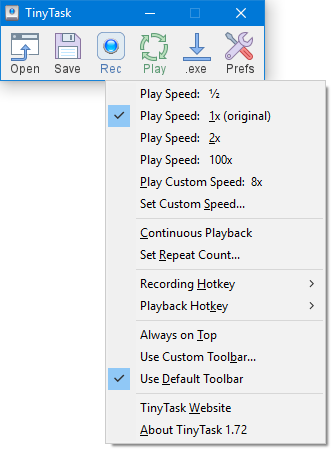
TinyTask playback settings on Windows – for mobile automation, use the Android alternatives listed above
Frequently Asked Questions
Is there a TinyTask app for Android?
No, TinyTask does not have an Android app. TinyTask is exclusively a Windows desktop application created by Vista Software. It runs as a portable 36 KB .exe file that uses the Windows API to record and replay mouse and keyboard inputs. Since Android uses a completely different operating system architecture with touchscreen input instead of mouse events, TinyTask cannot function on Android even through emulation.
The closest Android equivalent is MacroDroid, which replicates TinyTask’s core record-and-playback functionality using Android’s Accessibility Service to simulate touch events. Other options include Touch Recorder for pure simplicity, Clickmate for auto-clicking in games, and Tasker with the AutoInput plugin for advanced automation. All of these are available free on the Google Play Store and work without rooting your device.
Can I run TinyTask on my phone using an emulator?
Technically possible, practically useless. You could install a Windows emulator like Wine or ExaGear on Android and run TinyTask inside it, but the results would be disappointing. TinyTask records mouse cursor positions and keyboard keypresses – neither of which translates meaningfully to touchscreen taps and swipes. The emulated mouse movements would not interact with your actual Android apps, only with programs running inside the emulator itself.
Windows emulators on Android also consume significant resources. Expect 500MB+ of RAM usage, heavy battery drain, and sluggish performance on anything but high-end phones. You would spend more time wrestling with the emulator than you would save by automating tasks.
Native Android macro apps (MacroDroid, Touch Recorder, Clickmate) use Android’s built-in Accessibility Service to simulate real touch events. They interact directly with your Android apps, use minimal battery, and work instantly after installation. There is no practical reason to use an emulator for this.
Which TinyTask alternative for Android is best for Roblox?
For Roblox auto-farming on Android, Clickmate is the most popular choice. Its auto-clicker mode lets you place tap targets on the screen and set intervals as low as 10 milliseconds, which handles most Roblox clicking tasks. The macro recording mode captures full action sequences including swipes and multi-point taps for more complex farming routes.
MacroDroid is a solid second option because it can trigger macros automatically when Roblox launches (using the “Application Launched” trigger), and its conditional logic lets you build smarter scripts that handle in-game pop-ups or disconnection screens. Set a trigger for the Roblox app, add a loop of Click actions at your farming coordinates, and add a “Wait Before Next” of 50-100ms between taps.
Do Android macro recorder apps need root access?
No. All seven apps listed in this guide work without root access on Android 7.0 (Nougat) and later. They rely on Android’s Accessibility Service API, which is a standard system permission available on all Android devices. You grant this permission during app setup through your phone’s Accessibility settings – it does not require unlocking the bootloader, installing custom firmware, or voiding your warranty.
Root access does unlock additional capabilities for some apps. Tasker with root can interact with system-level settings that are normally off-limits. MacroDroid with root gains access to a few extra actions like toggling mobile data directly. But for basic tap recording and playback – the core TinyTask-equivalent functionality – root is not needed.
The Accessibility Service permission is powerful enough that Google Play Protect monitors apps that request it. Stick to well-known apps from the Play Store (MacroDroid, Tasker, Clickmate) rather than sideloading APKs from unknown sources.
Are Android macro recording apps safe to use?
The apps listed in this guide are safe when installed from the Google Play Store. MacroDroid has over 20 million downloads and has been on the Play Store since 2013. Tasker has over 10 million downloads and an active developer who publishes changelogs for every update. Auto Clicker has over 50 million downloads. These are established, well-maintained apps verified by Google Play Protect.
The Accessibility Service permission that these apps require is worth understanding, though. It allows the app to observe screen content, detect UI elements, and simulate touch events – the same capabilities that make macro recording possible also mean the app could theoretically read sensitive information on screen. This is why you should only install macro apps from developers you trust, and only from the Google Play Store where Google reviews apps for policy compliance.
Avoid sideloading APK files from random websites that claim to offer “TinyTask for Android” or “TinyTask APK download.” These are not legitimate TinyTask products and may contain adware, spyware, or other malicious code.
Can I use TinyTask on iPhone or iPad?
No. TinyTask is a Windows-only application, and Apple’s iOS does not allow third-party apps to simulate touch events in other apps. Unlike Android’s Accessibility Service, iOS has no public API for touch automation by third-party developers. This is a deliberate security decision by Apple.
Your iOS alternatives are limited but usable for basic automation: Apple Shortcuts handles app-level workflows (open URLs, send messages, toggle settings). AssistiveTouch Custom Gestures (Settings > Accessibility > Touch > AssistiveTouch > Create New Gesture) lets you record and replay short touch sequences up to about 10 seconds. Switch Control recipes can automate simple tap patterns for accessibility purposes.
None of these match the full record-and-replay capability of TinyTask or Android macro apps. If touch automation is a primary need, Android devices offer significantly more flexibility through the Accessibility Service API.
What is the best free auto clicker for Android?
For pure auto-clicking (tapping a single point repeatedly), Auto Clicker – Automatic Tap is the best free option with over 50 million downloads. You place floating tap targets on screen, set the interval, and start. It is dead simple and completely free, though ad-supported.
For auto-clicking plus macro recording, Clickmate is the best free choice. It handles both single-point auto-clicking (as fast as 10ms intervals) and full touch sequence recording in one app. The macro recording mode captures taps, swipes, and multi-finger gestures.
MacroDroid is free for up to 5 active macros, which is enough for most auto-clicking needs. If you want unlimited macros, the Pro upgrade is a one-time $4.99 payment with no subscription. Touch Recorder is also completely free and ad-supported, offering straightforward record-and-replay without extras.
How do I automate taps on Android without root?
Install a macro app from the Google Play Store (MacroDroid, Clickmate, or Touch Recorder are the easiest), grant it Accessibility Service permission when prompted, and start recording or setting up tap points. No root access needed – the Accessibility Service API handles touch simulation on stock Android 7.0 and above.
The quickest setup path: install Clickmate, grant Accessibility and Overlay permissions, tap the floating button that appears on screen, choose “Auto Click” mode, place your tap target, set the interval (100ms for fast tapping, 1000ms for once-per-second), and tap Start. The entire process takes about 60 seconds from install to running automation.
For recording complex sequences (multiple taps and swipes in order), install Touch Recorder or MacroDroid. Open the app, hit the Record button, perform your actions on screen normally, then hit Stop. Play it back immediately or save it for later. Both apps support adjustable playback speed and loop counts.
MacroDroid vs Tasker – which should I use?
MacroDroid if you want to get things done quickly. Tasker if you want maximum control and do not mind a learning curve. That is the honest breakdown.
MacroDroid uses a clean three-panel interface (triggers, actions, constraints) that makes sense within minutes. Most users can build a working tap automation macro in their first session. It covers 90% of what people need from a TinyTask replacement: tap recording, auto-clicking, scheduled triggers, basic conditional logic, and looping. The free version supports 5 macros.
Tasker has over 400 actions, supports variables, regular expressions, JavaScript, HTTP requests, file operations, and plugin extensions. It can do things MacroDroid cannot: interact with web APIs, parse JSON responses, execute shell commands, and build entire mini-applications. But the interface is dense, documentation assumes technical knowledge, and simple tasks take more steps to configure.
If you used TinyTask on Windows because it was simple, go with MacroDroid. If you used AutoHotkey or Python scripts alongside TinyTask, you will appreciate Tasker’s power.
Can I transfer TinyTask macros from my PC to my phone?
No. TinyTask saves macros as .rec files that contain Windows mouse coordinates, keyboard scancodes, and timing data specific to the Windows input system. Android macro apps use completely different data formats based on touchscreen coordinates, gesture types, and Accessibility Service events.
There is no converter or compatibility layer between TinyTask .rec files and any Android macro format. You will need to recreate your macros from scratch using an Android macro app. The workflow is usually similar though – if your TinyTask macro clicked through a specific sequence of buttons, you can replicate that by recording the same button sequence in MacroDroid or Touch Recorder on your phone.
For users who rely heavily on TinyTask on Windows and want similar automation on their phone, MacroDroid is the easiest transition. Its “pick and tap” approach to building macros is conceptually similar to TinyTask’s record-and-play, just adapted for touchscreens.